EasyManua.ls Logo

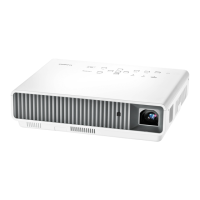
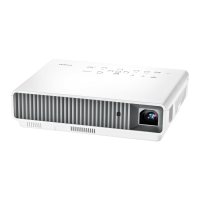
Casio XJ-M255 - User Manual

Casio XJ-M255
69 pages
Print Icon
To Next Page IconTo Next Page
Loading...
1
DATA PROJECTOR
XJ-M145/XJ-M155/
XJ-M245/XJ-M255
Data Projector
USB Function Guide
z Be sure to read the precautions in the separate Setup Guide.
z Be sure to keep all user documentation handy for future reference.
z To obtain the latest version of this manual visit the website at the URL below.
http://www.casio.com/support/
z Microsoft, Windows, Windows Vista and PowerPoint are registered trademarks or trademarks of
Microsoft Corporation in the United States and other countries.
z ArcSoft and the ArcSoft logo are trademarks or registered trademarks of ArcSoft, Inc. in the
United States and other countries.
z Macintosh, Mac OS and QuickTime are trademarks or registered trademarks of Apple, Inc. in the
United States and other countries.
z Other company and product names may be registered product names or trademarks of their
respective owners.
z The contents of this manual are subject to change without notice.
z Copying of this manual, either in part or its entirety, is forbidden. You are allowed to use this
manual for your own personal use. Any other use is forbidden without the permission of CASIO
COMPUTER CO., LTD.
z CASIO COMPUTER CO., LTD. shall not be held liable for any lost profits or claims from third
parties arising out of the use of this product, the included software or this manual.
z CASIO COMPUTER CO., LTD. shall not be held liable for any loss or lost profits due to loss of
data due to malfunction or maintenance of this product, or any other reason.
z The sample screens shown in this manual are for illustrative purposes only, and may differ
somewhat from the screens actually produced by the product.
E
D


Other manuals for Casio XJ-M255

Questions and Answers

  • J
    jsandersSep 12, 2025
    Why image files do not appear in file menu on Casio XJ-M255?
    • J
      Jamie PollardSep 12, 2025
      If image files aren't showing up in the file menu of your Casio Projector, it could be because the Viewer is in the wrong mode. To fix this, make sure you're in Slide Mode. To enter Slide Mode, highlight 'Slides' on the main Viewer window and press the [ENTER] key. Also, ensure that your image files are in a compatible format. Image files need to have the following file name extensions: .jpg, .jpeg, .jpe, or .bmp.
  • T
    Troy JohnsonSep 10, 2025
    What to do if some files are not displayed on Casio Projector?
    • M
      Michelle PorterSep 12, 2025
      If some folders or files are not displayed in the file menu of your Casio Projector, try reducing the number of folders and files in the folder.
  • T
    Traci BrownSep 9, 2025
    What to do if Casio Projector does not recognize multiple USB devices?
    • M
      mvaldezSep 9, 2025
      When using a USB hub or card reader with your Casio Projector, connect memory devices while ensuring that no more than four drives are connected. Some devices may not be recognized if too many are connected.
  • C
    Christopher HernandezSep 8, 2025
    Why digital camera memory contents do not appear on Casio Projector?
    • D
      Daniel SmithSep 8, 2025
      If the digital camera memory contents do not appear when you connect your digital camera to the Casio Projector via USB, the digital camera’s USB mass storage class setting may not be configured correctly, or you may need to perform some operation on the camera. Consult the user documentation for your digital camera for information about the required settings and operations. It is also possible that the digital camera may not support USB mass storage class. If it does not, you will not be able to use Viewer to view digital camera memory contents.
  • C
    cnielsenAug 23, 2025
    How to fix a Casio XJ-M255 Projector when the power does not turn on?
    • J
      Joseph Tucker DDSAug 23, 2025
      If the POWER/STANDBY indicator is not lit, ensure the AC power cord is correctly connected. If the TEMP or LIGHT indicator remains flashing or lit, consult the “Error Indicators and Warning Messages” in the User’s Guide.
  • O
    Olivia OwensSep 6, 2025
    Why ECA files do not appear on Casio XJ-M255 Projector?
    • Z
      Zachary SmithSep 6, 2025
      If ECA files converted from PowerPoint files using EZ-Converter FA do not appear in the file menu on your Casio Projector, Viewer may be in a mode other than the Presentation Mode. To enter the Presentation Mode, highlight “Presentation” on the main Viewer window and then press the [ENTER] key.
  • V
    Veronica ToddSep 4, 2025
    What to do if Casio Projector cannot play ECA files?
    • M
      Melissa DavisSep 5, 2025
      If you are unable to play ECA files selected from the Presentation Mode file menu on your Casio Projector, the file might be corrupted. Try re-converting the PowerPoint files using the procedure under 'To convert a PowerPoint file to an ECA file'.
  • A
    adammoralesSep 3, 2025
    What to do if Casio XJ-M255 Projector cannot play movie files?
    • K
      kristenkelleySep 3, 2025
      If you cannot play movie files you select on the Movie Mode file menu of your Casio Projector, the file may be corrupted. Check the original file on your computer to see if it is normal. If it is, copy the original file to the memory device and try playing it again. If the message “This movie file cannot be played back.” appears, refer to “Viewer Error Messages”.
  • X
    xwongSep 2, 2025
    What to do if Casio XJ-M255 Projector cannot play image files?
    • D
      David LopezSep 2, 2025
      If you're unable to play image files selected from the Slide Mode file menu on your Casio Projector, the file may be corrupted. Check the original file on your computer to ensure it is working correctly. If the original file is fine, copy it back to the memory device and try playing it again. If the message “Cannot display an image file.” appears, refer to “Viewer Error Messages”.
  • B
    Brandon HernandezSep 1, 2025
    Why viewer does not appear when I connect USB to Casio XJ-M255 Projector?
    • T
      Thomas ThorntonSep 1, 2025
      If the Viewer does not appear when you connect a USB memory device to the Casio Projector's USB port, it could be due to the USB memory's format or the projector's Plug and Play setting. First, ensure the USB memory is formatted as FAT or FAT32 by connecting it to your computer and checking its file system. If it isn't, reformat it to FAT or FAT32. Also, check the projector's Plug and Play setting; if it's set to “Off”, change it to “On”.

Summary

About this manual

Terms and Conventions

Defines key terms and conventions used in the manual for clarity.

About the Data Projectors USB Functions

USB Memory Device or Memory Card

Details supported file types and usage for USB memory devices.

Connecting a USB Device to the Data Projector

Installing the Software

Minimum System Requirements

Outlines the necessary computer specifications for software installation and operation.

Projecting the Contents of Files on a Memory Device

Using EZ-Converter FA to Convert PowerPoint Files to ECA or PtG Files

Guide on converting PowerPoint to projector-compatible formats using specific software.

Starting Projection with Viewer

Projecting an Image File

Configuring Viewer Settings

Viewer Troubleshooting

Memory Devices

Addresses common problems encountered when using memory devices with the Viewer.

Performing a Presentation Using the YC-400;YC-430 Document Camera

Connecting the Document Camera to the Data Projector

Provides steps to connect the document camera to the projector for image display.

Projecting the Screen Image of a Graphing Calculator

To project the screen image of a graphing calculator

Step-by-step guide for projecting content from a CASIO graphing calculator via USB.

Casio XJ-M255 Specifications

General IconGeneral
Brightness3000 ANSI Lumens
ResolutionWXGA (1280 x 800)
Max ResolutionUXGA (1600 x 1200)
Aspect Ratio16:10
Throw Ratio1.5 - 1.8:1
Projection SystemDLP
Screen Size30 - 300 inches
Lamp Lifeup to 20000 hours
Weight3.9 kg
Lamp TypeLaser & LED Hybrid
Input TerminalsHDMI, VGA
Output TerminalsVGA (D-Sub 15) x 1, Audio (Mini Jack) x 1
Operating Temperature5 - 35 °C

Related product manuals