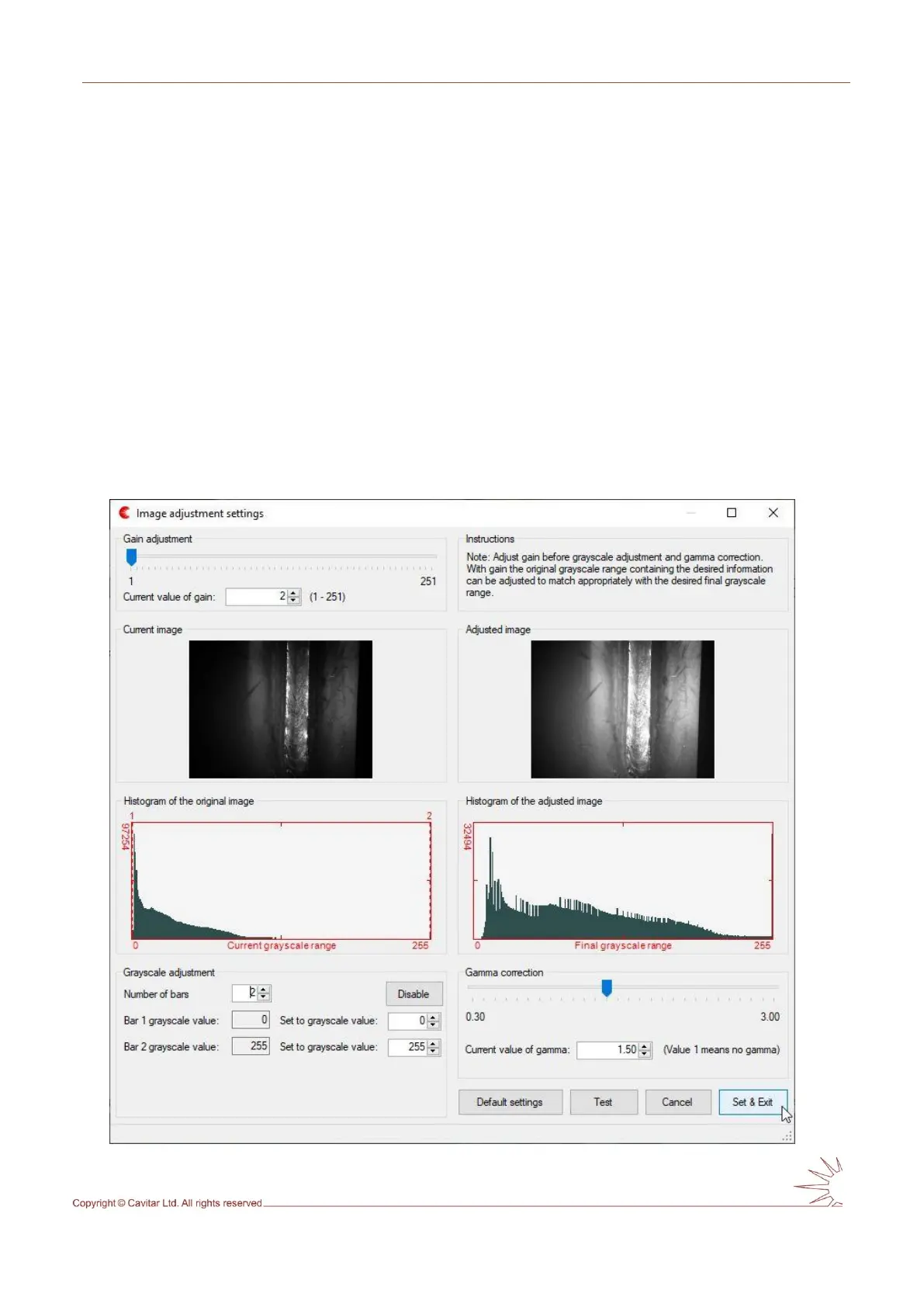
In order to activate Image adjustment window, press “Enable” button shown in Fig. 5.13.
Image adjustment feature is disabled by default since the feature requires the loading of look-
up tables whenever software connects with the camera. This loading takes a few seconds and
can make the operation of the camera less fluent in certain situations. If the feature is not
used, it can be disabled (“Enable” button changes after pressing to “Disable” button as can be
seen in Fig. 5.14) to avoid the loading of look-up tables.
Gain can be applied to make the image brighter. However, large gain values will increase the
noise in the images. Gain is typically applied if the original image is too dark (e.g. very dark
or highly reflective metal surfaces). Gain can also be adjusted directly from the GUI.
Gamma is a nonlinear correction tool that increases the visibility of dark regions with respect
to brighter regions. Gamma correction can often improve the visual appearance of the image.
Grayscale adjustment enables the selection of desired ranges of grayscale values that will be
displayed on the screen as different ranges of grayscale values. This can have a big effect on
the appearance of the image. As an example, one can assign a larger range for the interesting
grayscale value range and a smaller range for the less interesting grayscale value range.
Fig. 5.14. Effect of applying gain and gamma correction (after pressing “Test”).



 To Next Page