“Image” tab (Fig. 5.12) contains the following features:
• Bit depth (higher bit depth enables larger dynamic range but increases image file size)
• Mode (different preset resolutions are available)
• ROI (reducing the region-of-interest reduces image file size)
o It is also possible to set the ROI directly from the GUI in the following way:
move the mouse cursor to the upper-left corner of the desired ROI → press and hold down left
mouse button → move the mouse cursor to the lower-right corner of the desired ROI →
release left mouse button → press right mouse button and select “ROI”
• Binning (for reducing image file size and for increasing sensitivity)
• Mirror and Flip: for changing the orientation of the image
5.2.5 Image adjustment
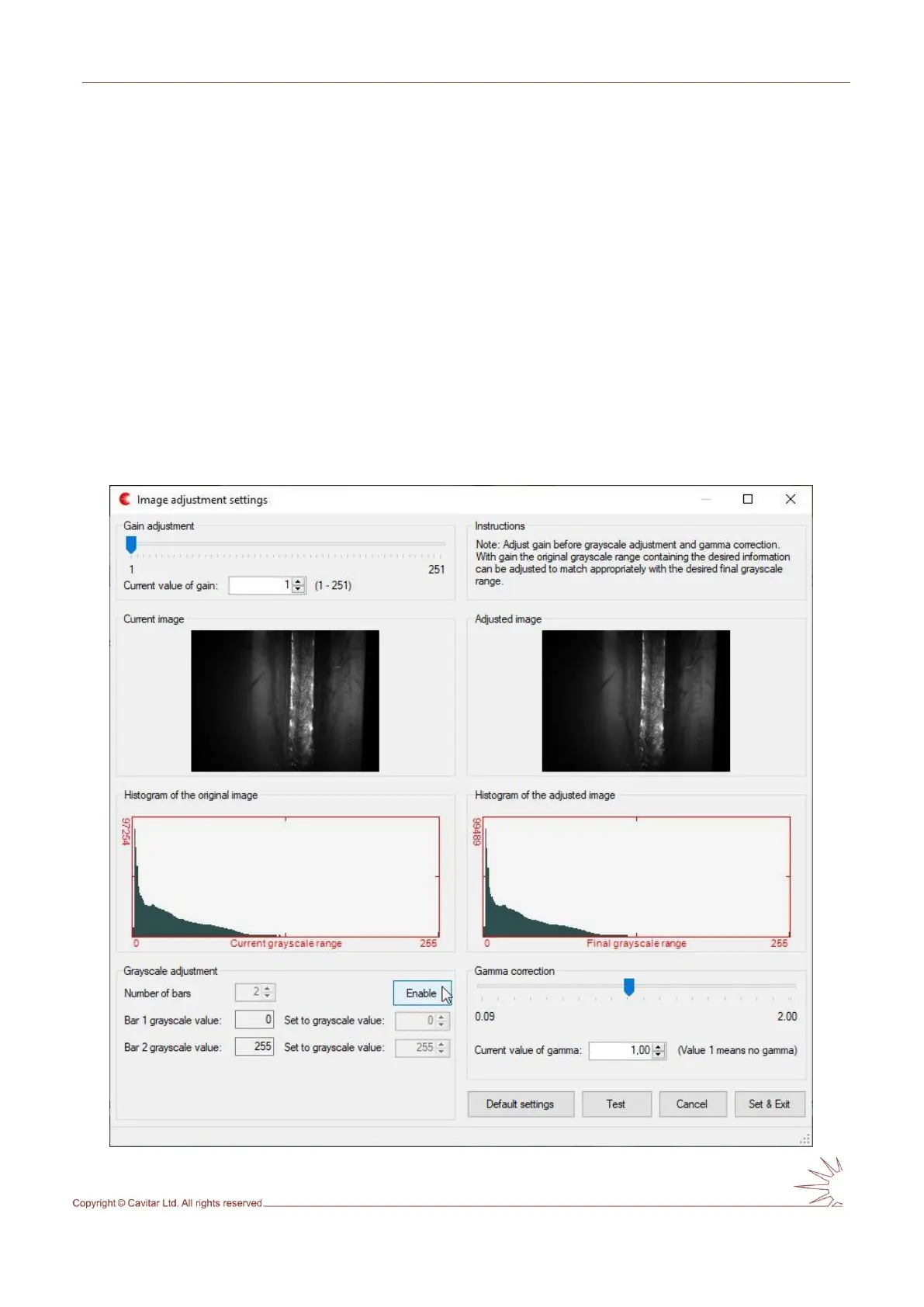
Image adjustment tool can be used for optimizing the visual appearance of the image. Image
adjustment window can be opened by selecting “Image Adjustment…” from “Settings” menu.
This will open the window shown in Fig. 5.13.
Fig. 5.13. Image adjustment window.



 To Next Page