M10 User Manual 17
3.4 Menu mode
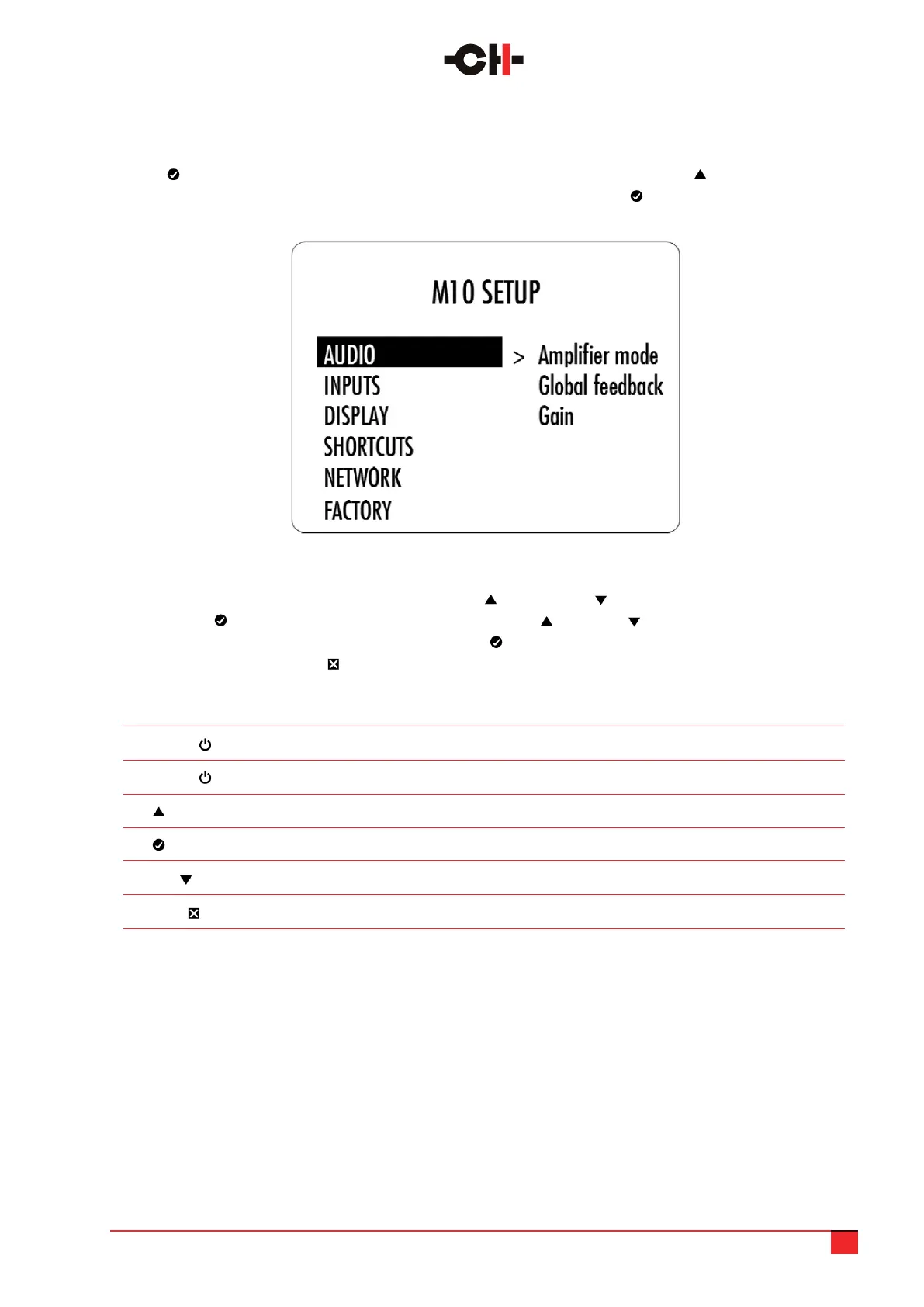
The Menu mode allows the conguration and set up of the M10 amplier. Menu mode is entered by pressing
the OK [ ] button until DETAILED SETUP appears on the main display. Then press UP [ ] to actually access
the available menus. If no shortcuts are congured, a simple press on the OK [ ] button will directly launch the
M10 setup menus. The entry screen looks as follow:
Navigation in the Menu mode is based on using the UP [ ] and DOWN [ ] buttons to highlight an item in the
menu. The OK [ ] button will select that item and then the UP [ ] /DOWN [ ] buttons can be used to adjust
the selected setting/value. Don’t forget to press the OK [ ] button once more to save the adjusted setting/
value. You can use the CANCEL [ ] to exit without saving.
M10 Front panel push buttons Unit Action
STANDBY [ ] Short Push Mutes/Unmutes the unit
STANDBY [ ] Long Push Goes to STANDBY
UP [ ] Moves to the next menu item upward
OK [ ] Enter the next menu level or Validate a choice (save settings)
DOWN [ ] Moves to the next menu item downward
CANCEL [ ] Returns to the previous menu level without saving
3.5 Menu options
If you study the menu tree laid out below, you can see the various options and where to nd them.
It may look confusing to start with, but it soon becomes clear and easy to navigate.
Below the menu tree is a list of the various sub-menu options and their signicance. These options are
the key to conguring your M10 to deliver the best performance, tailored user interface and coupling with
your system. It is worth studying the various options and their importance as they will directly affect your
enjoyment of your system.
M10 SETUP screen items
M10 push button actions in Menu mode


 To Next Page