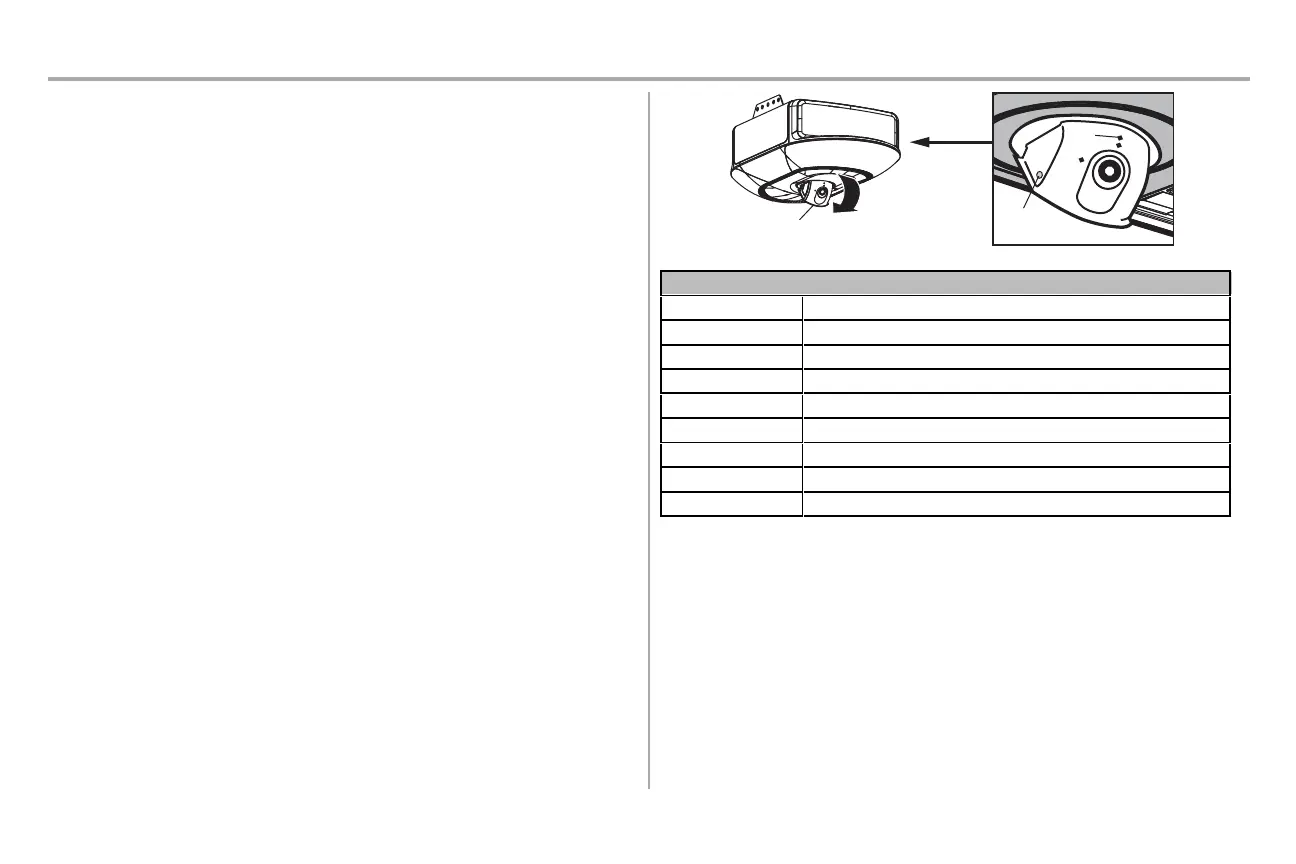
Camera Status
LED Denition
Flashing Blue Camera is attempting to connect to the mobile device.
Solid Blue Camera is connected to the mobile device.
Flashing Blue and Green Camera is attempting to connect to the router.
Flashing Green Camera is connected to the router and attempting to connect to myQ® server.
Solid Green Camera is connected and working normally.
Solid White Camera is powering up.
Flashing Red Camera is overheating.
Flashing Purple Camera rmware is updating.
Set Up the Camera
MODELS B4643TC, AND B6753TC
1. Download the myQ® App, setup an account, and connect. See page 36.
2. Follow the instructions in the app to setup and use the camera.
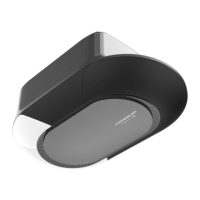
The camera powers up when it is opened and powers down when closed. An LED on the camera indicates
the status. See the camera status table.
For more information on using the camera, visit support.chamberlaingroup.com.
NOTES:
myQ® App control and camera WILL NOT work if the garage door opener is operating on battery power.
To erase the camera settings from the opener, see page 41.
35
Camera
LED
Camera
Reset
Button






 To Next Page