5
Before You Connect with Your Smartphone
Preparation
Monitor and control your garage door from anywhere using the myQ
®
App.
BEFORE YOU BEGIN:
You will need:
• Wi-Fi
®
enabled smartphone, tablet or laptop
• Broadband Internet Connection
• Wi-Fi
®
signal in the garage (2.4 Ghz, 802.11b/g/n required)
• Password for your home network (router's main account, not guest
network)
TEST THE WI-FI
®
SIGNAL STRENGTH
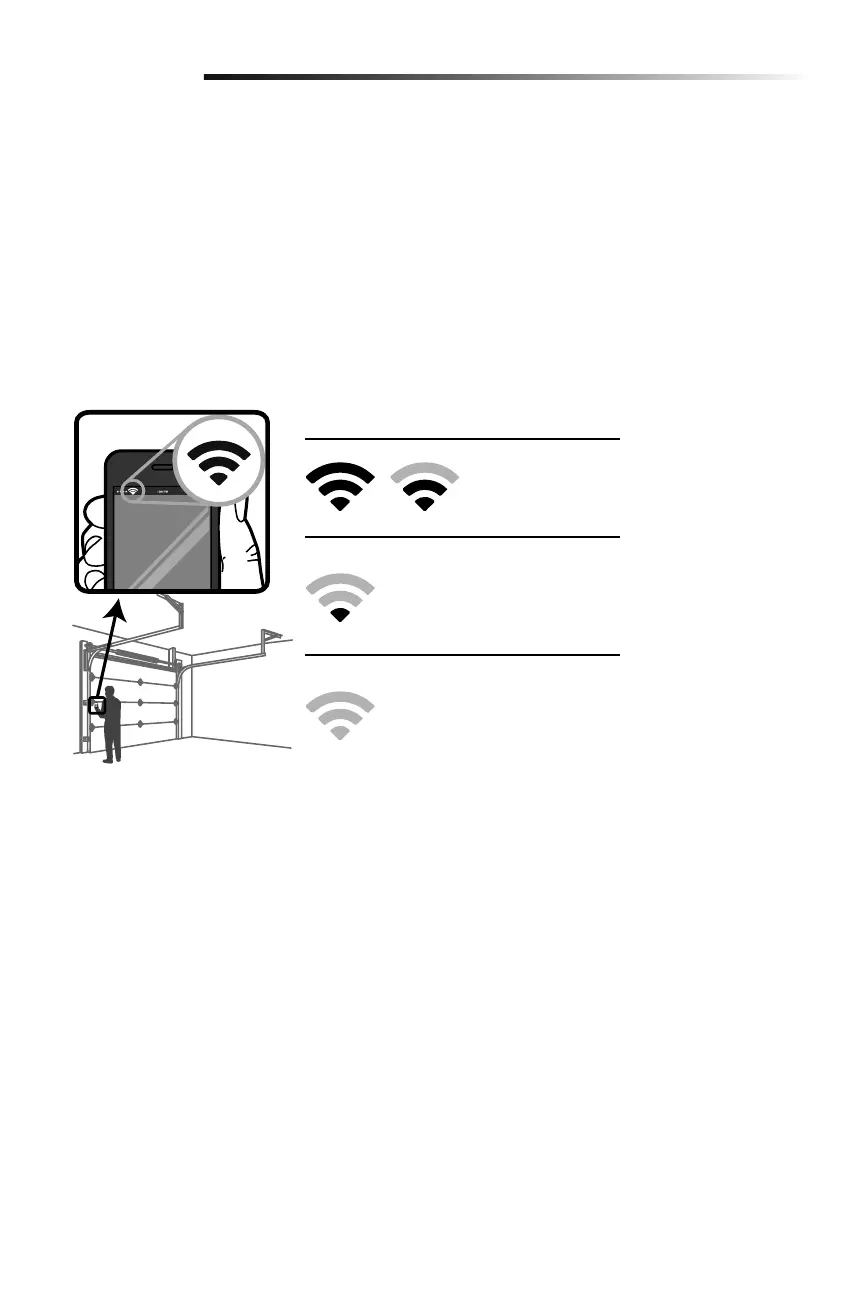
Make sure your mobile device is connected to your Wi-Fi
®
network. Hold your
mobile device in the place where your garage door opener will be installed and
check the Wi-Fi
®
signal strength.
For compatible router specifications and help, visit www.chamberlain.com/Customer-Support
See page 31 to connect the garage door opener to a mobile device.
Check Signal Strength. If you see:
Wi-Fi
®
signal is strong.
The garage door opener
will connect to your
Wi-Fi
®
network.
Wi-Fi
®
signal is weak.
The garage door opener may connect
to your Wi-Fi
®
network. If not, try one
of the options below to improve the
Wi-Fi
®
signal:
No Wi-Fi
®
signal.
The garage door opener will not be
able to connect to your Wi-Fi
®
network. Try one of the options below
to improve the Wi-Fi
®
signal:
• Move your router closer to the garage door opener to
minimize interference from walls and other objects
• Buy a Wi-Fi
®
range extender




 To Next Page