Section 3: Operation
013-100199-04 3-61.
RUN LAMP FOR 100 HOURS—Light output and Brightness Uniformity can vary
significantly during the first 100 hours of lamp use. For best results with new
lamps, either set up Brightness Uniformity after this period, or do an initial setup
and re-check at 100 hours.
SET LAMP POWER—Ensure that each “Lamp Power” setting is as high as possible
for your application while still maintaining a good overall match of light output
from screen-to-screen. By nature, achieving a uniform brightness will require a
slightly reduced overall brightness—this reduction will help ensure that you have
enough range of adjustment when examining brightness variables more closely
from screen-to-screen, and will help prevent premature “maxing out” when trying
to match to a certain color, zone or projector.
USE A “USER” COLOR TEMPERATURE—Always adjust Brightness Uniformity for
a User color temperature defined when you matched primary colors, and continue
to use it for all sources displayed on the wall. Your other color temperatures will
not necessarily be matched from screen-to-screen.
WHITE UNIFORMITY SLIDE BARS—White Uniformity slide bar values may not
reduce to “0”. Each slide bar adjusts overall light output in a specific screen zone,
but the value shown represents the current setting for green in this zone. When
other “hidden” values (red or blue) are lower than green, during adjustment in the
White Uniformity menu their values will reach “0” first, causing the slide bar to
stop earlier than expected.
JUDGE BY EYE OR USE A METER—Good brightness uniformity can be achieved
with either.
Step 1: General Setup
1a) Adjust primary colors (see Matching Colors in Multiple Screens) to ensure
matched overall color temperatures and light output between screens.
IMPORTANT
Double-check that all WHITES and LIGHT OUTPUT are well-matched.
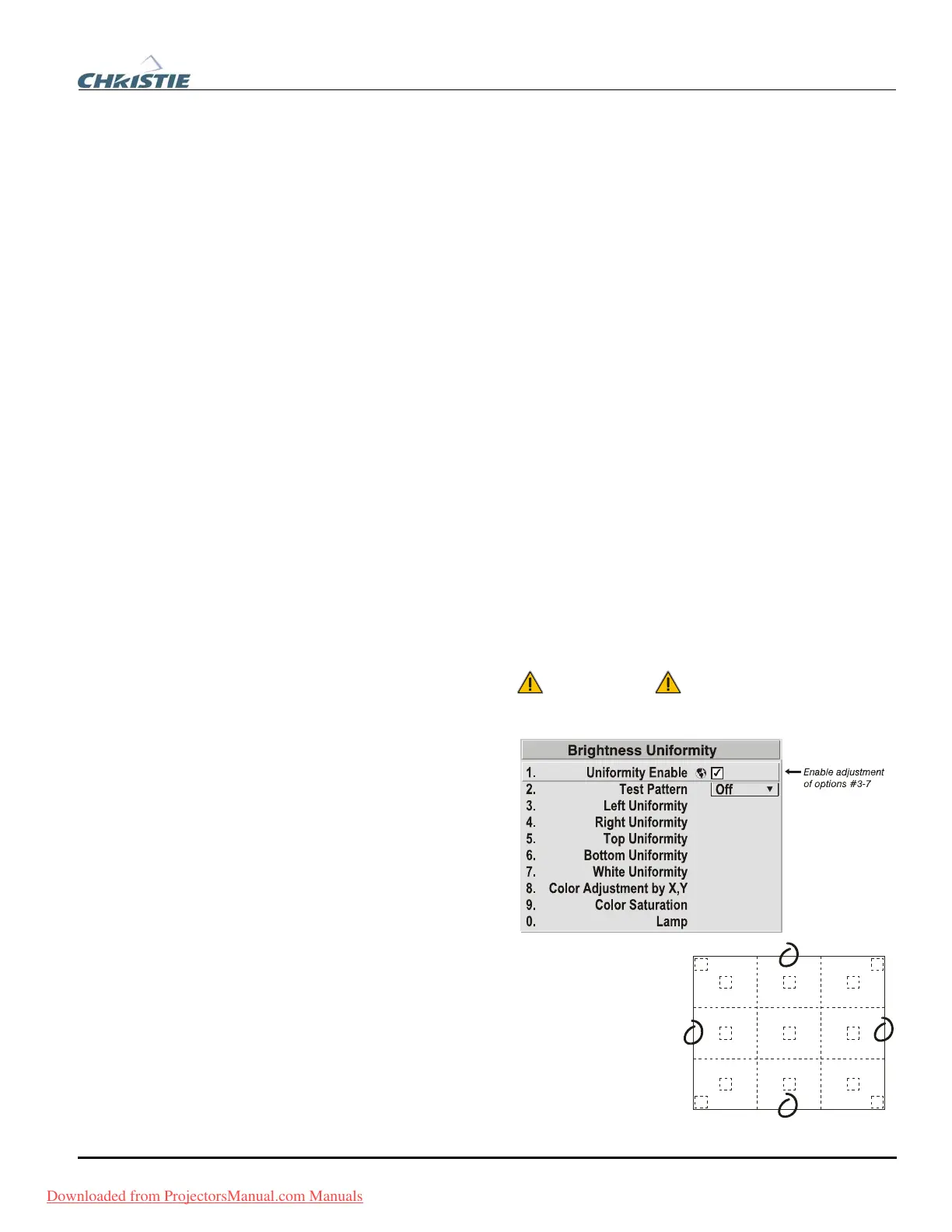
1b) Enable the Brightness
Uniformity checkbox.
This will enable
access to the
uniformity controls
and will apply the
settings to your image.
1c) Select the 13-Point
test pattern for
display. This pattern provides nine screen
“zones” with 13 targets.
FOR BEST RESULTS: Rather than
examining the CENTER of each zone when
assessing Brightness Uniformity adjustments
focus on extreme EDGES as indicated in the
illustration at right.
Downloaded from ProjectorsManual.com Manuals



 To Next Page