CIARA Astro SN-6310
- 23 -
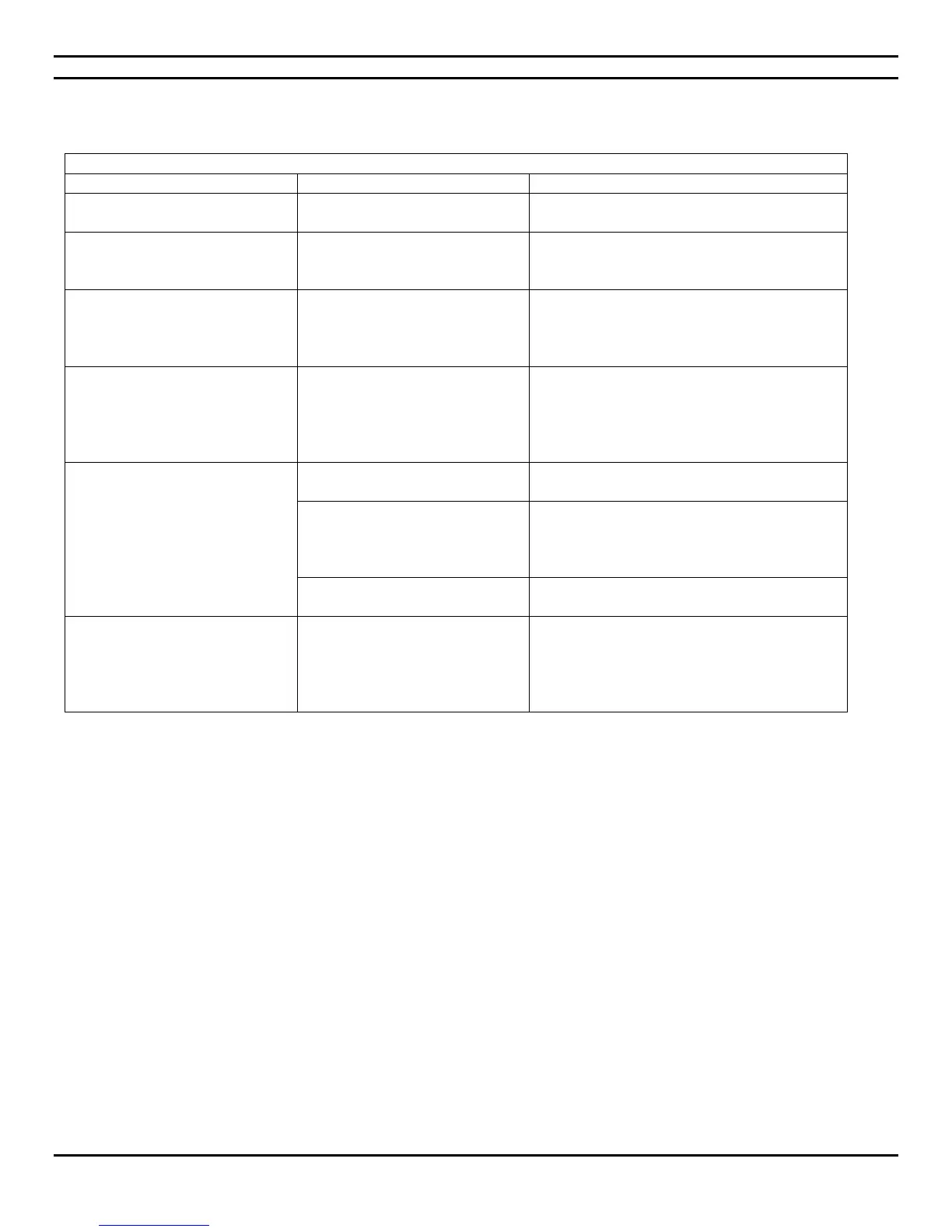
1.5.10 Solving optical drive problems
In this User Guide, an optical drive is defined as a DVD-ROM or a DVD-R/RW.
Solving optical drive problems
System will not boot from an
optical drive.
Non-bootable CD or DVD in drive.
Try a bootable CD or DVD in the drive.
Optical drive is not detected by
the system.
Drive is not connected properly
or not properly configured.
Verify if the drive is correctly seated in the
chassis. Verify if all cables have been correctly
connected.
Movie will not play in the DVD
drive.
Decoder software is not installed.
Install decoder software.
Note : All CIARA systems equipped with a DVD
drive at plant assembly include the necessary
Decoder software.
Cannot eject disc from tray.
Disc not properly seated in the
drive.
Turn off the micro PC and insert a thin metal
rod into the emergency eject hole and push
firmly. Slowly pull the tray out from the drive
until the tray is fully extended, then remove
the disc.
The optical drive cannot read a
disc or takes too long to start.
CD or DVD has been inserted
upside down.
Re-insert the CD or DVD with the label facing
up.
The DVD drive takes longer to
start because it has to determine
the type of media played, such as
audio or video.
Wait at least 30 seconds to let the DVD drive
determine the type of media being played such
as audio or video.
Clean CD or DVD with a CD cleaning kit,
available from most micro PC stores.
Recording audio CDs is difficult or
impossible.
Wrong or poor quality media
type.
1. Try using a slower speed when recording.
2. Verify that you are using the correct media
for the drive.
3. Try a different brand of media. Quality
varies widely between manufacturers.


 To Next Page