1.2 Transmit Buffer
During the Bluetooth connection, the CT20 Scanner uses a 2KB memory as a data buffer,
and sends the collected data to the host computer one by one via the Bluetooth. Upon
reading a barcode successfully, the scanner responds with one short beep and its LED
indicator becomes green and goes off quickly. However, the host computer may not
receive the data immediately if getting out of range. With the 2KB transmit buffer, the
scanner can ignore the transmission status and keep on reading barcodes until the buffer
is full. When the buffer is full, the scanner will respond with a long beep (low tone), this
reminds the user that the space of buffer is not enough and can not read barcode any
more. @ Once the Buffer is full, the user should return to the range of BT connection
quickly, the data in the buffer can be sent back to the host computer and release the
space of buffer.
Note: The 2KB transmit buffer on the scanner can hold as many as 110 barcodes bases
on EAN13. You can choose to clear the data in the buffer every time when you
turn on the scanner.
Note: You can clear the data in the buffer via enable barcode, you can also clear the data
in the buffer via press the Power key long time.
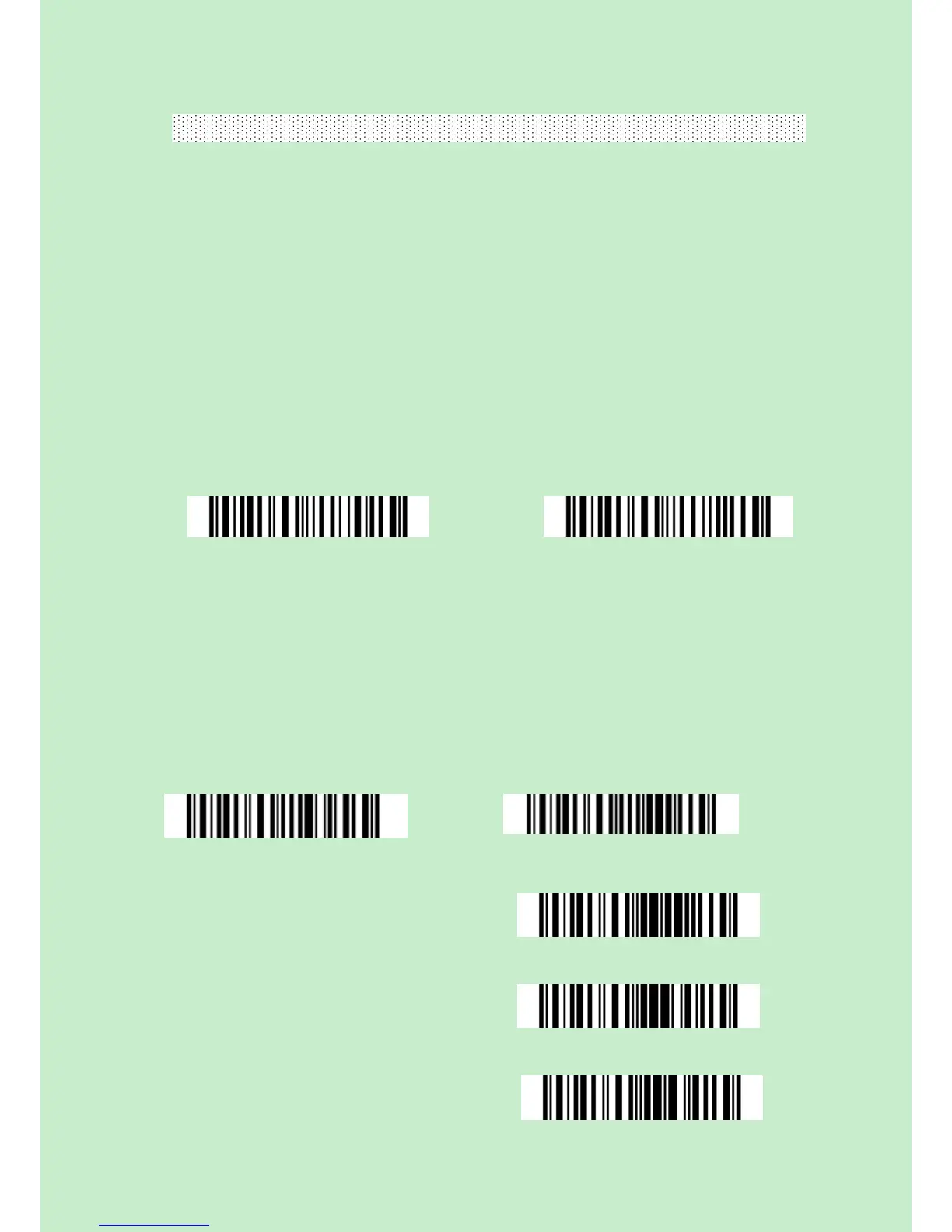
After the Bluetooth connect successfully, the barcodes in the buffer will upload to
appointed position automatically. You also can setup upload the barcodes in the buffer or
not via read the following barcodes. By default, it is enabled.
If you don’t want to upload the barcodes automatically, you can setup as disabled, when
the Bluetooth connect, the barcodes won’t upload. You can double click Power key to start
upload the barcodes.
(*)Enable Auto Uploading Disable Auto Uploading



 To Next Page