EasyManua.ls Logo

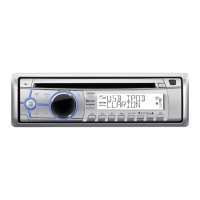
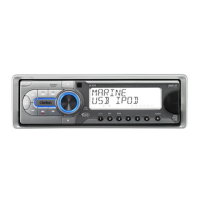
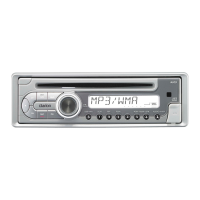
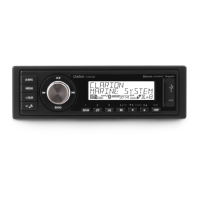
Clarion M508 - User Manual

Clarion M508
62 pages
Print Icon
To Next Page IconTo Next Page
Loading...
M508
MARINE
Bluetooth
®
USB/MP3/WMA RECEIVER
MARINE
Bluetooth
®
RÉCEPTEUR USB/MP3/WMA
RECEPTOR MARINE
Bluetooth
®
USB/MP3/WMA
Owner’s manual & Installation manual
Mode d’emploi et manuel d’installation
Manual de usuario y Manual de instalación

Table of Contents

Other manuals for Clarion M508

Questions and Answers

  • R
    Rhonda AllenAug 14, 2025
    Why does my Clarion M508 reset itself when the engine is off?
    • N
      newtonjonathanAug 14, 2025
      If your Clarion Marine Equipment resets itself when the engine is off, it is likely due to an incorrect connection between ACC and the Battery. Check the wiring and correct it.
  • R
    Regina MunozAug 17, 2025
    Why is there no sound coming from my Clarion M508 Marine Equipment?
    • C
      Cody LewisAug 17, 2025
      If you're experiencing no or low audio output from your Clarion Marine Equipment, consider these potential causes: * Incorrect audio output connection: Check the wiring and correct it. * Volume set too low: Increase the volume level. * Speakers damaged: Replace the speakers. * Heavily biased volume balance: Adjust the channel balance to the center position. * Speaker wiring is in contact with the metal part of the vessel: Insulate all speaker wiring connections.
  • K
    Kaitlyn PughAug 21, 2025
    What to do if my Clarion M508 won't turn on?
    • C
      Christopher CaseyAug 21, 2025
      If your Clarion Marine Equipment won't power on, the issue might be with the fuses. First, check the unit fuse and replace it with a new fuse of the correct rating if it's blown. Also, inspect the vessel battery fuse and replace it if necessary.
  • X
    xmooreAug 25, 2025
    How to fix poor sound quality on Clarion M508?
    • K
      Katherine MeyerAug 25, 2025
      If you're experiencing poor sound quality or distortion with your Clarion Marine Equipment, here are a few things to check: * Speaker power rating: Ensure the speaker power rating matches the unit. Replace the speakers if they don't match. * Wiring: Check the wiring and correct any wrong connections. * Shorted speaker: Check the wiring and correct any shorted speaker.
  • S
    Sabrina ArnoldAug 27, 2025
    What to do if my Clarion Marine Equipment doesn't recognize a USB device?
    • C
      Casey HoffmanAug 28, 2025
      If your Clarion Marine Equipment isn't recognizing the USB device, it could be due to the following reasons: * The USB device is damaged: Disconnect and reconnect the USB device. If it's still not recognized, try replacing it with a different USB device. * Connectors are loose.
  • C
    Christina MitchellAug 31, 2025
    Why is the audio quality poor when using Bluetooth on my Clarion Marine Equipment?
    • D
      Denise MurrayAug 31, 2025
      If the audio quality is poor after connecting with a Bluetooth-enabled device, it could be due to poor Bluetooth reception. Try moving the device closer to the audio system or remove any obstacles between the device and the system.
  • K
    Kathleen WarrenSep 3, 2025
    What to do if I can't insert a USB device into my Clarion M508?
    • J
      Jon ClaytonSep 3, 2025
      If you cannot insert a USB device into your Clarion Marine Equipment, it might be because: * The USB device has been inserted incorrectly: Reverse the connection direction of the USB device and try again. * The USB connector is broken: Replace with a new USB device.
  • M
    Michael WestSep 6, 2025
    Why does the sound skip or is noisy on my Clarion Marine Equipment?
    • D
      Donald EvansSep 6, 2025
      If the sound skips or is noisy on your Clarion Marine Equipment, it's likely that the MP3/WMA files are not encoded properly. Use properly encoded MP3/WMA files.
  • R
    raymondclarkSep 10, 2025
    Why is there no sound and “No File” is displayed on my Clarion Marine Equipment?
    • W
      watsontamiSep 10, 2025
      If you see “No File” displayed and hear no sound on your Clarion Marine Equipment, it means that no MP3/WMA file is stored in the USB device. Store these files properly in the USB device.

Summary

1. Features Overview

SiriusXM and Weather Band

Highlights SiriusXM readiness and Weather Band Radio.

Connectivity Options

Details USB, Aux input, and Bluetooth features.

Amplifier and Device Compatibility

Mentions 50Wx4 amplifier and iPod/iPhone support.

2. Safety and Compliance Precautions

General Safety Warning

Important safety advice for operation.

FCC and IC Compliance

Explains regulatory compliance statements.

3. Handling Cautions

Temperature Protection

Advises protection from high temperatures.

4. Controls and Operations

Operational Panel Layout

Overview of the unit's front panel controls.

Button Functionality Guide

Detailed explanation of each button's function.

Remote Control Usage

Battery Installation for Remote

Step-by-step guide for inserting the remote battery.

Remote Button Functions

Details functions of remote control buttons.

Wired Remote Control Operations

Wired Remote Button Guide

Explains operations for wired remote buttons.

5. Basic Unit Operations

Power, Mute, and Volume

Covers fundamental operations like power, mute, and volume.

Source Selection

Guide to selecting different audio sources.

Display Management

How to display system info and turn display off/on.

System Menu Options

Clock and Bluetooth Settings

Managing clock and Hands Free Profile.

System Reset and Info

Resetting settings and viewing software version.

Audio Menu Adjustments

EQ and Loudness Control

Adjusting equalizer presets and loudness.

Subwoofer and Tone Settings

Configuring subwoofer and tone controls.

Balance and Fader

Adjusting speaker balance and fader.

Radio Operation Guide

Tuner Source and Bands

Selecting tuner source and radio bands.

Frequency and Presets

Adjusting frequency, using presets, and auto store.

Manual Tuning and Area Setup

Manual station tuning and area frequency settings.

SiriusXM Satellite Radio Features

Radio ID and Channel Tuning

Finding Radio ID and tuning channels.

Storing and Accessing Presets

Saving and recalling SiriusXM channels.

SiriusXM Replay and Settings

Using replay function and accessing settings.

Category Browse and Parental Controls

Browsing channels and managing parental locks.

Advanced SiriusXM Operations

Direct Tuning and Display

Directly tuning channels and changing display info.

Signal Check and Factory Reset

Checking signal and resetting SiriusXM settings.

USB Media Playback

Connecting and Selecting USB Tracks

Connecting USB devices and selecting tracks.

USB Folder and Search Functions

Navigating folders and searching for files.

Display and Top Functions

Cycling through track info and resetting playback.

AUX Mode Usage

Connecting AUX Input

Connecting external audio sources via AUX.

iPod and iPhone Integration

Connecting Apple Devices

Connecting iPod/iPhone to the unit.

Device Compatibility List

List of supported iPod/iPhone models.

Music Control Modes

Switching between unit and device control.

iPod;iPhone Music Navigation

Selecting tracks and searching music menus.

Pandora Streaming Guide

Starting Pandora Playback

Streaming Pandora internet radio.

Station Selection and Personalization

Choosing stations and using thumbs up/down.

Creating and Managing Stations

Creating new stations and deleting existing ones.

Bluetooth Device Operations

Pairing and Managing Devices

Steps to pair and disconnect Bluetooth devices.

Hands-Free Calling

Using the unit for Bluetooth phone calls.

Audio Streaming and Playback

Understanding and controlling audio streaming.

Troubleshooting Common Issues

General Problem Resolution

Troubleshooting power, audio, and distortion problems.

USB Connectivity Issues

Resolving USB device recognition and playback errors.

Bluetooth Connection Problems

Fixing Bluetooth pairing and audio quality issues.

Troubleshooting SiriusXM Messages

SiriusXM Advisory Explanations

Explains common SiriusXM error messages.

Technical Specifications

Tuner and Bluetooth Specs

Technical details for FM, AM, and Bluetooth.

Media and General Specs

Specifications for MP3/WMA, USB, and general features.

Installation and Wiring Guide

Pre-Installation Checks

Initial precautions and checks before installation.

Mounting and Unit Installation

Steps for mounting and installing the source unit.

Installation Methods

Unit Mounting Procedures

Procedures for installing the unit via Method A or B.

Trim Ring Attachment

Instructions for attaching the trim ring.

Wire Connection Details

Antenna and Speaker Wiring

Connections for antenna and speakers.

Power, Illumination, and Ground

Wiring for power, illumination, and ground.

Clarion M508 Specifications

General IconGeneral
Display ColorWhite
Water ResistanceIP55
Subwoofer OutputYes
USBYes
AUX InputYes
USB LocationRear
AUX LocationRear
BluetoothYes
SiriusXM ReadyYes
PandoraYes
iHeartRadioYes
TypeMarine Digital Media Receiver
DisplayLCD
Power Output50 watts x 4 channels
Outputs6-Channel RCA

Related product manuals