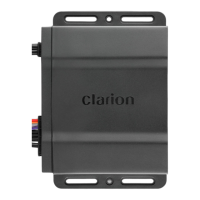
Optional Wired Remote Control Unit Operations
Optional
Clarion weired remote control functions.
Note:
If
the remote control
is
connected with to the unit
while
the powered on,
please
restart and/or reset the
unit to introduce the wired remote control to the system.
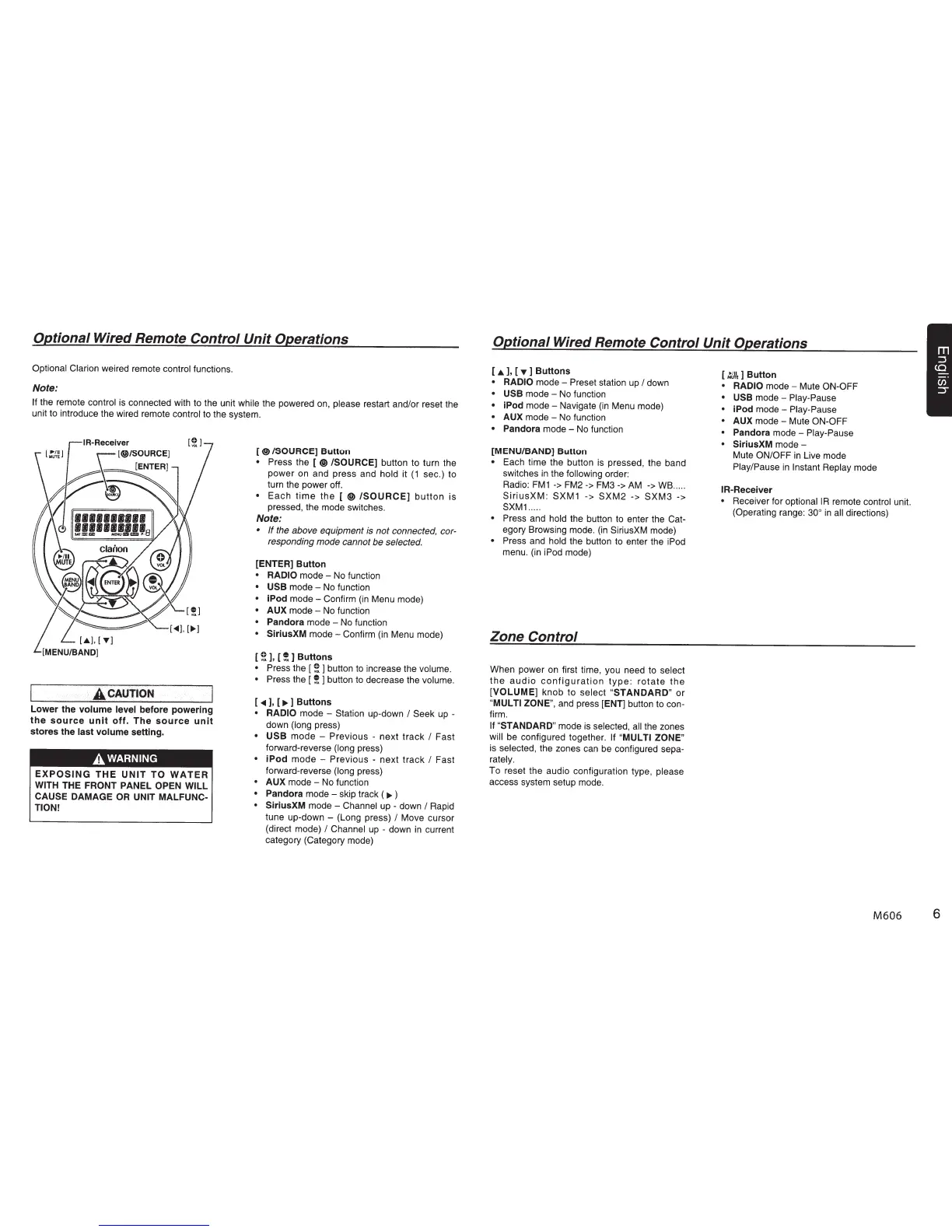
I
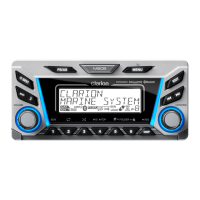
A-Receiver
(~iii\
clai•on
~~
e
~~d®
l
::::-~$-1!1
~[<111],[
...
]
[.A.],[T]
[MENU/BAND]
' ACAUTION
Lower the
volume level
before powering
the
source
unit
off.
The
source
unit
stores the
last volume
setting.
A
WARNING
EXPOSING
THE
UNIT
TO
WATER
WITH
THE FRONT
PANEL OPEN WILL
CAUSE
DAMAGE
OR UNIT
MALFUNC-
TION!
[®/SOURCE]
Button
•
Press the [
®
/SOURCE]
button to turn the
power on and press and
hold
it
(1
sec.) to
turn the power off.
•
Each
time
the
[
®
/SOURCE]
button
is
pressed, the mode switches.
Note:
•
If
the above equipment is
not
connected,
cor-
responding mode cannot
be
selected.
[ENTER] Button
• RADIO
mode -
No
function
• USB
mode - No function
• iPod
mode-
Confirm
(in
Menu mode)
•
AUX
mode -
No
function
•
Pandora
mode - No function
• SiriusXM
mode-
Confirm (in Menu mode)
[
~
],
[
!
]
Buttons
•
Press the
[~]button
to increase the volume.
•
Press the [
!
]
button to decrease the volume.
[
<111
],
[
..,_
]
Buttons
• RADIO
mode - Station up-down
I
Seek
up
-
down
(long
press)
• USB
mode - Previous - next track
I
Fast
forward-reverse
(long
press)
•
iPod
mode - Previous - next track
I
Fast
forward-reverse (long
press)
•
AUX
mode - No function
•
Pandora
mode - skip track (
..,_
)
• SiriusXM
mode - Channel up - down
I
Rapid
tune up-down - (Long press)
I
Move cursor
(direct mode)
I
Channel
up
- down
in
current
category (Category mode)
Optional Wired Remote Control Unit Operations
[
.a.
],
[
T ]
Buttons
• RADIO
mode - Preset station
up
I
down
• USB
mode - No function
•
iPod
mode-
Navigate
(in
Menu mode)
•
AUX
mode-
No function
•
Pandora
mode - No function
[MENU/BAND] Button
•
Each time the button is pressed, the band
switches
in
the
following
order:
Radio:
FM1
->
FM2
->
FM3
->AM
->
WB ..
..
.
SiriusXM
:
SXM1
->
SXM2
->
SXM3
->
SXM1
.....
•
Press and
hold
the button to enter the
Cat-
egory Browsing mode.
(in
SiriusXM mode)
•
Press and
hold
the button to enter the iPod
menu. (in iPod mode)
Zone Control
When power
on
first time, you need to
select
the
audio
configuration
type:
rotate
the
[VOLUME]
knob to
select
"STANDARD"
or
"MUL
Tl
ZONE", and press
[ENT]
button to
con-
firm.
If
"STANDARD"
mode
is
selected,
all
the zones
will
be configured together.
If
"MUL Tl ZONE"
is selected, the zones can
be
configured
sepa-
rately.
To reset the audio configuration type,
please
access system setup mode.
[;,~]Button
• RADIO
mode - Mute ON-OFF
• USB
mode - Play-Pause
• iPod
mode - Play-Pause
• AUX
mode - Mute
ON-OFF
•
Pandora
mode - Play-Pause
• SiriusXM
mode -
Mute
ON/OFF
in
Live mode
Play/Pause
in
Instant Replay
mode
IR-Receiver
•
Receiver for optionaiiR remote control unit.
(Operating range:
30
°
in
all
directions)
M606
6


 To Next Page