Chapter 4: cOS Core Configuration
• Management Workstation Connection, page 26
• Web Interface and Wizard Setup, page 29
• Manual Web Interface Setup, page 37
• CLI Setup, page 53
• License Installation Methods, page 61
• Setup Troubleshooting , page 63
• Going Further with cOS Core, page 65
4.1. Management Workstation Connection
cOS Core Starts After Power Up
It is assumed that the E20 unit is now unpacked, positioned correctly and power is applied. If not,
the earlier chapters in this manual should be referred to before continuing.
Clavister's cOS Core network security operating system is preloaded on the E20 and will
automatically boot up after power is applied. After boot-up is complete, an external
management computer workstation can be used to configure cOS Core. The management
computer's operating system can be any kind as long it can run a web browser.
The Default Management Interface
After first time startup, cOS Core automatically makes management access available on a single
predefined Ethernet interface and assigns the private IPv4 address 192.168.1.1 to it.
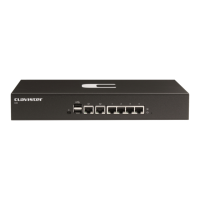
For the E20, the default management interface is any of the GS interfaces since they are
connected together by a switch fabric. By convention, the first interface (labeled 1) is normally
used for management workstation connection.
cOS Core Setup Methods
Initial cOS Core software configuration can be done in one of the following ways:
26


 To Next Page