The initial step is to set up a number of IPv4 address objects in the cOS Core Address Book. Let us
assume for this section that the interface used for Internet connection is G2 and that the static
IPv4 address for this interface is to be 10.5.4.35, the ISP's gateway IPv4 address is 10.5.4.1, and the
network to which they both belong is 10.5.4.0/24.
Note: Private IPv4 addresses are used for example only
Each installation's IP addresses will be different from the IP addresses used here in the
examples. Also, the addresses used in the examples are private IPv4 addresses and in
reality an ISP would issue public IPv4 addresses for Internet access.
Now, add the gateway IP4 Address object using the address book name wan_gw and assign it the
IPv4 address 10.5.4.1. The ISP's gateway is the first router hop towards the public Internet from
the Clavister Security Gateway. Go to Objects > Address Book in the Web Interface.
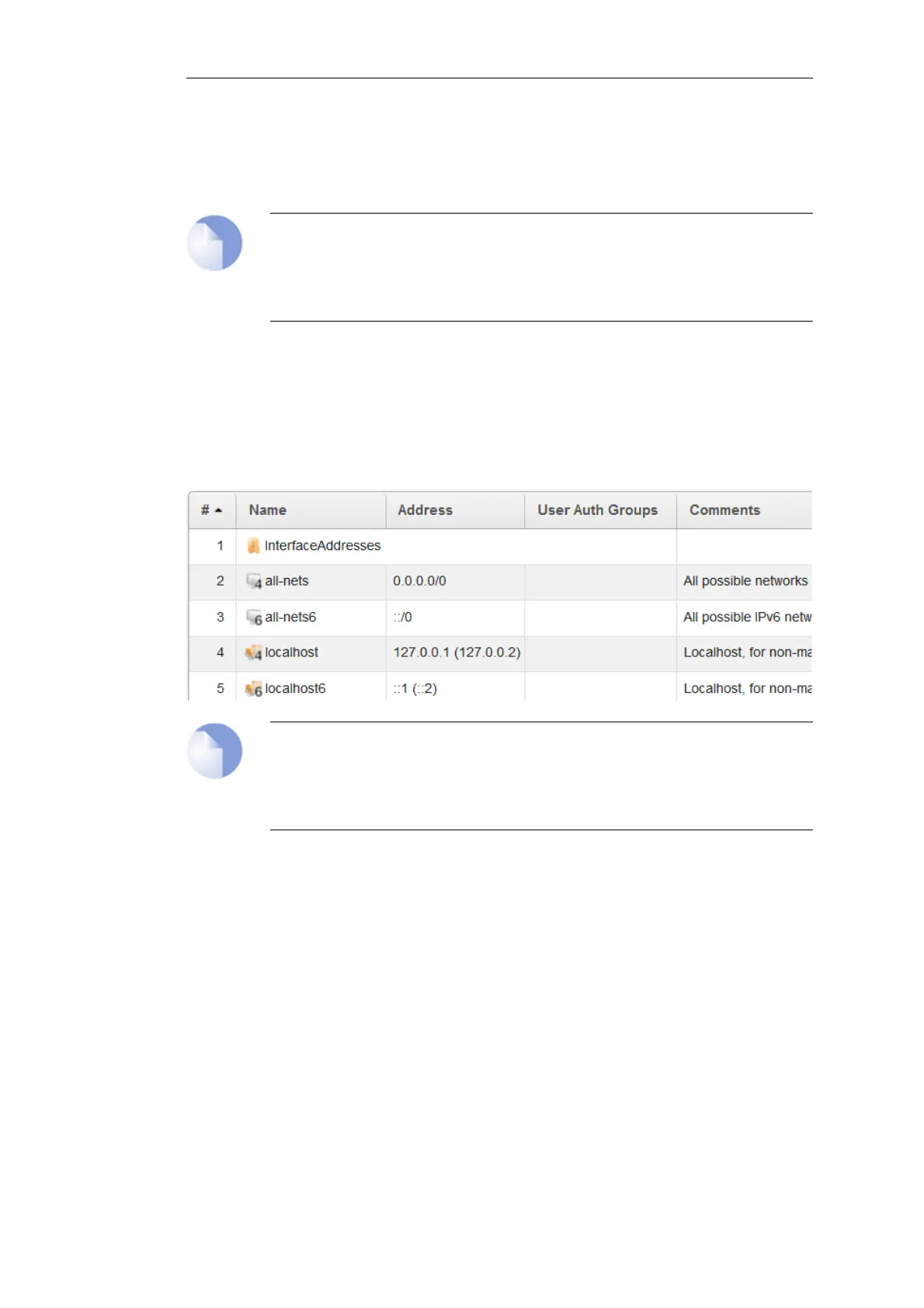
The current contents of the address book will be listed and will contain a number of predefined
objects automatically created by cOS Core after it scans the interfaces for the first time. The
screenshot below shows the initial address book for the E20.
Note: The all-nets address
The IPv4 address object all-nets is a wildcard address that should never be changed and
can be used in many types of cOS Core rules to refer to any IPv4 address or network
range.
For the E20, all the Ethernet interface related address objects are gathered together in an address
book folder called InterfaceAddresses. By clicking on this folder, it will be opened and the
individual address objects it contains can be viewed. The first few default addresses in the folder
are shown below.
Chapter 4: cOS Core Configuration
40


 To Next Page