10
Product Operation
Starting Up/ Pause/ Sleep mode
1. Starting up
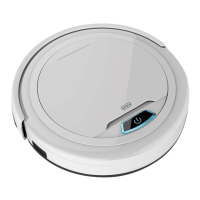
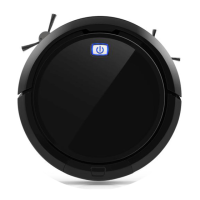
A. Power on the switch at bottom side of the robot, and CLEAN button indicator will be in gradual
blue.
B. Press CLEAN button on main body or on remote controller to start cleaning. The robot will have 3
beeps, and the CLEAN indicator will be in gradual blue.
Note: if robot is in sleep mode, press CLEAN button to wake the robot up from sleep mod. Then
press CLEAN for a second time, the robot starts cleaning automatically.
2. Pause
To stop the robot temporarily from cleaning:
A. Press CLEAN button on main body;
B. Or press ON/OFF button on remote controller.
Note: when robot is paused, user can have new operation on it.
3. Sleep mode
Turn robot into sleep mode, and its display indicator will be in dark (robot in standby, not powered
off);
A. The robot will automatically turn to sleep mode if no command received in 30 seconds.
B. Press CLEAN button on the main body for two seconds or press ON/OFF on remote controller for
two seconds, robot will turn on sleep mode.
Note: if the robot is not in use for a long time, please turn the power switch off.
11
Product Operation
Scheduling cleaning
You can schedule the robot to make it start cleaning at a certain time. (Time delay up to 23 hours)
For example, it’s 9”00AM now, you set 6:30 on the remote controller, and then the robot will start
cleaning after 6 hours and 30 minutes, i.e. at 15:30 PM. Since it is daily scheduling, the robot will start
cleaning at 15:30 PM everyday – unless users turn off the power switch on its bottom.
Note:
A. The robot will always work at the scheduled time after scheduling confirmed.
B. All scheduling will be cancelled if the robot is turned off.
C. During charging by adapter directly connect to the robot (charging without docking), robot will not
accept scheduling set up.
How to Schedule the robot by remote controller:
A. To schedule the robot when it is standby or charging on the docking. (Press CLEAN to wake up the
robot, or press ON/OFF to wake it up.)
B. Press PLAN button until the remote displays flashed figure “00:00”.
C. Press “ ” to set the flashing numbers.
D. Press “
” to switch between hour and minute.
E. After time confirmed, press ON/OFF to save scheduled setting – robot will have one beep, and the
CLEAN button indicator will be in pink for two seconds – robot is successfully scheduled.
F. Press ON/OFF again, scheduled setting will be cancelled, robot will have two beeps and the CLEAN
button indicator on the robot will be blue.
G. Press PLAN button for seconds, it will get back from scheduling setting.
H. User can press PLAN button to check whether robot has already scheduled, if yes, robot CLEAN
button indicator will be in pink for two seconds. Otherwise, the indicator will have no color change but
robot beeps once.


 To Next Page