12
Confirmation: Choose to save the schedule
settings.
Cancel: Choose to exit without saving the schedule
settings.
How To Play Back Videos on the
Device or a TV
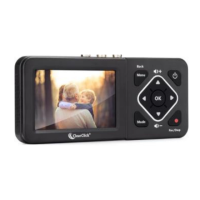
To play back videos on your device, go to Playback
mode. From Recording mode, press the “Mode”
button twice (or until a “Play” icon appears in the top
left corner of the LCD).
Your recordings will appear. Press “OK” to play or
pause a recording. Hold down “OK” to exit a
playback. Navigate to a different recording by
pressing the “Right” and “Left” arrows.
To delete a recording, hold down the “Mode” button.
To play back videos on your TV, simply connect an
HDMI cable (not included) to the HDMI OUT port on
your converter. Plug the other end into an HDMI IN
port on your TV. Make sure your TV is set to the
correct input.


 To Next Page