7
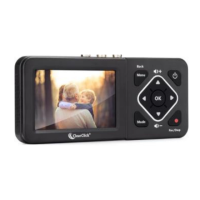
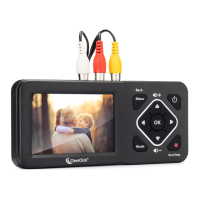
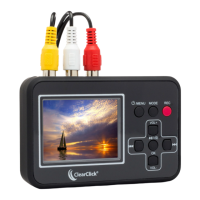
Your video should appear on the Video2Digital®
Converter’s screen. (Note: If your video looks jerky
during recording or playback, do not worry. When you
transfer the video to your computer, the video will
appear normally.)
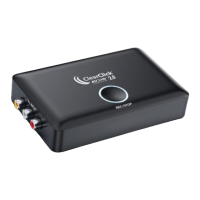
Simply press the record button (“Rec/Stop”)
to start recording your video in digital format!
To stop recording, simply press the “Rec/Stop”
button again.
Tip! The Video2Digital Converter 2.0 can
automatically stop recording after a preset
amount of time (i.e. 60 minutes, 90 minutes, etc.)
To learn how to use this feature, see page 9
before starting your recording.
5. Transfer your videos to your PC or Mac.
After stopping your recording, your digital file will
be saved onto the inserted USB drive or SD card.
When you’re ready, you can transfer the digital
video file to your computer.


 To Next Page