EasyManua.ls Logo

Clevo X170SM-G - User Manual

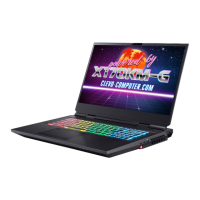
Clevo X170SM-G
324 pages
Print Icon
To Next Page IconTo Next Page
Loading...
V20.1.00

Table of Contents

Other manuals for Clevo X170SM-G

Questions and Answers

  • J
    Jamie BushJul 25, 2025
    What to do if gaming performance is slow on my Clevo Laptop?
    • B
      brownemmaJul 25, 2025
      To improve gaming performance on your Clevo Laptop, it is recommended to use Maximum fan speed. Use the Fn + 1 key combination to adjust the fan speed.
  • V
    veronica11Aug 1, 2025
    How to fix Wireless LAN/Bluetooth modules not detected on Clevo X170SM-G Laptop?
    • K
      Katie CaldwellAug 2, 2025
      If the Wireless LAN/Bluetooth modules are not being detected on your Clevo Laptop, it might be because the computer is in Airplane Mode. You can toggle Airplane Mode on or off by using the Fn + F11 key combination.
  • K
    kevin29Aug 10, 2025
    What to do if my device is not charging via USB port on Clevo Laptop?
    • J
      jacobhillAug 10, 2025
      If your device isn't charging via the USB port on your Clevo Laptop while the computer is off or in Sleep Mode, the port may not be powered on. You can toggle power to the port using the Fn + Power Button combination. Note that this function may not work with all external USB compliant devices, so check your device’s documentation. If that's the case, power the computer on and connect the external USB device in order to charge it.
  • E
    Emily Hoffman PhDAug 17, 2025
    How to enable PC Camera module on Clevo Laptop?
    • M
      Manuel SnyderAug 17, 2025
      If the PC Camera module cannot be detected on your Clevo Laptop, it is possible that the module is off. Press the Fn + F10 key combination to enable the module, then run the camera application to view the camera picture.

Summary

Quick Start Guide

System Startup

First-time setup procedure for the computer, including connecting power and turning it on.

LCD Panel Open

Identification of components located on the computer's LCD panel.

LED Indicators

Explanation of the system status LEDs and their meanings.

Keyboard Shortcuts

Useful keyboard shortcuts for efficient navigation and operation in Windows 10.

Front & Rear Views

Identification of external ports and features on the front and rear of the computer.

Right View

Description of the ports and features located on the right side of the computer.

Left View

Description of the ports and features located on the left side of the computer.

Windows 10 Start Menu

Guide to navigating and using the Windows 10 Start Menu for accessing applications.

Control Center

Instructions on accessing and utilizing the system's control center software.

Features & Components

Solid State Drive

Details about the Solid State Drive (SSD) and important upgrade warnings.

Touchpad and Buttons;Mouse

Explanation of the touchpad's operation and its buttons functionality.

Mouse Properties Control Panel

Instructions for configuring various mouse settings within Windows.

Realtek Audio Console

Overview of the Realtek audio configuration software and its features.

Power Management

The Power Sources

Explanation of the different methods used to power the computer.

Power Plans

Guidance on configuring power saving plans for optimal battery and system performance.

Battery Information

Provides essential guidelines for optimal battery usage, charging, and care.

Turning On the Computer

Step-by-step instructions for powering on the computer for the first time.

Shutting the Computer Down

Step-by-step instructions for properly powering off the computer.

Drivers & Utilities

What to Install

Lists essential drivers and utilities required for proper system operation.

Driver Installation

Outlines the step-by-step procedure for installing system drivers.

Updating;Reinstalling Drivers

Instructions for managing and updating existing device drivers.

Chipset Driver Installation

Procedure for installing the essential chipset drivers for system stability.

BIOS Utilities

The Insyde BIOS Utility

Introduction and understanding of the system's BIOS utility interface.

Updating the BIOS; CPU

Procedure for updating the BIOS or CPU firmware for system enhancements.

Setup Utility - Main Menu

Navigation guide for accessing and managing the primary BIOS setup screen.

Setup Utility - Advanced Menu

Accessing and configuring advanced settings within the BIOS.

Setup Utility - Security Menu

Managing BIOS security settings, including passwords and TPM.

Setup Utility - Boot Menu

Configuring the system's boot order and selecting boot devices.

Setup Utility - Exit Menu

Options for saving changes, discarding changes, or loading default BIOS settings.

Modules & Options

SATA Mode Setup (Optane, RAID or AHCI)

Configuration options for SATA controller modes including Optane, RAID, and AHCI.

Wireless LAN Module

Instructions for installing and configuring the Wireless LAN module for Wi-Fi connectivity.

Bluetooth & WLAN Combo Module

Steps for installing Bluetooth drivers for combined wireless modules.

Fingerprint Reader Module

Overview of the fingerprint reader module for enhanced system security.

Intel Rapid Storage Technology

Guidance on installing the Intel Rapid Storage Technology (IRST) driver for storage optimization.

Sound Blaster Audio

Introduction to the Sound Blaster audio technologies and configuration options.

Troubleshooting

Basic Hints and Tips

Essential checks and basic troubleshooting steps for common computer issues.

Backup and General Maintenance

Procedures for important data backup and routine system maintenance.

Problems and Possible Solutions

A guide to common problems and their potential causes and solutions.

Appendix A: Interface (Ports & Jacks)

Ports and Jacks

Description of audio, card reader, DC-in, and HDMI ports on the computer.

Mini DisplayPort and USB Type-C Ports

Details on Mini DisplayPort and versatile USB Type-C ports for display and data.

Thunderbolt 3 Port (Factory Option)

Information on using the Thunderbolt 3 port for high-speed peripheral connections.

Appendix B: Control Center

Fan Speed Setting

How to adjust fan speeds for optimal CPU and GPU cooling and noise management.

Power Modes

Options for selecting different system power management modes for performance or battery life.

Overclocking

Accessing and configuring CPU and GPU overclocking settings for performance enhancement.

LED Keyboard

Instructions for customizing the keyboard's backlight LED colors and effects.

Flexikey Application

Overview of the Flexikey application for creating custom hotkeys and macros.

Appendix C: Video Driver Controls

Video Driver Installation

Step-by-step instructions for installing the necessary video graphics drivers.

NVIDIA GeForce Experience

Optimizing gaming performance and updating drivers using NVIDIA GeForce Experience.

Configure Other Displays Using Project

Using the Windows Project feature to configure and manage external displays.

HDMI Audio Configuration

Steps for configuring the HDMI audio output for connected displays.

G-SYNC

Enabling G-SYNC technology for smoother gameplay by synchronizing display refresh rates.

Appendix D: Specifications

Core Logic

Technical details regarding the computer's chipset and core logic.

Display Specifications

Technical details concerning the computer's display panel.

Memory Specifications

Technical details about the system's RAM configuration and capacity.

Storage Specifications

Technical details about storage devices including SSDs and RAID configurations.

Interface Ports

Comprehensive details on all available computer ports and their functionalities.

Power Specifications

Technical details regarding the computer's power adapters and battery pack.

Clevo X170SM-G Specifications

General IconGeneral
BrandClevo
ModelX170SM-G
CategoryLaptop
LanguageEnglish

Related product manuals