Connecting services - Control panel
59
Owners handbook 2022
• To edit a setting, highlight it then press
the button. Depending on the
setting the user may be required to use
the and buttons to scroll
through the dierent options available
to a setting.
• Once the required option has been
selected, press the
button to
confirm the value change.
• To exit the User Settings menu scroll to
the bottom of the page and press
on
“Save and Exit”
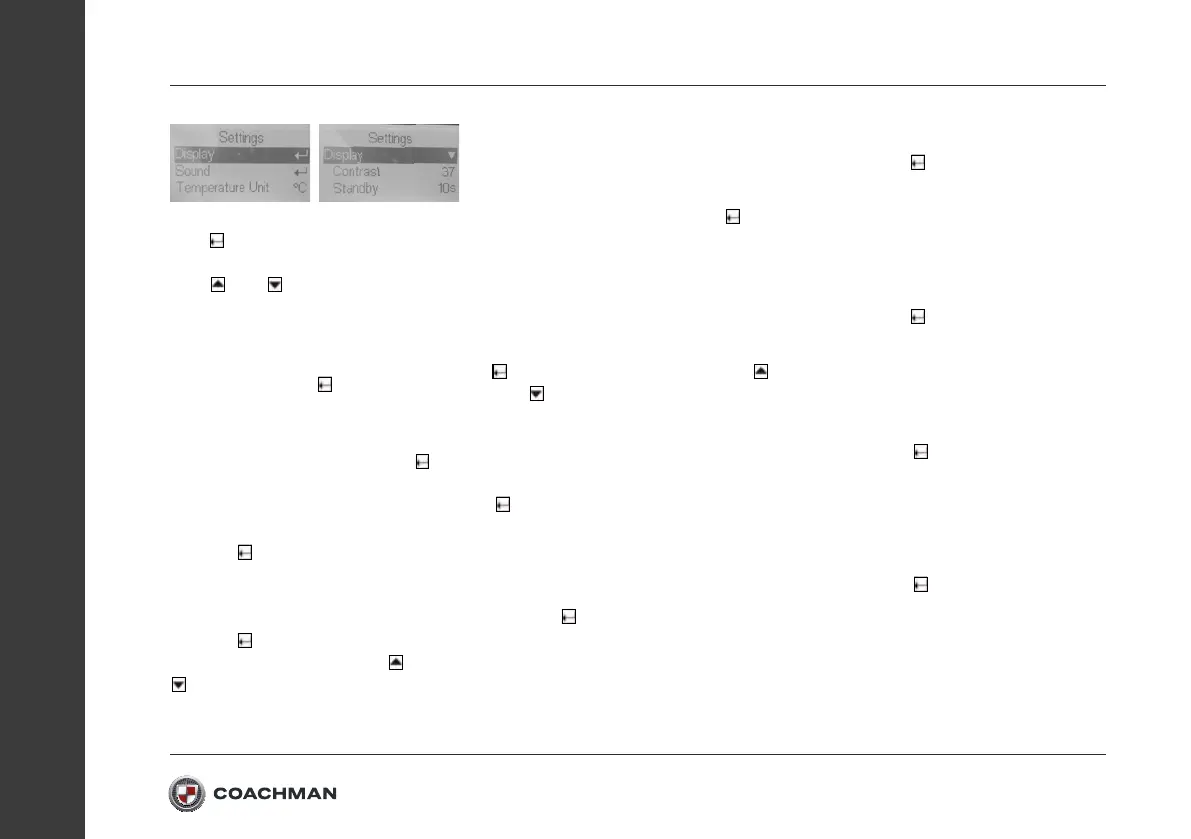
Display Menu:
Pressing on the Display setting will
open the Display drop-down menu.
Contrast:
Pressing
on will allow the contrast
value to be changed using the and
buttons. Increasing the contrast will
make the screen darker overall,
decreasing the contrast will lighten the
screen overall. At its minimum (0) and
maximum (63) the screen will become
almost unreadable. Pressing the
button will save new contrast value.
Standby:
Changing this setting alters the amount
of time the control panel will stay lit
before it goes into standby mode. Press
to select the setting and then the
and buttons to select the time in
5s increments.
Return to home:
This setting is toggled On/O using the
button. When this setting is enabled
the control panel will return to the main
clock screen when it goes into standby.
Sound Menu:
Pressing on the Sound setting will
open the Sound drop-down menu.
Key Tones:
Pressing the
button enables and
disables the key tones on the control
panel. When this setting is disabled
pressing buttons will no longer make
a noise.
Alarm Tone:
Pressing the
button enables and
disables the alarm tones on the control
panel. When this setting is disabled
alarms will no longer make a noise.
Temperature Unit:
Pressing the button switches the
default temperature setting between
degrees Celsius (°C) and degrees
Fahrenheit (°F).
Hide Advice:
Pressing the
button enables/
disables whether advice pages are
displayed after an alarm has been
acknowledged. The advice pages give
a slightly more detailed explanation on
the cause of the alarm.


 To Next Page