EasyManua.ls Logo

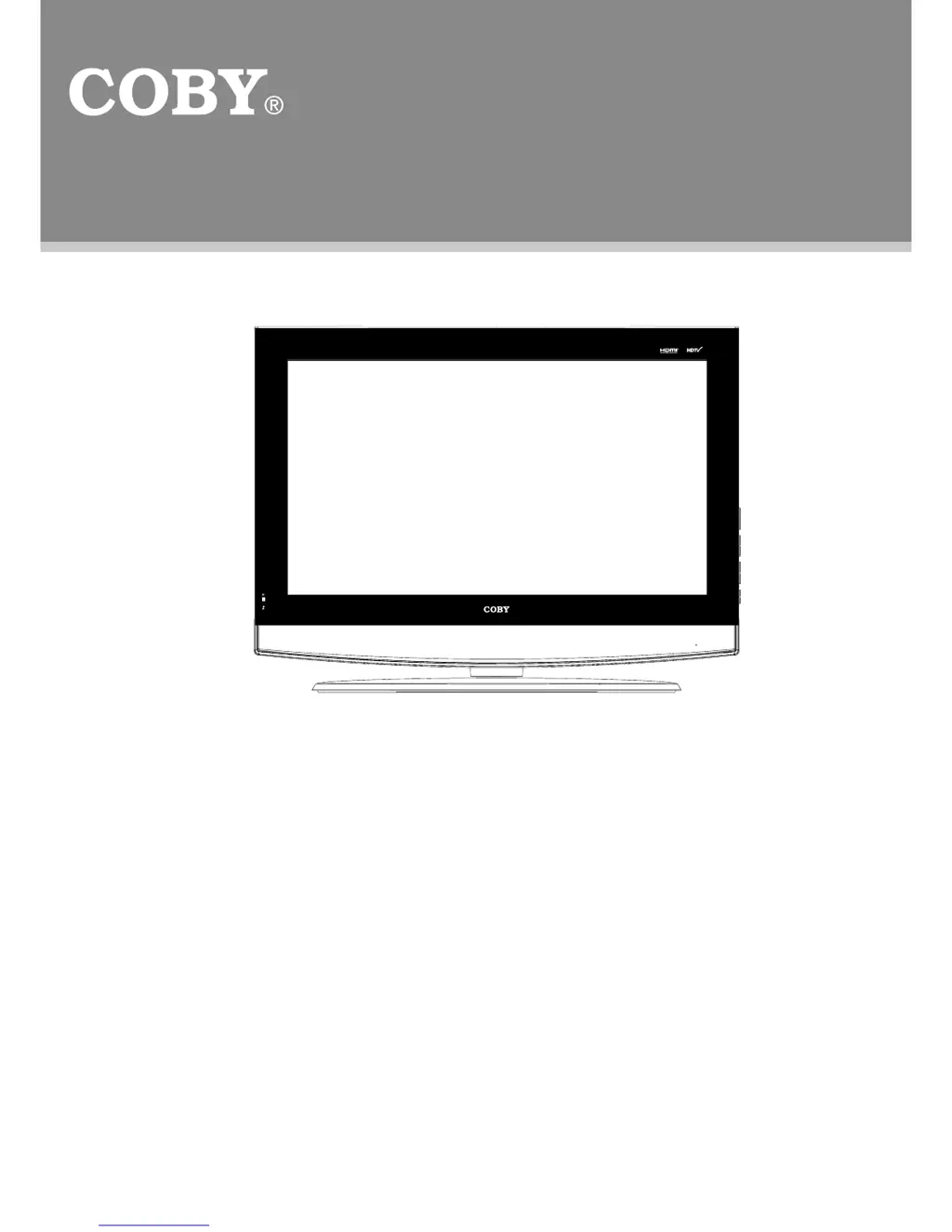
Coby TFDVD2697 - User Manual

Coby TFDVD2697
29 pages
Print Icon
To Next Page IconTo Next Page
Loading...
TFT LCD Widescreen Television
Instruction Manual
Please read this manual carefully before connection and use
TFDVD2697/3297

Questions and Answers

  • J
    Joseph HallJul 28, 2025
    How to troubleshoot Coby TV DVD Combo remote control not working?
    • M
      Mark JohnsonJul 28, 2025
      If the remote control for your Coby TV DVD Combo is not working, remove any obstacles between the remote and the player. Point the remote towards the remote sensor on the player. Check if the batteries are loaded with the correct polarities and replace the batteries if necessary.
  • J
    jilliandavisAug 1, 2025
    How to fix Coby TV DVD Combo no power?
    • T
      tgambleAug 1, 2025
      If your Coby TV DVD Combo has no power, ensure the unit is powered on manually. Check that the power cord is properly connected to the power outlet and the main power switch is on.
  • B
    Brian DudleyAug 6, 2025
    Why is there no sound on my Coby TFDVD2697?
    • S
      Sheila GilmoreAug 6, 2025
      If there is no sound on your Coby TV DVD Combo, first increase the volume. Then, check if the MUTE function is activated. Also, verify that the sound system is properly set and the AV audio signal input cable is correctly connected.
  • J
    Jennifer OdonnellAug 10, 2025
    What to do if my Coby TFDVD2697 has no picture?
    • G
      Grace TerryAug 10, 2025
      If your Coby TV DVD Combo displays no picture, try switching to another TV channel. Ensure the system connection is proper and secure. Check the connection cables for any damage.
  • R
    Richard WallaceAug 14, 2025
    Why is the color distorted on my Coby TV DVD Combo?
    • B
      Billy HenryAug 15, 2025
      If the color is distorted on your Coby TV DVD Combo, try resetting the color system of the unit. Check if the system has been properly connected, and ensure the AV video signal input cable is connected correctly.
  • K
    kellerdonnaAug 19, 2025
    What causes picture and sound interference on Coby TV DVD Combo?
    • A
      Anthony WoodsAug 19, 2025
      If you are experiencing interference with the picture and sound on your Coby TV DVD Combo, check if the system is properly connected. If you are using an antenna, try adjusting it.
  • B
    brittany27Aug 23, 2025
    What to do if my Coby TV DVD Combo is malfunctioning?
    • J
      Jessica NguyenAug 25, 2025
      If your Coby TV DVD Combo is malfunctioning, unplug the player for 30 minutes. After that, power it on again; the restore function should reset the player.

Summary

Precautions

For Customer Use

Record serial number for future reference.

Power Supply

Connect the power cord to the unit and AC outlet.

Power Management

Disconnect power/batteries when not in use for long periods.

Regulatory Information

FCC Statement

Device compliance with FCC rules and interference guidelines.

LCD Panel Information

Details on LCD technology and normal pixel variations.

Copyright Protection Policy

Restrictions on unauthorized copying and performance.

Safety Instructions - Part 1

General Safety and Handling

Reading instructions, cleaning, attachments, and general usage.

Environment and Ventilation Safety

Warnings about water, moisture, placement, and ventilation.

Power Cord and Electrical Safety

Guidelines for power cords, plugs, and lightning protection.

Servicing and Object Entry Warnings

Advises against self-servicing and inserting objects.

Further Safety Instructions

Service and Repair Guidelines

Conditions requiring service and use of proper replacement parts.

Mounting and Heat Considerations

Wall mounting procedures and avoiding heat sources.

Antenna Grounding Requirements

Proper grounding methods for outdoor antenna systems.

Main Features Overview

Supported Input Modes

Lists TV, AV, S-Video, Component, DVD, HDMI, VGA inputs.

High Quality Property Highlights

High resolution, Dolby Digital sound, screen aspect ratios.

Advanced Playback Capabilities

Disc compatibility and playback functions.

Package Contents

Main Television Unit

The primary television unit.

Included Accessories List

Power cord, RCA cable, and remote control unit.

Unit View - Front and Side Panels

Front Panel Components and Indicators

TFT Panel, Speaker, Remote Sensor, Power Indicator.

Front Panel Controls

MODE, MENU, CH +/-, VOL +/- buttons.

Side Panel Controls

POWER, OPEN/CLOSE, STOP, PLAY/PAUSE, SLOW/STEP, NEXT, PREV, Disc Slot.

Unit View - Rear Panel and Wall Mounting

Rear Panel Input;Output Jacks

Power Jack, HDMI, VGA, Component, S-Video, Optical Out.

AV, Antenna, and Audio Connections

AV1, AV2 inputs, PC Audio In, Antenna Jack, Phone Jack.

Wall Mounting Procedure Details

Steps for detaching the stand and mounting to a wall.

Remote Control - Buttons and Layout

Power and Navigation Buttons

POWER, VOLUME, CHANNEL, MENU, RETURN, directional buttons.

DVD, Setup, and Information Buttons

DVD SETUP, LCD SETUP, MODE, SLEEP, EPG, FAV, INFO, CH-LIST.

Playback and Format Selection Buttons

MUTE, FORMAT, TITLE, ANGLE, SUBTITLE, MENU, PLAY/PAUSE, STOP.

Remote Control - Advanced Functions

DVD Specific Playback Features

TITLE, ANGLE, SUBTITLE, MENU for DVD specific functions.

Disc Navigation and Speed Controls

F.BWD, F.FWD, NEXT, PREV, PROGRAM, GOTO, REPEAT, ZOOM.

Slow Motion and Section Playback

SLOW/STEP for motion control, A-B for section repeat.

Remote Control - Usage and Battery Management

Battery Installation and Replacement

Inserting AAA batteries and replacing the compartment cover.

Remote Operation Guidelines

Pointing at sensor, operating distance, and angle.

Remote Usage Notes and Precautions

Avoiding bright lights, obstructions, and using with other equipment.

Cable Connections - Video and Audio Inputs

Antenna and Power Connection

Connecting RF sources and the power cord.

Component Video and Audio Input

Connecting YCbCr/PbCr/Pr and L/R audio signals.

S-Video and Audio Input

Connecting S-Video signals and L/R audio.

Cable Connections - Digital and PC Inputs

AV Input (CVBS) and Connections

Connecting composite video and stereo audio signals.

VGA and PC Audio Input

Connecting a computer monitor and audio.

HDMI Digital Audio;Video Input

Connecting digital audio/video via HDMI.

TV Function - Setup and Picture Settings

TV Operation Preparation Steps

Connecting cables and turning on the TV.

TV Setup Menu Navigation

Accessing and navigating the main TV setup menu.

Picture Menu Settings Explained

Adjusting Picture Mode, Contrast, Brightness, Color, Tint, Sharpness.

TV Function - Audio and Time Settings

Audio Menu Options Configured

Configuring Sound Mode, Bass, Treble, Balance, Surround, AVC, Language.

Time Menu Settings Configured

Setting Sleep Timer, Time Zone, Daylight Saving, and Clock.

TV Function - System and Lock Settings

System Menu Options Explained

Adjusting Menu Language, Transparency, Zoom, Noise Reduction, Closed Caption.

Lock Menu Settings Explained

Managing Passwords, System Lock, and Parental Controls.

TV Function - Channel Management

Antenna Type and Auto Scan

Selecting antenna type and performing automatic channel scanning.

Favorite Channels and Show;Hide

Managing favorite channels and hiding unwanted ones.

Channel Labeling and Signal Strength

Editing channel labels and checking DTV signal intensity.

AV Function - Input and Settings

AV Input and Mode Selection

Connecting external sources and selecting AV modes.

AV Setup Menu Navigation

Accessing and navigating the AV setup menu.

AV Picture Menu Adjustments

Picture settings for AV input, similar to TV section.

PC Function - Monitor Usage and Setup

Connecting to a Computer

Using the TV as a monitor via VGA and PC Audio.

PC Setup Menu Options

Accessing and adjusting PC setup menu items.

Manual PC Screen Adjustments

Adjusting H-Pos, V-Pos, Clock, and Phase for PC input.

DVD Operation - Basic Use

Disc Loading and Playback Initiation

Inserting discs and beginning DVD playback.

DVD Menu, Subtitle, and Angle Control

Using MENU, SUBTITLE, and ANGLE for DVD features.

DVD Operation - Media Type Playback

CD and MP3 Disc Playback

Playing audio CDs and MP3 files.

JPEG Image Viewing and Rotation

Displaying JPEG photos with rotation options.

Playback Function - Navigation and Control

Basic Playback Controls

Start, Pause, Stop, and Fast Forward/Backward playback.

Repeat and Search Features

Using REPEAT, A-B, and GOTO for specific playback needs.

Playback Function - Advanced Operations

Slow Motion and Step Playback

Using SLOW/STEP for detailed motion control.

Zoom and Program Playback Functions

Applying zoom effects and programming playback sequences.

DVD Setup - System Settings

System Setup Menu Options

Configuring TV System, Screen Saver, Power Resume, TV Type.

Parental Control and Password Setup

Setting parental rating levels and managing passwords.

DVD Setup - Language and Defaults

Password Management and Defaults

Changing the setup password and restoring factory defaults.

Language Selection Options

Choosing OSD, Audio, Subtitle, and Menu languages.

Troubleshooting Common Issues

No Power, Picture, or Sound Problems

Resolving issues like no power, picture, or sound.

Remote Control and Malfunction Fixes

Troubleshooting remote control and unit malfunctions.

Product Specifications

TFDVD 2697 Model Specifications

Technical details for the TFDVD 2697.

TFDVD 3297 Model Specifications

Technical details for the TFDVD 3297.

Coby TFDVD2697 Specifications

General IconGeneral
BrandCoby
ModelTFDVD2697
CategoryTV DVD Combo
LanguageEnglish

Related product manuals