RS-232 connection
12 DataMan 200 Quick Reference Guide DataMan 200 Quick Reference Guide 13
Install DataMan 200 Software
Troubleshooting an Ethernet Connection
1. Check the DataMan Release Notes for a full list of system requirements.
2. Insert CD-ROM and follow the on-screen prompts.
3. Connect the DataMan 200 to your PC.
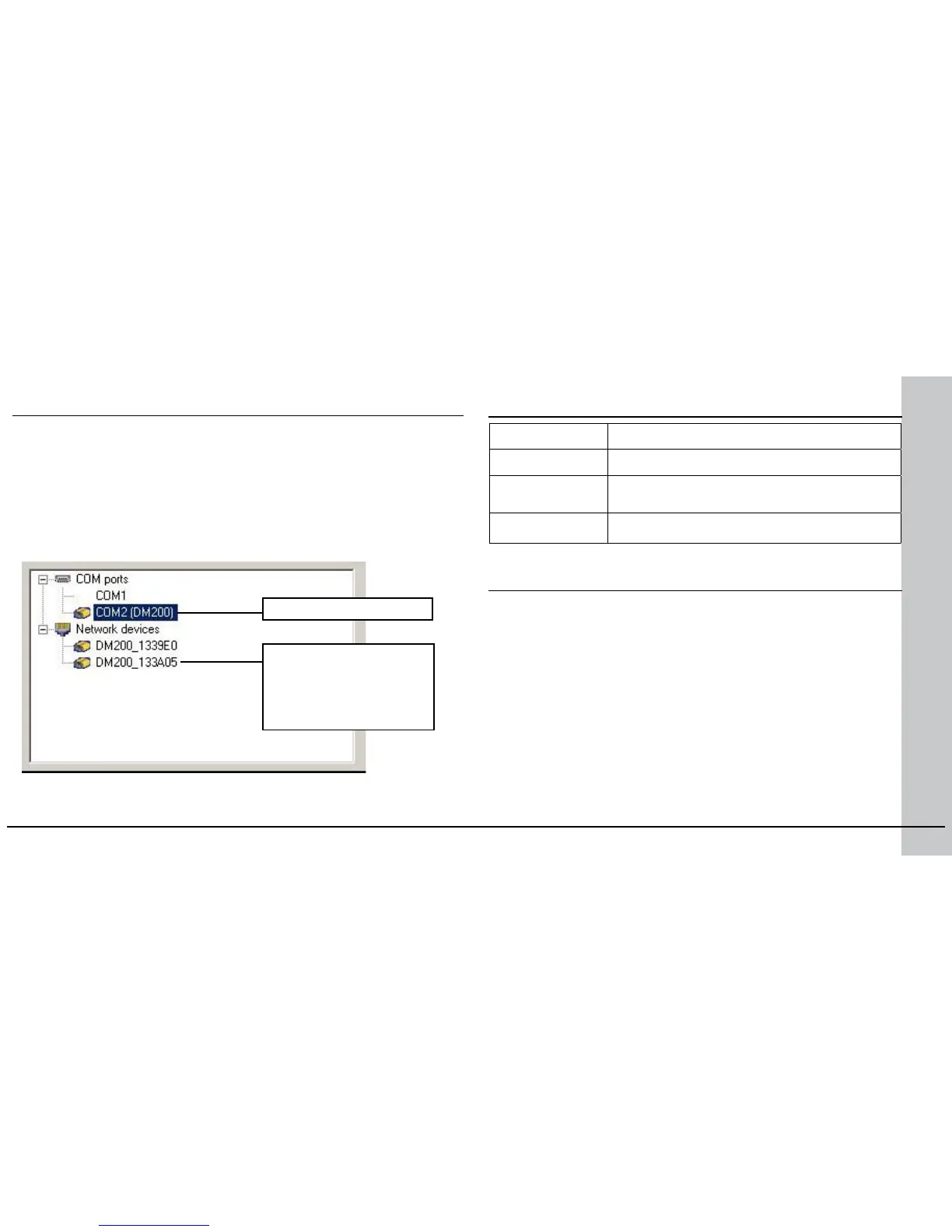
4. Launch the Setup Tool and click Refresh.
The reader will appear under COM ports, Network devices, or both.
5. Select a COM port listing or Network devices listing and click Connect.
Ethernet connection
“DM200_” with last 6
characters of MAC address,
printed on back of the
reader
Based on your network conguration, the Setup Tool may not be able
to communicate with the reader and it will not appear in the list of
Network devices.
First check your Ethernet connection with the reader and click Refresh
in the Setup Tool. Next, scan the Enable DHCP code in the DM200
Conguration Codes document available from the Start menu. This
might allow the reader to acquire a suitable IP address from a DHCP
server on your subnet.
If the reader still does not appear, you can use either the Add Device or
Force Network Settings options in the Setup Tool.
If you know the IP address of the reader, use the Add Device option.
If you do not know the IP address, use the Force Network Settings
options. Either method should allow the DataMan 200 reader to appear
in the list of Network devices so that you can connect to it through the
Setup Tool and your Ethernet connection.
DataMan 200 Imager Specications
Specication DataMan 200 Imager
Image Sensor 1/3 inch CMOS
Image Sensor
Properties
4.51mm x 2.88mm (W x H), 6.0μm square pixels
Image Resolution
(Pixels)
752 x 480



 To Next Page