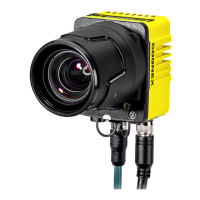
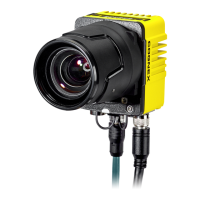
The Cognex VisionView Web is a reference manual for a device designed to connect to run-time Web HMIs from Cognex devices on the factory floor. The product family includes both a touchscreen version (VisionView Web Panel) and a screenless version that connects to a third-party screen over HDMI (VisionView Web HDMI).
Function Description
The VisionView Web device serves as a user interface for Cognex devices, allowing for automated detection and connection to both In-Sight and DataMan Web HMIs on the factory floor. It supports tiling multiple Web HMIs on one screen, loading and saving jobs, changing online status, and viewing run-time data. The device also facilitates offloading images and job files to SD cards or USB drives, configuring network settings, and administering passwords. It is further supported by In-Sight Vision Suite.
Important Technical Specifications
VisionView Web Panel Display Specifications
- Micro SD Card: Micro SD Slot × 1
- LCD: 9" WSVGA TFT-LCD
- Resolution: 1024 x 600
- Touchscreen: Resistive / Capacitive
- USB: USB 2.0 × 2
- Ethernet: Integrated 10/100/1000 Mbps Ethernet
- Power Input: Multi-Voltage +8 V ~ +35 V DC
- Operating Temperature: 0°C to +60°C
- Storage: -30°C to +80°C
- Humidity: 0% ~ 90% relative humidity, non-condensing
- IP Rating: IP65 (front panel)
- Shock: Yes
- Vibration: Yes
VisionView Web HDMI Specifications
- SD Card: SD Slot × 1
- USB: USB 2.0 × 3 (front × 2 + rear × 1)
- Ethernet: RJ45 × 2 (Intel I210 GbE × 1/CPU GbE × 1)
- Power Input: DC +12 V to +36 V input
- Operating Temperature: 0°C to +60°C
- Storage: -30°C to +80°C
- Humidity: 0% ~ 90% relative humidity, non-condensing
Physical Dimensions
VisionView Web Panel:
- Width: 236.6 mm
- Height: 197.6 mm
- Depth: 35 mm (13.5 mm from front panel, 113.7 mm from rear panel)
- Cut-out Dimension: 175 mm (width) x 115 mm (height)
- Mounting holes: 4-M4, with a pattern of 136 mm x 75 mm
VisionView Web HDMI:
- Width: 115 mm
- Height: 100 mm
- Depth: 35 mm
- Mounting holes: 4-Ø4.4
Usage Features
Getting Started
The VisionView Web device can be mounted using various options. For the VisionView Web Panel, it can be installed in an electrical panel to maintain an IP65 environmental rating using a FastMount bracket, or with general mounting solutions (e.g., table top stand, swivel link arm kits) which may lower the environmental rating below IP65. The VisionView Web HDMI can be attached to the back of a monitor or used with a VESA-compliant solution.
Mounting Options:
- FastMount bracket: Product Number 820-20907-001
- Table top stand: Product Number 820-0272-1R
- Swivel link single arm kits: Available in 2-inch (CSL-AFSB-1002), 4-inch (CSL-AFSB-1004), 6-inch (CSL-AFSB-1006), and 8-inch (CSL-AFSB-1008) lengths.
- Swivel link mounting plate: CSL-AFSB-9
Installation Steps:
- VisionView Web Panel on Table Top Stand: Insert two M4 hex screws into the top mounting holes of the VisionView Web panel without fully tightening. Slide the panel onto the table top stand so the screws catch the notches, then tighten the screws. Optionally, three screw holes on the bottom of the stand can be used to attach it to a horizontal surface.
- VisionView Web Panel to FastMount Bracket: Attach a gasket to the back of the VisionView Web panel. Position the FastMount bracket to the back of the panel, align with mounting holes, insert and tighten four hex screws. Rotate the panel into the cutout until the gasket is flush with the mounting surface. Insert four fasteners into their respective holes without tightening, then slide on the end cap of each fastener. Hand-tighten all four fasteners until the panel is securely fixed.
- VisionView Web Panel to Custom Bracket: Cut screw holes into the bracket according to specified dimensions (112.3 mm x 113.3 mm overall, with various offsets for 14-Ø3.4 holes). Remove twelve M3 screws from the VisionView Web panel in a diagonal pattern. Place the panel face-down on a clean, flat surface. Slide the bracket around the back of the panel until it rests directly on the gasket. Align the screw holes with the mounting holes on the panel. Insert all twelve M3 screws into the mounting holes and screw them in until they are finger-tight. Finish tightening the screws using an M3 screwdriver, following a specified tightening sequence (maximum torque is 1.18 Nm). Note: The screw size is M3×L (L=wall thickness + 6.0 mm). For a standard M3 screw for the VisionView Web panel (6 mm) and a mounting bracket thickness of 1 mm, 10 mm M3 screws are needed.
Connecting the VisionView Web:
- VisionView Web HDMI: Plug in the power cable, connect to the network using an Ethernet cable, and connect to an external display using an HDMI cable.
- VisionView Web Panel: Plug in the power cable and connect to the network using an Ethernet cable.
Once connected and powered, the device can be accessed via the VisionView Web application.
VisionView Web User Interface
The user interface allows for managing detected devices, configuring device settings, and customizing the display.
Detected Devices:
- The application automatically populates with discovered devices. Users can choose to connect to detected devices or add other devices manually by entering their IP Address, MAC ID, Firmware Version, Serial Number, Model, Full Screen URL, and Tiled URL.
- Refresh Detected Devices: Refreshes the list of detected devices.
- Expand all device details: Allows viewing all device details.
- Toggle device grouping: Toggles the display of devices by type or alphabetically.
- Selected Devices: Users can add detected devices to a "Selected Devices" list. Devices in this list can be reordered using "Up" or "Down" buttons and removed.
- Device Configuration: For selected devices, users can set a Display Name, Device Type, User Name, Password, and specify custom URLs (Full Screen URL and Tiled URL). The "Tiled URL" and "Full Screen URL" fields are mandatory.
- Run Mode: After configuration, the device can be switched to Run Mode.
Tiles:
- The "Tiles" page displays tiles for the devices in the "Selected Devices" list.
- Layout: The layout menu allows choosing between "Grid" and "Showcase" display styles, and configuring "Row" and "Column" settings.
- Size Tiles to Fill Space: Controls the scale of the tiles.
- Click Tile Anywhere for Full Screen: Enables opening a tile in full-screen mode with a click.
- Run Button: Displays a live feed from the web user interface of the devices.
- Maximize Button: Maximizes a tile to full-screen mode.
- Reload Button: Reloads run mode.
- Configure Button: Returns to settings.
Device Defaults:
- Allows configuring login credentials for the Web HMI of Cognex devices.
- Enable Default Device Credentials: Toggles default device credentials on or off.
- User Name: Enter user name.
- Password: Enter password.
Appearance:
- Allows changing the appearance and language.
- Dark Mode: Toggles between a dark and light UI layout.
- Touch-Friendly: Enables a touch-friendly setting, increasing the size of UI elements for easier interaction.
Network Settings:
- Allows configuring network settings.
- Host Name: Name of the VisionView Web device.
- Address Assignment: Can be set to DHCP (Auto) or Static. If DHCP (Auto) is selected, only the Host Name is configurable. If Static is selected, Host Name, IP Address, and Subnet Mask fields must be filled.
- IP Address: Enter the VisionView Web IP address.
- Subnet Mask: Enter the VisionView Web subnet mask.
- Default Gateway: Enter the default gateway.
- DNS Server: Enter DNS server name.
- Domain Name: Enter the domain name.
Admin Password:
- Allows changing the VisionView Web admin password.
- Password: Enter a new password.
- Confirm Password: Re-enter the new password.
- Note: The admin password must be set before configuring the VisionView Web device or performing any actions from the In-Sight Vision Suite.
About:
- Displays information about the device, including Host Name, Application Version, IP Address, MAC ID, and Serial Number.
Maintenance Features
Cleaning and Maintenance:
- To clean the outside of the chassis, use a dry cleaning cloth.
- Caution: Do not clean VisionView Web products with liquids.
- Caution: Do not attempt to clean any VisionView Web product with harsh or corrosive solvents, including lye, methyl ethyl ketone (MEK), or gasoline.
The device complies with various regulatory standards:
- CE: Model Names: Regulatory Models EB-8MM-20920 and PN8M-090T-20919. This is a Class A product, which may cause radio interference in a domestic environment. This equipment complies with the essential requirements of the EU Directive 2014/30/EU.
- EU RoHS: Compliant to the most recent applicable directive.
- FCC: FCC Part 15 Class A. This equipment has been tested and found to comply with the limits for a Class A digital device, pursuant to part 15 of the FCC Rules. These limits are designed to provide reasonable protection against harmful interference when the equipment is operated in a commercial environment.
- Korea: Regulatory Models R-R-Del-EB-8MM-20920 and R-R-IC6-PN8M090T-20919. This device is certified for office use only and if used at home, there can be frequency interference problems.
- TUV: Regulatory Models EB-8MM-20920 and PN8M-090T-20919. NRTL: TÜV SÜD NRTL OSHA Scheme for UL/CSA 62368-1. CB report available upon request: TÜV SÜD, IEC/EN 62368-1.
China RoHS (Information for China RoHS Compliance):
The device complies with China RoHS requirements, indicating that hazardous substances are below specified limits.
For European Community Users (WEEE Directive):
Cognex complies with Directive 2012/19/EU of the EUROPEAN PARLIAMENT AND OF THE COUNCIL of 4 July 2012 on waste electrical and electronic equipment (WEEE). This product has required the extraction and use of natural resources for its production. It may contain hazardous substances that could impact health and the environment if not properly disposed. Users are encouraged to cooperate in the reuse and recycling of the product. The crossed-out wheeled bin symbol indicates that the product should not be disposed of along with municipal waste and invites users to use the appropriate separate take-back systems for product disposal. Users should contact their supplier for more information on the environmental performance of this product.

 Need help?
 General

 To Next Page