5.1 Standard Character Mode
When
the printer
is
turned on,
it
is
set to start
in
the STANDARD
CHARACTER mode. But once you select different character modes
the printer
will
remain
in
that mode until a different one
is
chosen
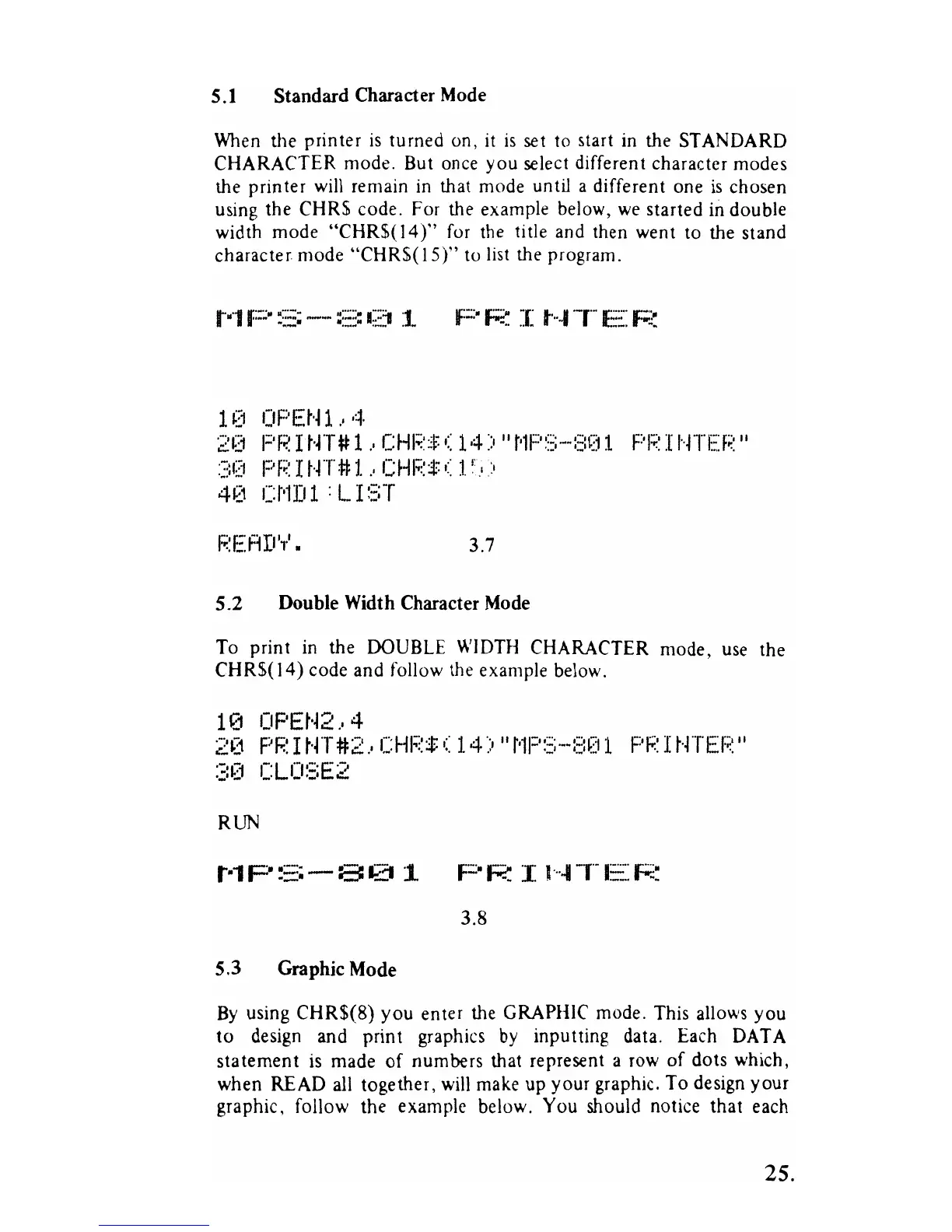
using the CHR$ code. For the example below,
we
started
in
double
width mode
"CHR$(l4)"
for the title and then went to the stand
character mode "CHR$(lS)" to list the program.
1
~~1
OF'Et-~
1
.'
4
20
PP I
tH#
1.,
CHI:;::l
0::
14)
II
t'1P~3-":::I~j
1
F'P
I I'HEP
II
30 PRINT#1ICHP$(15\
4(1
U'11I
1 : L I
::::T
F.:EAD',.'.
3.7
5.2
Double
Width
Character
Mode
To
print
in
the
DOUBLE
WIDTH
CHARACTER mode,
use
the
CHR$(l4) code and follow
the
example below.
10
OPEt-Q.,
4
;~0
pp
I
t·~T#2.,
CHF:$
0::
14)
"t'1P::;--:;::O
1
F'R
I
t'~TEI?
II
:;!
(1
C
LJ:t:3
E 2
RUN
3.8
5.3 Graphic Mode
By
using CHR$(8) you enter the
GRAPHIC
mode. This allows you
to design and print graphics
by
inputting data. Each
OAT
A
statement
is
made
of
numbers that represent a
row
of
dots which,
when READ
all
together,
will
make
up your graphic. To design your
graphic, follow the example below. You should notice that each
25.


 To Next Page