EasyManua.ls Logo

Commodore PC 10 - Page 119

Commodore PC 10
494 pages
Print Icon
To Next Page IconTo Next Page
To Previous Page IconTo Previous Page
Loading...
c:
c,
c
Using Applications with MS-DOS
37
The
following example
shows
you
how
to
start edlin,
create
the
pencil
ad
file, and
exit
edlin.
All
you have
to
do
is follow
these
steps:
III Make
sure
the
MS·
DOS disk is in drive
A.
[2]
At
the
MS·
DOS
prompt,
type
the
following command,
then
press
the
RETURN key:
edlin
pencil.ad
Since you are just creating
the
file, edlin responds
with
the
following message:
New
file
*
rn
When
you
see
the
asterisk
(*),
type
the
letter
I
(for
Insert)
and
press
the
RETURN key. You will
see
line
number
1. Edlin
uses line
numbers
to
help you edit,
but
they
are
not
part
of
your
file.
[!] Type
the
following lines. Remember
to
press
the
RETURN key
after
each line, including,.
the
last line.
Introducing
...
The
X-1000
Automatic
Pencil
Sharpener
From
Sharpe
Office
Supplies
The
World
Leader
in
Office
Sharpeware
Note Use
the
BACKSPACE key
to
erase a mistake
on
a line
before you press
the
RETURN key.
If
you
do
press
the
RETURN
key before
correcting
the
mistake,
don't
worry
about
it, this
is just a practice session.
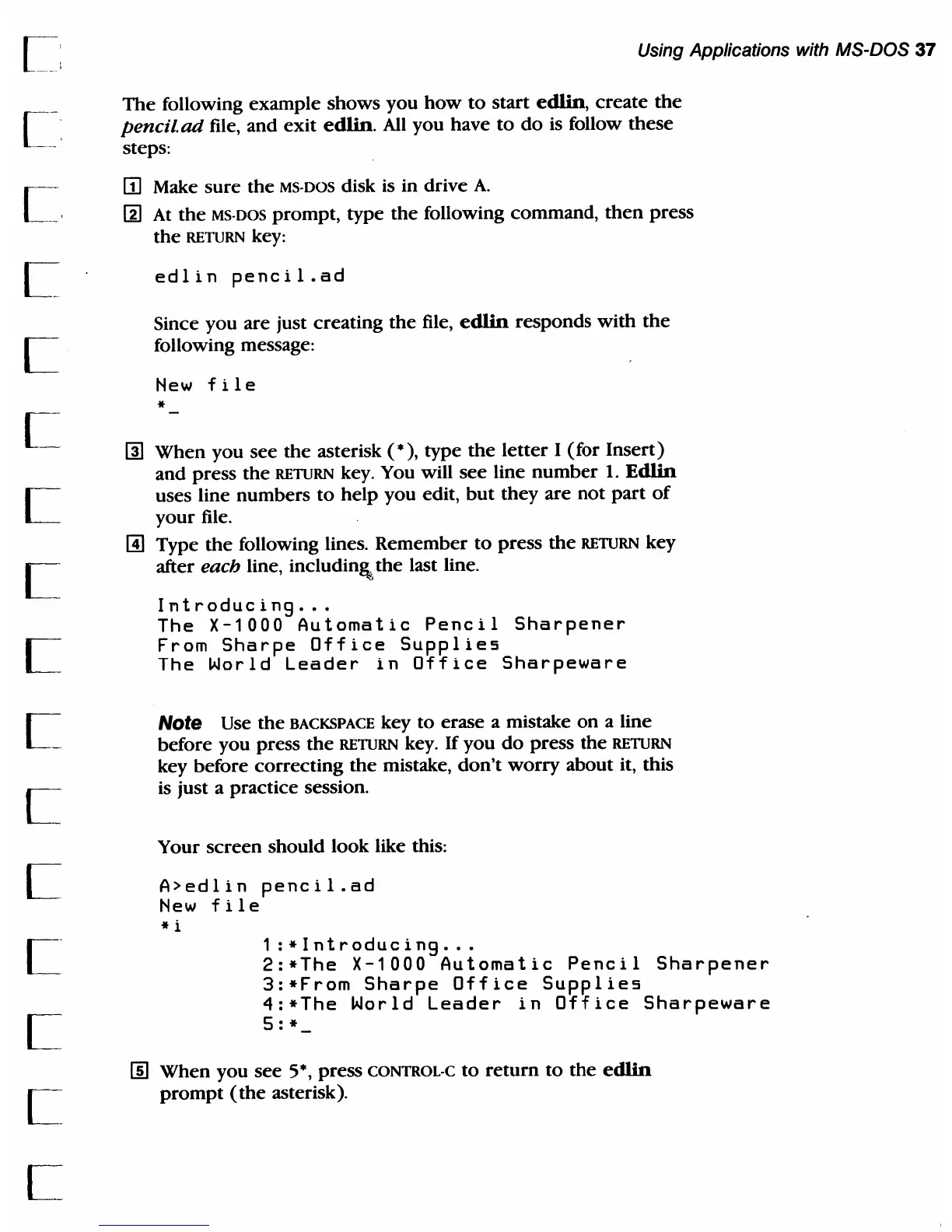
Your
screen
should look like this:
A>edlin
pencil.ad
New
file
*i
1
:*Introducing
...
2:*The
X-1000
Automatic
Pencil
Sharpener
3:*From
Sharpe
Office
Supplies
4:*The
World
Leader
in
Office
Sharpeware
5:*
[ru
When
you
see
5*,
press CONTROL-C
to
return
to
the
edlin
prompt
(the
asterisk).

Table of Contents

Related product manuals