0.2.1 Installation Instructions
Note:
If
you are installing
two
video adapters in your system, please
refer
to
Section
0.5
for possible configurations.
1.
Make sure your
computer
is
of[
2. Set
the
switches
on
your
Commodore PC
to
the
video mode
corresponding
to
the
setting
of
your
ATI
Graphics Solution. See
Table
0-1
and Figure
0-2.
(You
do
not
need
to
set
the
switches
if
you
are using the factory-set default video mode, which
is
the
monochrome mode.)
3.
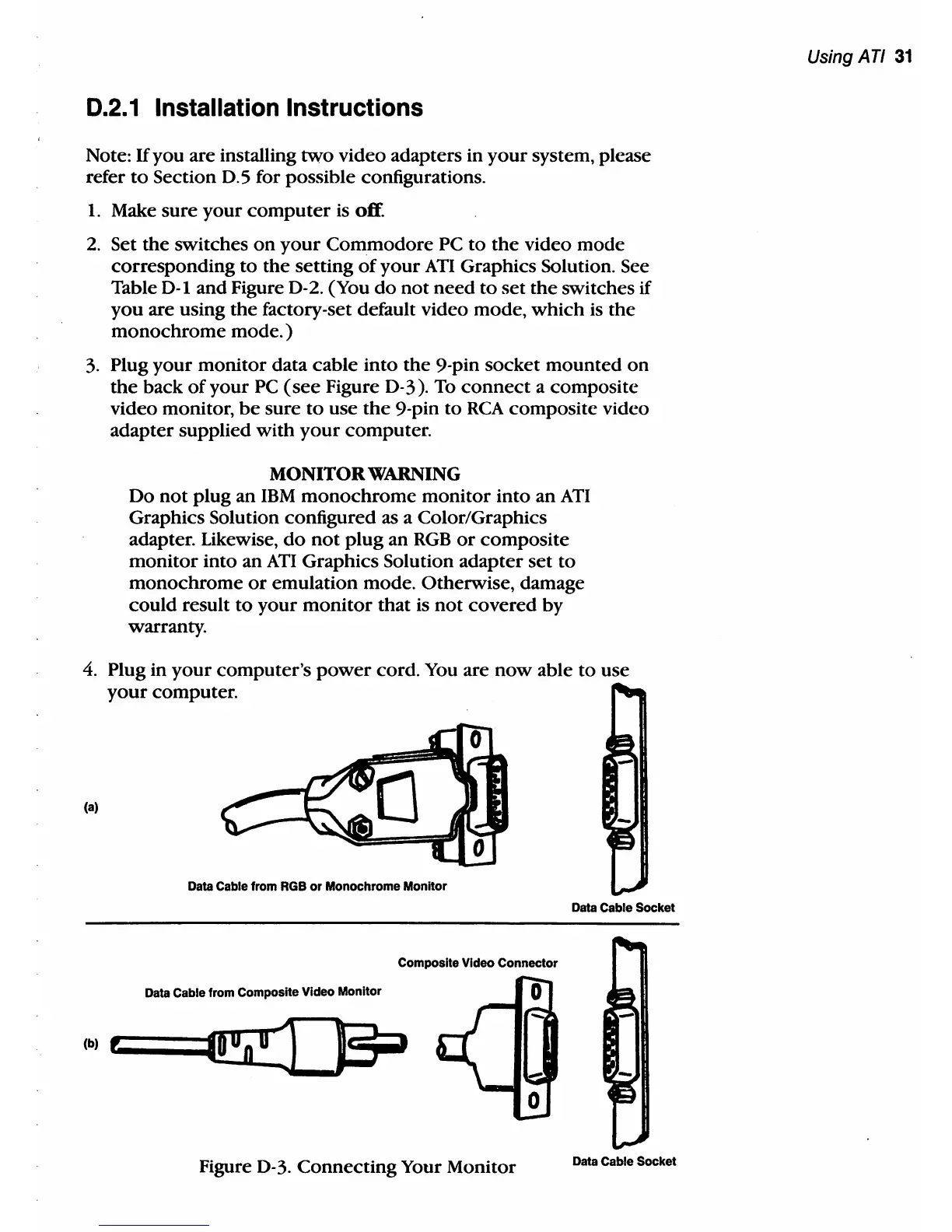
Plug your monitor data cable into the 9-pin socket mounted on
the
back
of
your
PC
(see
Figure
0-3).
To
connect
a composite
video monitor,
be
sure
to
use
the
9-pin to
RCA
composite video
adapter supplied with
your
computer.
MONITOR
WARNING
Do
not
plug an
IBM
monochrome monitor into an
ATI
GraphiCS
Solution configured as a Color/Graphics
adapter. Likewise,
do
not
plug an
RGB
or
composite
monitor into an
ATI
Graphics Solution adapter set
to
monochrome
or
emulation mode. Otherwise, damage
could result
to
your monitor that is
not
covered by
warranty.
4.
Plug in your computer's
power
cord.
You
are
now
able
to
use
your
computer.
(a)
Data Cable from RGB
or
Monochrome
Monitor
Data Ceble Socket
Composite Video
Connector
Data Cable from Composite Video
Monitor
Figure
0-3.
Connecting Your Monitor
Data Ceble Socket
Using
AT!
31



 To Next Page