Chapter 3 Appendix
(Note) Please note that an M.2 PCIe SSD cannot be used to create a RAID set with a SATA hard drive.
C. UEFI RAID Confguration
Steps:
1. In BIOS Setup, go to Boot and set CSM Support to Disabled. Save the changes and exit BIOS Setup.
2. Ater the system reboot, enter BIOS Setup again. The n e nter the Settings\I O P orts\RAIDXpert 2
Confguration Utility sub-menu.
3. On the RAIDXpert2 Confguration Utility screen, press <Enter> on Array Management to enter the Create
Array screen. Then, select a RAID level. RAID levels supported include RAID 0, RAID 1, and RAID 10 (the
selections available depend on the number o the hard drives being installed). Next, press <Enter> on Select
Physical Disks to enter the Select Physical Disks screen.
4. On the Select Physical Disks screen, select the hard drives to be included in the RAID array and set them
to Enabled. Next, use the down arrow key to move to Apply Changes and press <Enter>. Then return
to the previous screen and set the Select CacheTagSize, Read Cache Policy and Write Cache Policy.
5. Move to Create Array and press <Enter> to begin.
6. Ater completing, you'll be brought back to the Array Management screen. Under Manage Array Properties
you can see the new RAID volume and inormation on RAID level, array name, array capacity, etc.
Before you begin, please prepare the following items:
• At least two SATA hard drives or SSDs.
(Note)
(To ensure optimal perormance, it is recommended that you
use two hard drives with identical model and capacity).
• Windows setup disc.
• An Internet connected computer.
• A USB thumb drive.
Confguring the Onboard SATA Controller
A. Installing SATA hard drive(s) in your computer
Install the hard drives/SSDs in the SATA/M.2 connectors on the motherboard. Then connect the power connectors
rom your power supply to the hard drives.
B. Confguring SATA controller mode in BIOS Setup
Make sure to congure the SATA controller mode correctly in system BIOS Setup.
Steps:
Turn on your computer and press <Delete> to enter BIOS Setup during the POST (Power-On Sel-Test). Under
Settings\IO Ports, set SATA Confguration\SATA Mode to RAID. Then save the settings and restart your
computer. (I you want to use NVMe PCIe SSDs to congure RAID, make sure to set NVMe RAID mode to
Enabled.)
The BIOS Setup menus described in this section may dier rom the exact settings or your motherboard.
The actual BIOS Setup menu options you will see shall depend on the motherboard you have and the
BIOS version.
3-1 Confguring a RAID Set
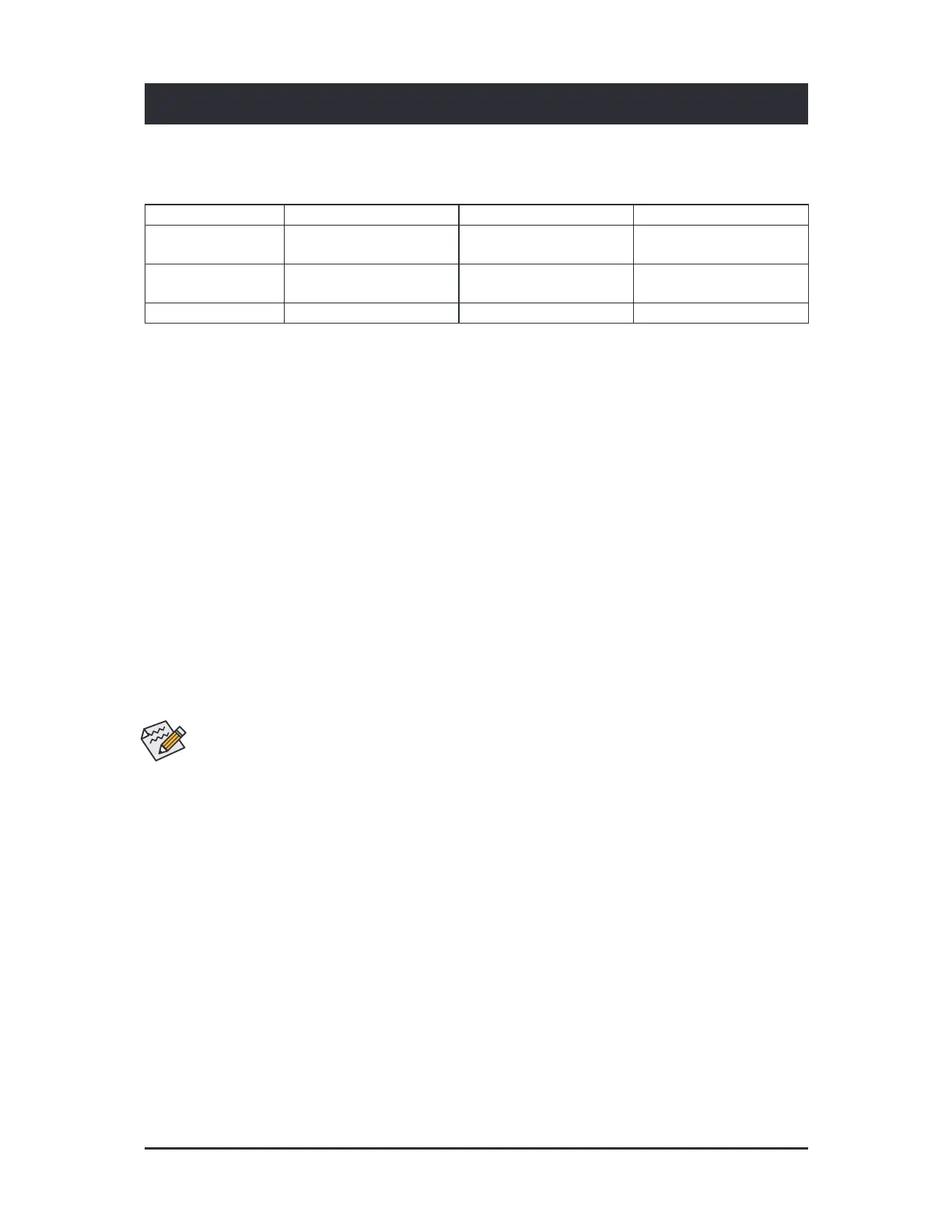
RAID Levels
RAID 0 RAID 1 RAID 10
Minimum Number o
Hard Drives
≥2 2 4
Array Capacity
Number o hard drives *
Size o the smallest drive
Size o the smallest drive (Number o hard drives/2) *
Size o the smallest drive
Fault Tolerance No Yes Yes
- 35 -



 To Next Page