The two memory sockets are divided into two channels and each channel has one memory socket as ollowing:
Channel A: DDR4_A1
Channel B: DDR4_B1
Due to CPU limitations, read the ollowing guidelines beore installing the memory in Dual Channel mode.
1. Dual Channel mode cannot be enabled i only one memory module is installed.
2. When enabling Dual Channel mode with two memory modules, it is recommended that memory o
the same capacity, brand, speed, and chips be used.
1-5 Installing an Expansion Card
Read the ollowing guidelines beore you begin to install an expansion card:
• Make sure the motherboard supports the expansion card. Careully read the manual that came
with your expansion card.
• Always turn o the computer and unplug the power cord rom the power outlet beore installing an
expansion card to prevent hardware damage.
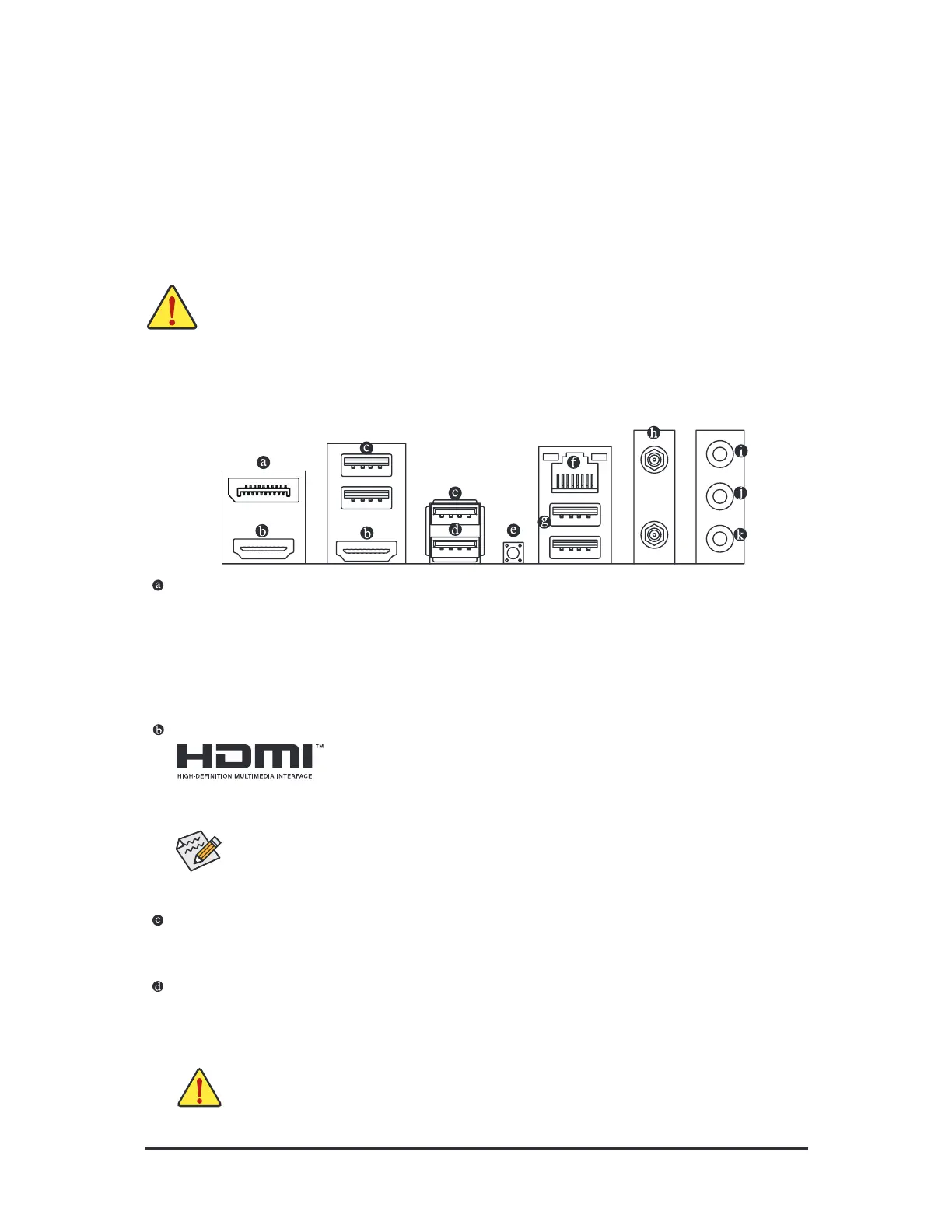
1-6 Back Panel Connectors
DisplayPort
(Note 1)
DisplayPort delivers high quality digital imaging and audio, supporting bi-directional audio transmission.
DisplayPort can support both DPCP and HDCP 2.3 content protection mechanisms. It provides improved
visuals supporting Rec. 2020 (Wide Color Gamut) and High Dynamic Range (HDR) or Blu-ray UHD
playback. You can use this port to connect your DisplayPort-supported monitor. Note: The DisplayPort
Technology can support a maximum resolution o 5120x2880@60 Hz but the actual resolutions supported
depend on the monitor being used.
HDMI Port
(Note 1)
TheHDMIportis HDCP2.3compliantandsupports DolbyTrueHDand DTSHDMaster
Audio ormats. It also supports up to 192KHz/24bit 7.1-channel LPCM audio output.
You can use this port to connect your HDMI-supported monitor. The maximum supported resolution is
4096x2160@60 Hz, but the actual resolutions supported are dependent on the monitor being used.
• To set up a triple-display conguration, you must install motherboard drivers in the operating
system rst.
• Ater installing the DisplayPort/HDMI device, make sure to set the deault sound pla yback
device to DisplayPort/HDMI. (The item name may dier depending on your operating system.)
• When removing the cable connected to a back panel connector, rst remove the cable rom
your device and then remove it rom the motherboard.
• When removing the cable, pull it straight out rom the connector. Do not rock it side to side to
prevent an electrical short inside the cable connector.
USB 3.2 Gen 1 Port
The USB 3.2 Gen 1 port supports the USB 3.2 Gen 1 specication and is compatible to the USB 2.0
specication. Use this port or USB devices.
USB 3.2 Gen 1 Port (Q-Flash Plus Port)
The USB port supports the USB 3.2 Gen 1 specication. Use this port or USB devices. Beore using
Q-Flash Plus
(Note 2)
, make sure to insert the USB fash drive into this port rst.
- 10 -



 To Next Page