51
“No” and “Yes” at the end of the top
line. (No means the exception does
NOT apply.). Press [ to confirm your
choice
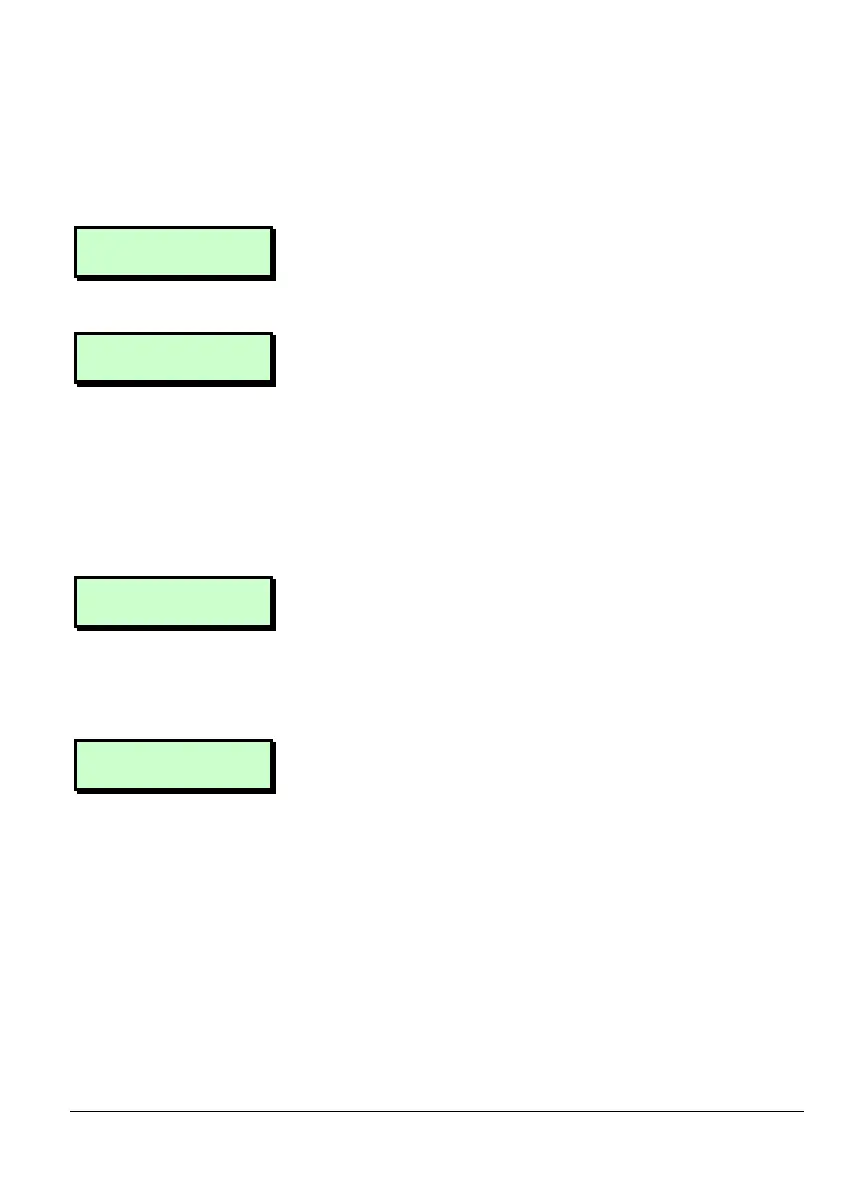
CL 03 Ex. 01 Yes
01 JAN - 01 JAN
6.3 Repeat steps 6.2 and 6.3 for any other
Exceptions you wish to apply. Press ]
when you have finished.
Code Lock 3
Users : 10
7. Use | or ¬, or press hot key 4 to
select Users.
The bottom line of the display shows the
number of users currently allocated to
this code lock (you may have set these
up already when creating a new user,
see page 24 ).
Press [.
CL 3 User 02>Yes
User 002
7.1 Press r repeatedly to toggle between
“No” and “Yes” at the end of the top
line. (No means the user is NOT affected
by that code lock.). Press [ to move to
the next user.
Code Lock 3
Users : 5
7.2 Repeat step 7.1 for all the users you wish
to apply to the code lock. Press ]
when finished. The bottom line of the
display will reflect the final number of
users affected by the code lock.



 To Next Page