19
WEB ACCESS
CAMERAS
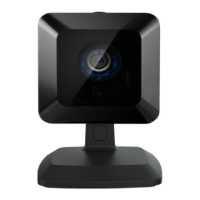
This feature displays live video and enables you to capture
manual pictures or video clips from cameras installed in
your home.
Viewing and Capturing Live Video and Snapshots
To view live video from the cameras attached to your
system and take snapshots or videos, click View Live Video
or click Cameras > Live Video on the toolbar.
One of the cameras is displayed as live video. The other
camera views (not live video) are arrayed over it.
1. Click on any camera view to see live video from that camera.
2. To take a snapshot with the currently selected camera,
click Take Picture.
3. To take a video clip (about 15 seconds) with the currently
selected camera, click Take Video Clip.
4. To delete snapshots or video clips, select one or more
cameras and click the Trash Can.
1
23
4
Viewing Captured Pictures and Video Clips
To view captured images:
1. S elect Cameras > Saved Pictures and Videos on the toolbar.
The displayed screen lists the pictures and video clips
captured manually and automatically (during alarm events).
2. Click on an image to view the captured images.
3. I mages that were captured automatically during an
alarm have an Alarm button in the right-hand corner and
display the security zone where the images were taken.
4. I mages that were captured manually have a Camera icon
in the right-hand corner.
5. To delete images, select the check box for each captured
image and click the Trash Can.
2
5


 To Next Page
 Loading...