26
MOBILE APP ACCESS
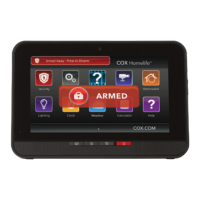
To disarm your security system:
1. On the Home screen, tap Security.
2. On the Security screen, tap Armed – Press to Disarm.
3. Enter your 4-digit Keypad Code to disarm the system.
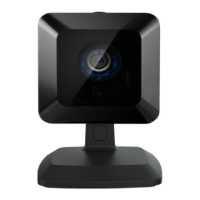
CAMERAS
View live video or captured pictures and video clips.
To view live video from your cameras:
1. On the Home screen, tap Cameras.
2. Tap the camera you’d like to access. To view live video,
press the Video button in the top right corner.
To view captured video clips or pictures from your cameras:
1. On the Home screen, tap History.
2. Use the menu at the top of the screen to fi lter the History:
• All — View images captured manually from the
Subscriber Portal or as a result of a Schedule rule
confi gured in the Subscriber Portal.
• Alarm — View images captured as part of an alarm.
• Arm — View images captured as part of an arming event.
• Zone — View images captured as part of a zone event.
3. Tap the listing to view the captured images and videos.
2
1
1
1
3
2
2
3


 To Next Page
 Loading...