System Software
8.7.1 Firmware Upgrade
This allows the administrator to
load new firmware onto the router
to add new features or fix defects.
If you are happy with the
operation of the router, you may
not want to upgrade just because
a new version is available. Check
the firmware release notes
(www.Cradlepoint.com/firmware)
for information to decide if you should upgrade.
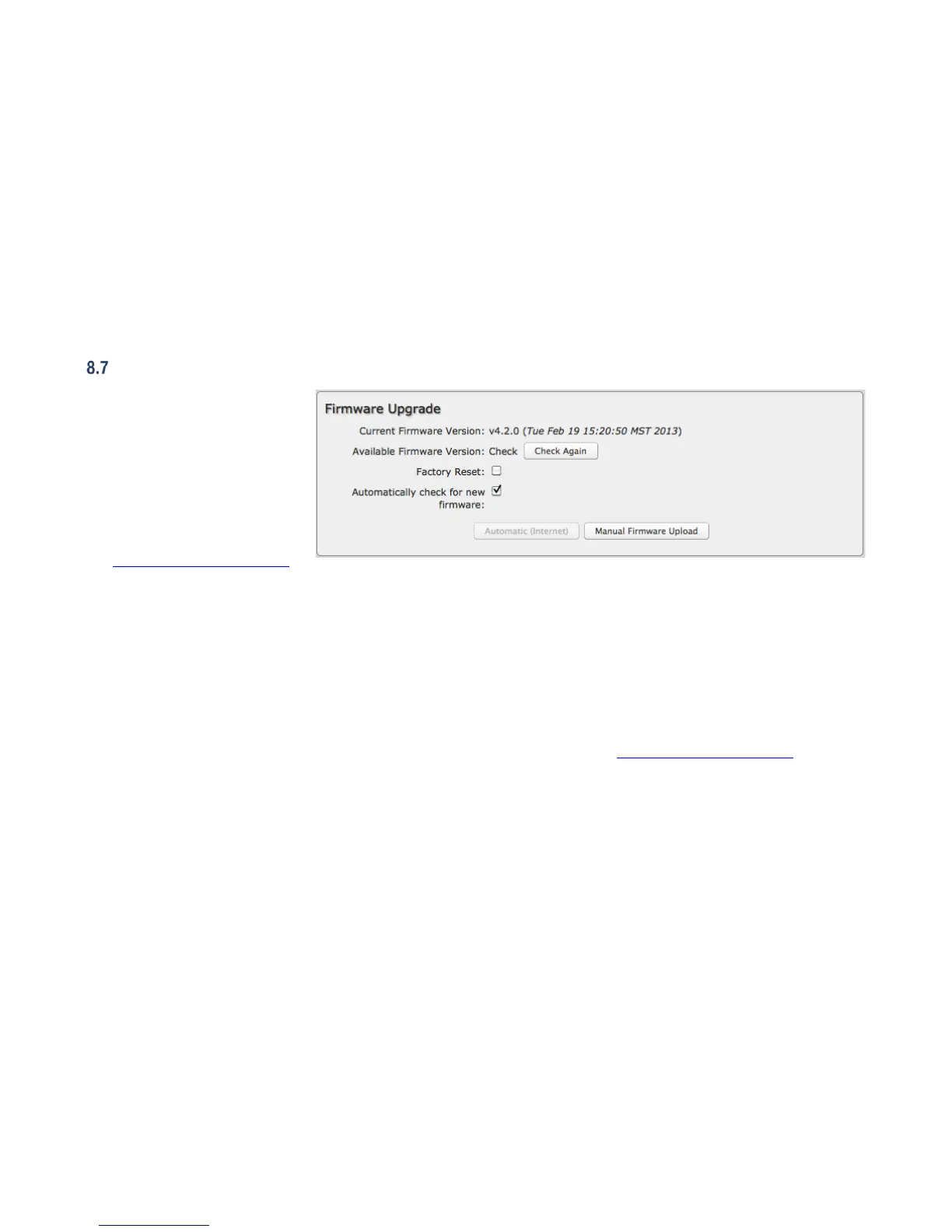
Current Firmware Version: Shows the number of the current firmware and the date it was updated.
Available Firmware Version: If there is a new firmware version available, this will list the version number. Click “Check Again” to
have the router check the newest firmware.
Factory Reset: Set default settings to match the new firmware. This is safest, as settings may have changed. You should back up
your current settings and restore them after the new firmware is loaded.
Automatically check for new firmware: Check for an available firmware update once a day.
Automatic (Internet): Have the router download the file and perform the upgrade with no user interaction.
Manual Firmware Upload: Upload the router firmware from an attached computer. (Go to www.Cradlepoint.com/firmware to download
the firmware.)







 To Next Page