10
Shutter button
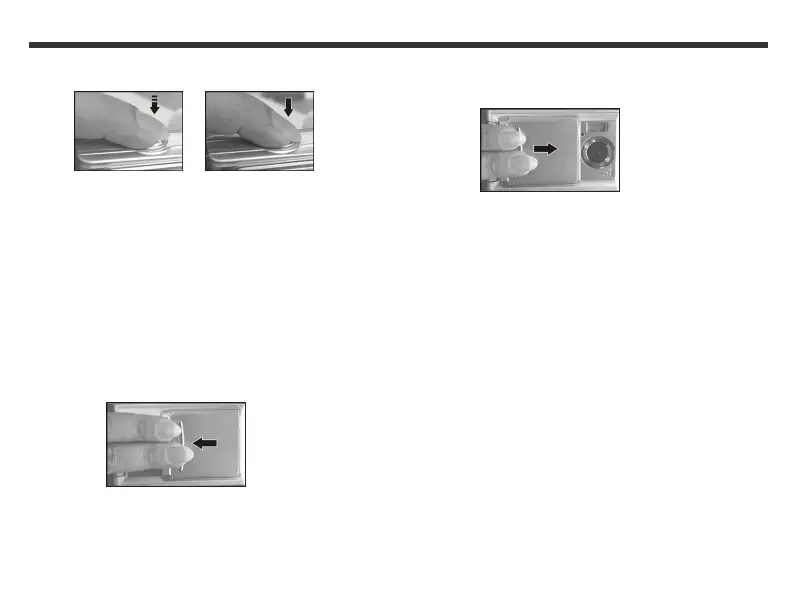
Your camera has a 2-step shutter function.
To automatically focus on your subject, press and hold
the Shutter button down halfway. The "[ ]" icon
appears on the LCD.
To take a picture, press the Shutter button down fully.
Your camera beeps.
Lens cover
1. Gently slide the lens cover to the left as shown
below. A long beep indicates that the camera is
turned on.
2. To turn off the camera, gently slide the lens
cover to the right.
Notes:
• When the camera is turned on, the Busy LED blinks
red and the last recorded image appears on the LCD
screen.
• If there is no activity on the camera for
approximately 60 seconds, the power is turned off to
save battery power. To use your camera, turn on
your camera.
• The following settings are automatically saved
before your camera is turned off, unless “Reset
Default" is selected:
o Resolution
o Image Quality
o Language
o White balance
o EV value
o Frequency
o PC mode



 To Next Page