21
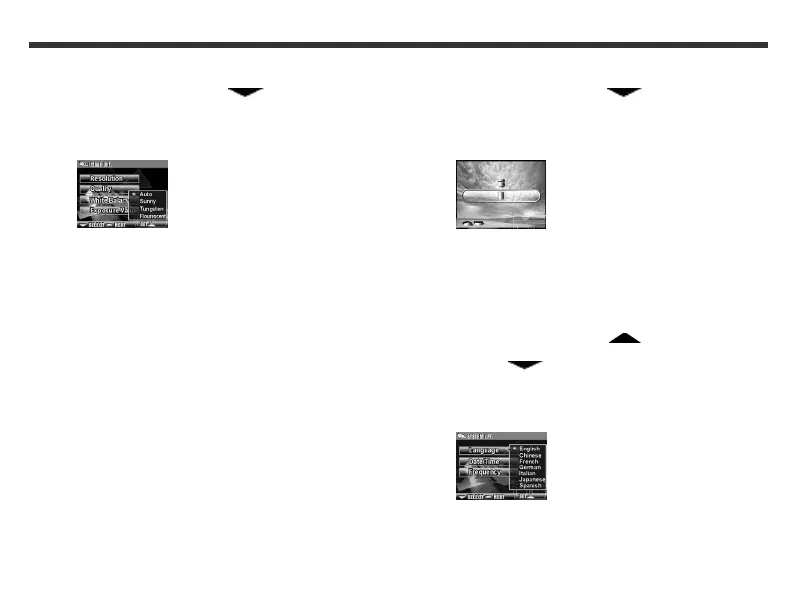
To adjust the white balance
1. In Setup mode, use the Function key to
select White Balance.
2. Press the Set button. The following LCD screen
appears.
3. Use the Function keys to select the white
balance that you want.
• Select Auto to automatically adjust the white
balance when taking a photo.
• Select Sunny if you are taking a photo in direct
sunlight.
• Select Tungsten if you are taking a photo in
overcast conditions.
• Select Fluorescent if you are taking a photo in
fluorescent lighting.
4. Press the Set button.
To adjust the exposure value
1. In Setup mode, use the Function key to
select Exposure Value.
2. Press the Set button. The following LCD screen
appears.
3. Use the Function keys to increase or decrease
the exposure value.
4. Press the Set button.
To change the default language
1. In Setup mode, use the Function key to
select SYSTEM OPT.
2. Use the Function key to
select Language.
3. Press the Set button. The following LCD screen
appears.
4. Use the Function keys to select the language
that you want, and then press the Set button.



 To Next Page