Product Manual — Doc. 8555D TS-770andTS-1070•15
Wi-Fi Setup
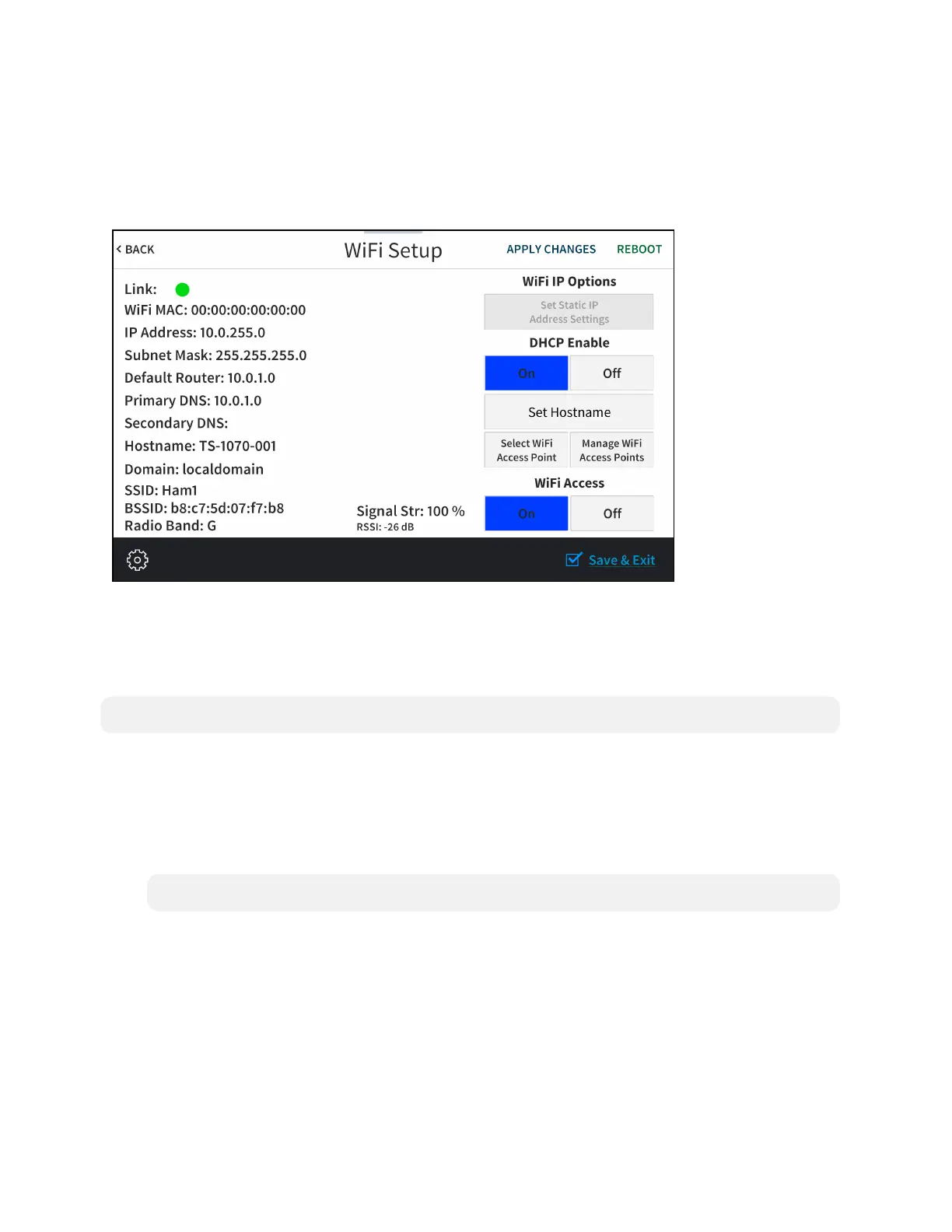
Tap Wi-Fi Setup on the Setup screen to display the Wi-Fi Setup screen.
Wi-Fi Setup Screen
Use the Wi-Fi Setup screen to view the Wi-Fi network MAC and IP addresses, subnet mask
address, default router address, primary and secondary DNS addresses, hostname, domain, and
various details about the Wi-Fi connection. A Link indicator is provided to indicate the status of
the Wi-Fi connection. (Green indicates that the Wi-Fi connection is active.)
NOTE:Ethernetmust be disabled before a Wi-Fi connection can be configured.
The following buttons are provided for configuring Wi-Fi settings:
l Tap On or Off under Wi-Fi Access to turn the Wi-Fi adapter on or off. If Wi-Fi Access is set
to Off, Wi-Fi will not function and an Ethernet connection can be established.
l Tap On or Off under DHCP Enable to turn DHCP (dynamic host configuration protocol) on
or off.
NOTE: DHCP is enabled on the touch screen by default.
l If DHCP is turned off, tap Set Static IP Address Settings to enter static IP addresses
manually.
l Tap Set Hostname to enter a new touch screen hostname using an on-screen keyboard.
l Tap APPLY CHANGES to apply any new Wi-Fi settings to the touch screen and to stay in
setup mode.
l Tap REBOOT to exit setup mode and reboot the touch screen.









 To Next Page