Creative Feature Keys
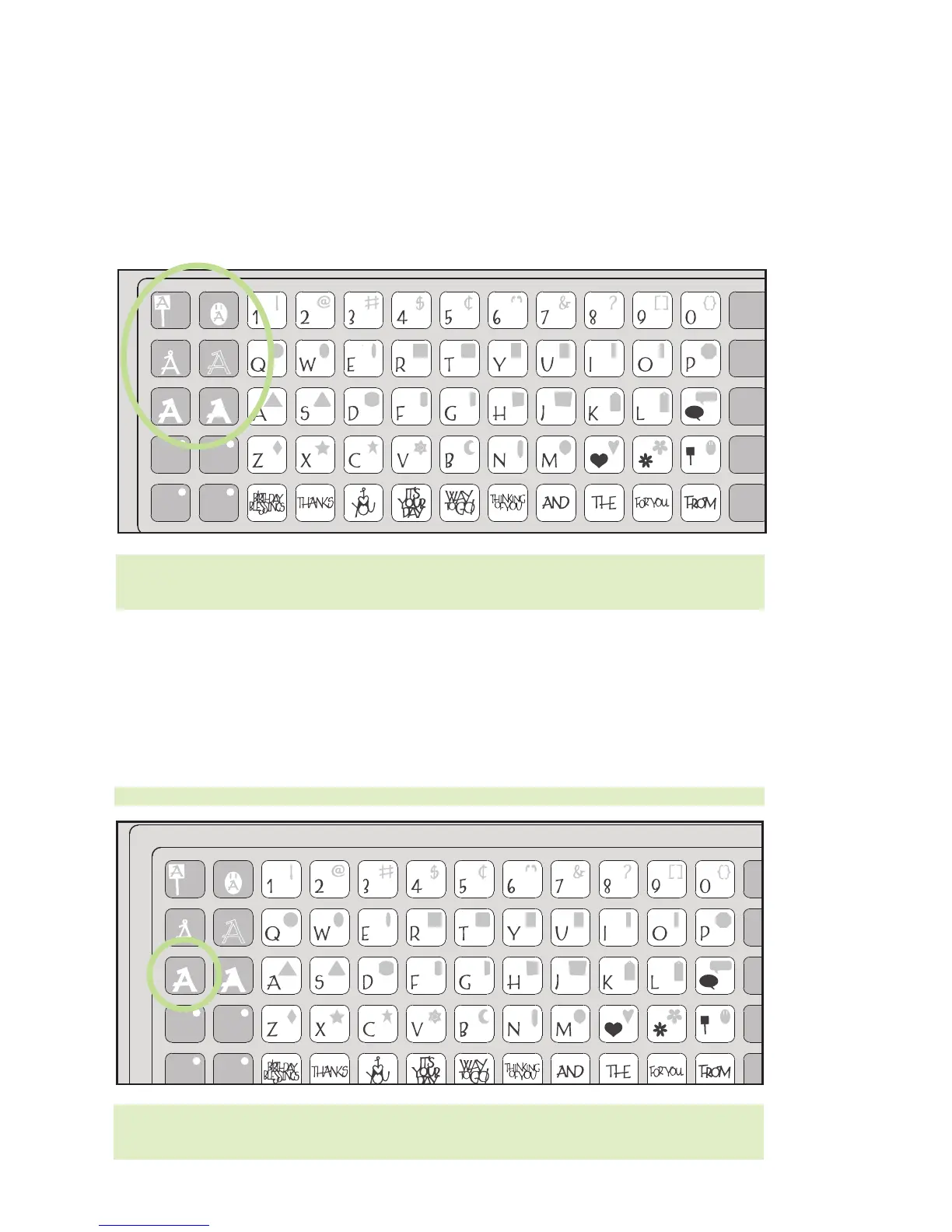
Creative Features are found in the top 3 rows of keys on the left side of the keypad over-
lay. Creative Features vary from cartridge to cartridge and provide a multitude of creative
options. Refer to a cartridge’s Cricut™ handbook for a full review of the Creative
Features that are available on that particular cartridge. When a Feature key is selected, it
will be backlit in green. A Feature can be selected before or after a letter(s), shape(s), or
phrase(s) has been selected, but before the
CUT button is pressed. Once pressed, a
Feature key will remain lit until it is turned off in one of the following ways: the Feature
key is pressed a second time, the Reset All key is pressed, or a different Feature is select-
ed. Only one Creative Feature key can be selected for each cut, and that Feature will be
applied to all characters on the LCD screen.
12
F
oundation
S
pace
Back
Space
Clear
Display
Reset
All
R
epeat
Last
L
oad
L
ast
Load
Paper
U
nload
P
aper
S
et
Paper
Size
S
ound
On/Off
Sign
Charm
Shift
Shift
Lock
Shadow
Paper
Saver
Real
Dial Size
Shadow
Blackout
Silhouette
Slotted
TIP: Due to their sizes and shapes, a Feature may not work with all letters, shapes, or
phrases. Please refer to the handbook included with each cartridge for Creative Feature
details.
Two of the most common Creative Feature keys offered on Cricut™ cartridges are the
Shadow and the Shadow Blackout/Blackout keys.
Shadow Feature
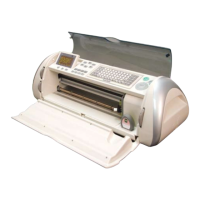
The Shadow Feature is available on all Cricut™ font and shape cartridges. When selected,
this Feature creates a proportionately larger shadow image of every letter, shape, or
phrase that is selected. When the Shadow Feature is active, the Shadow key will be
backlit in green.
Foundation
Space
Back
Space
Clear
Display
Reset
All
Repeat
Last
Load
Last
Load
Paper
Unload
Paper
Set
Paper
Size
Sound
On/Off
Sign
Charm
Shift
Shift
Lock
Shadow
Paper
Saver
Real
Dial Size
Shadow
Blackout
Silhouette
Slotted
TIP: When sizing a Shadow to fit a letter, shape, or phrase, use the same dial size that
was selected on the base image or original letter. Example: If you’ve cut a 2-inch “A” and
you now want a Shadow of it, keep the Size Dial set at 2 inches.
TIP: Using just the Shadow by itself creates a chunky version of the original font.


 To Next Page