Cutting Your Selections
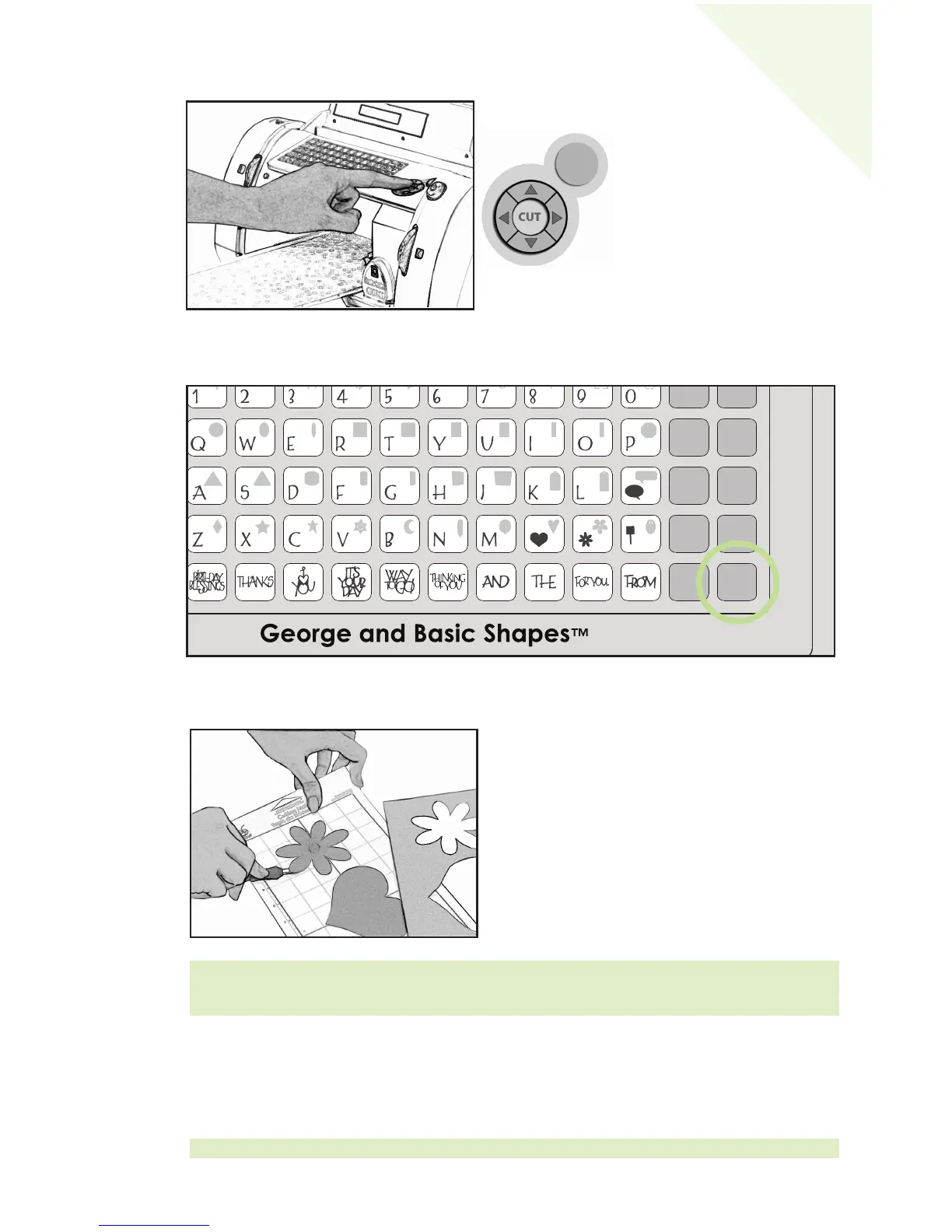
Press the CUT button.
When the Cricut™ machine is finished cutting, press the
Unload Paper key on the
keypad to eject the Cutting Mat from the machine.
Removing Your Cuts from the Cutting Mat
Gently remove images from the Cutting Mat.
If it is difficult to remove the cuts, use a craft
knife or the Cricut™ Tools (sold separately) to lift
the images. Once all cuts are removed, clean off
any small scraps of paper remaining on the
Cutting Mat. This will help the Cutting Mat
perform well in the future.
Advanced Operations
Your Cricut™ machine has a variety of advanced operations designed to enhance your
creativity. We recommend you become familiar with basic operations before moving on
to the advanced operations described in this section.
TIP: The Cricut™ Scoop, Hook, Blade, and Scraping tools are specifically designed for
lifting cuts and cleaning scrap paper from the Cutting Mat. These are available for
purchase.
TIP: For the latest information and updates, visit www.cricut.com
STOP
The STOP button, located adjacent
to the CUT button, will stop any
operation in progress.
11
E
N
GL
ISH


 To Next Page