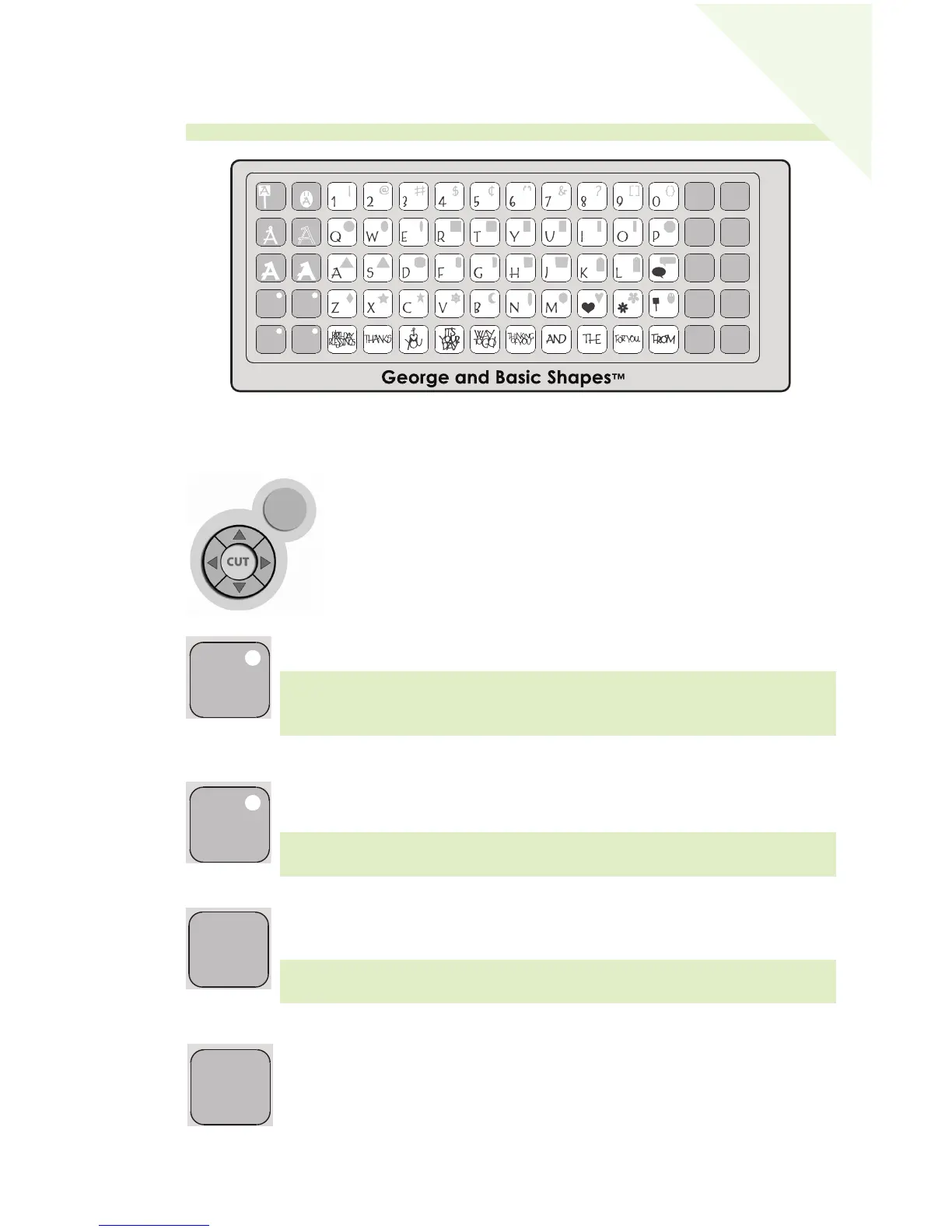
Choosing Your Letters, Shapes, and Phrases
Select the letter(s), shape(s) or phrase(s) you want to cut (up to 16). Your
selection will be displayed in the LCD screen above the keypad.
Foundation
S
pace
Back
Space
Clear
Display
Reset
All
R
epeat
L
ast
L
oad
L
ast
L
oad
P
aper
U
nload
P
aper
S
et
Paper
S
ize
S
ound
O
n/Off
Sign
Charm
S
hift
S
hift
L
ock
Shadow
P
aper
S
aver
R
eal
D
ial Size
Shadow
Blackout
Silhouette
S
lotted
The Shift key allows you to select the letter, shape, or phrase in the upper
right corner of a key.
The Shift Lock key allows repeated selections of letters, shapes, or phrases
in the upper right corner of a key. The Shift Lock key will be backlit in
green when active.
The Space key functions just like the space bar on a computer or typewriter
keyboard. It inserts one space after the last letter, shape, or phrase entered,
every time it is pressed.
The
Back Space key functions just like the back space key on a computer or
typewriter. It deletes letter(s), shape(s), or phrase(s), starting from the last
one entered, every time it is pressed.
Sign
Charm
Shift
Shift
Lock
Shadow
Paper
Saver
Real
Dial Size
Shadow
Blackout
Silhouette
Slotted
Space
Back
Space
Clear
Display
Reset
All
R
Space
Back
Space
Clear
Display
Reset
All
Repeat
Last
Load
L
Set
P
Sound
On/Off
S
Sign
Charm
Shift
Shift
Lock
Shadow
Paper
Saver
Real
Dial Size
Shadow
Blackout
Silhouette
Slotted
Basic Keys and Buttons You Should Know
If you want to stop the Cricut™ machine from cutting before it is
finished, simply press the
STOP button located adjacent to the CUT
button. This will suspend any operation in progress.
The Blade Navigation Buttons (discussed in detail on page 13)
move the cutting blade to any location on the paper.
TIP: Letters will be cut as single characters.
TIP: To select a letter, shape, or phrase from the upper right corner of a key,
press the
Shift key once (no need to hold it down) and make your
selection. The Shift key will be backlit in green when active.
TIP: If a letter, shape, or phrase takes up the entire key, that character will
be displayed whether
Shift is selected or not.
STOP
TIP: You probably won’t need the Space key if you are cutting one word at
a time. Use it when you specifically want negative space in your cuts.
9
E
N
GL
ISH


 To Next Page