Use the Load Last key instead of the Load Paper key when you want the
blade to start cutting at the point on the paper where the previous cut
ended.
The Paper Saver key automatically rearranges your selections to take up
the least amount of space possible on your paper. If you turn the Paper
Saver function on, that will become your default setting. The next time you
turn your Cricut™ machine on, Paper Saver will still be activated. If you
want to deactivate it, you will need to press
Paper Saver again.
Sizing
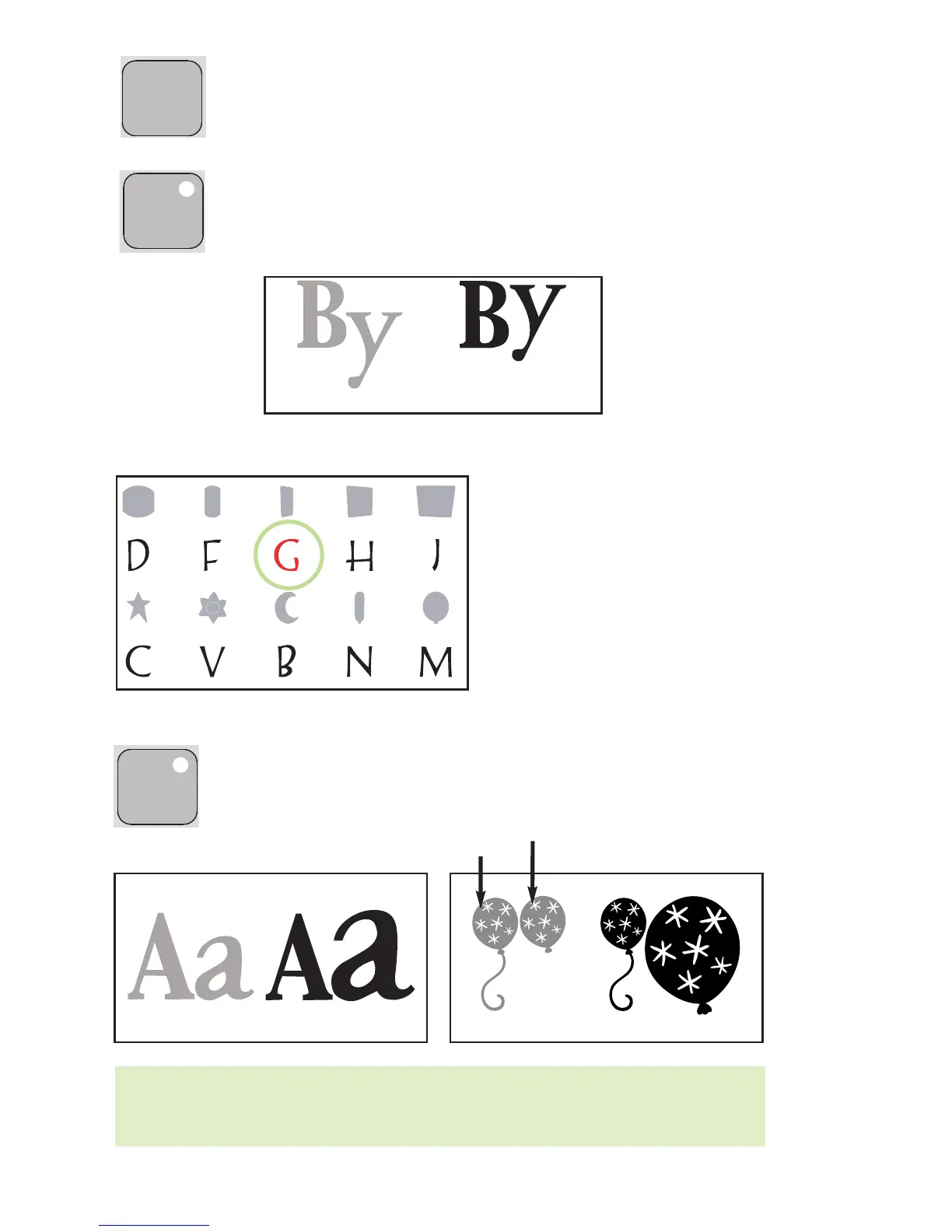
Characters are measured from the lowest possible point to the highest possible point.
In font sets, the Key Height Character
(shown here in red) is the tallest
character in any one font set. All other
characters will be sized in proportion to
the Key Height Character, unless
Real
Dial Size is selected.
In shape sets, all images are created at
the same height unless an image is cut
as a “layer,” in which case it is propor-
tionate to its base shape.
Real Dial Size
If Real Dial Size is selected, all letters or shapes will be sized according to
the selected dial size, rather than cutting proportionate to the Key Height
Character or the base shape.
TIP: Only one dial size can be selected for each cut, and that dial size will be applied to
all characters on the LCD screen. For example, you cannot select an “A” at 1" (2.5 cm) and
then immediately select a “B” at 2" (5.2 cm) in the same cut. We recommend you check
the size appearing in the LCD screen prior to pressing the
CUT button.
Real Dial Size ON
Paper Saver ON
Paper Saver OFF
Real Dial Size OFF
Real Dial Size ON
Real Dial Size OFF
Font Set Shape Set
Base Shape
Layer


 To Next Page