-2- Wild user manual _V1.0
1.5 Power On or Off
Make sure the battery is already inserted:
1) Power On: Press and hold the POWER key to turn on the phone. After power on, the
phone searches for your network automatically. Some SIM card is protected by the PIN
number, if you are asker for inputting the PIN number, please enter it.
2) Power Off: Press and hold the POWER key until the power-off image display.
Note:
(a) PIN is provided by your service provider. If the PIN is entered incorrectly three times, the
SIM card is barred.
(b) If the phone asks for an unlock code when switched on, enter the unlock code.
2 Phone Appearance and Keys
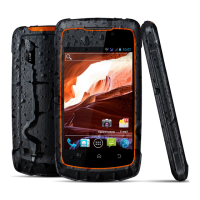
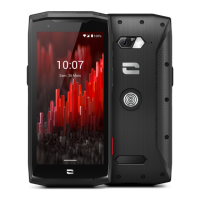
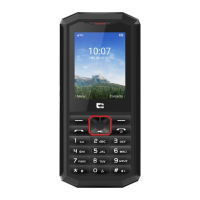
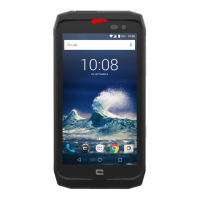
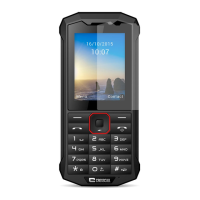
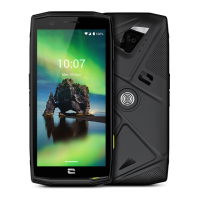
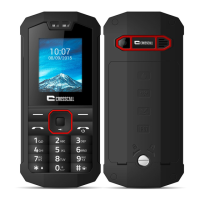
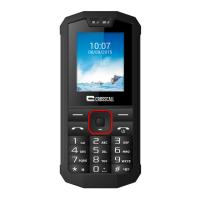
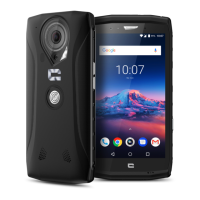
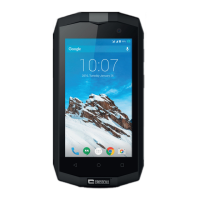
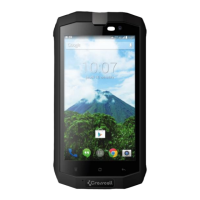
2.1 Physical Impression
2.2 Keys specification
Home
While on any application or screen, press to return to the Home
screen.
Press and hold to open the recent applications window.
Menu
Press to open a list of actions that you can do on the current screen or
dialog box.
Back
Press to go back to the previous screen, or to close a dialog box,
menu, or the notifications panel.
Volume
Press upwards or downwards to increase or decrease the volume.
Slide down the key fully to enter vibrate mode.
Power
Long press to power on the mobile.
While not on a call, press and hold to open the phone options menu
that allows you to turn off or switch your device to silent or airplane
mode.
Press to lock the screen.
2.3 Use the touch screen
Your device’s touch screen lets you easily select items or perform functions. Learn basic
actions to use the touch screen.
To avoid scratching the touch screen, do not use sharp tools.
Do not allow the touch screen to come into contact with other electrical devices.
Electrostatic discharges can cause the touch screen to malfunction.
Though the phones have waterproof function but try not to the touch screen to come into
contact with water. The touch screen may malfunction in humid conditions or when
exposed to water.
A quick and easy way to interact with the Home screen and the whole interface of your
device is by touch. Basically, the following are the types of actions, called finger gestures, which
you would do when interacting with your device:
Touch: When you want to select items such as icons and options or press on-screen


 To Next Page