RV50 Sierra Wireless AirLink® 4G LTE Cellular Modem
5
4. Connect the power cable leads to a power supply.
Lead Color Function Connect To
Black Ground
G
White Enable (On/Off) 12V or SW12V or control port
Red Power (7 to 36 V)
12V
5. Connect the power cable to the RV50 DC Power input. When the RV50 is
properly set up and powered, the status LEDs will turn on. The RV50 will
begin the activation/provisioning process and attempt to connect to the
mobile network. This process typically takes 5 to 10 minutes. A successful
connection is indicated by a solid green or solid amber Network LED. If
the RV50 does not automatically connect to the network, you may need to
proceed to Step 6 to confirm or enter your WAN/Cellular | SIM Slot 1
Configuration | Network Credentials | User Entered APN information.
6. Connect your Windows® computer to the RV50 using the supplied
Ethernet cable.
7. Launch an Internet Explorer or Firefox web browser, and enter
http://192.168.13.31:9191 into the address bar. The ACEmanager login
screen should appear in your browser.
8. Log in using User Name = user and Password = 12345.
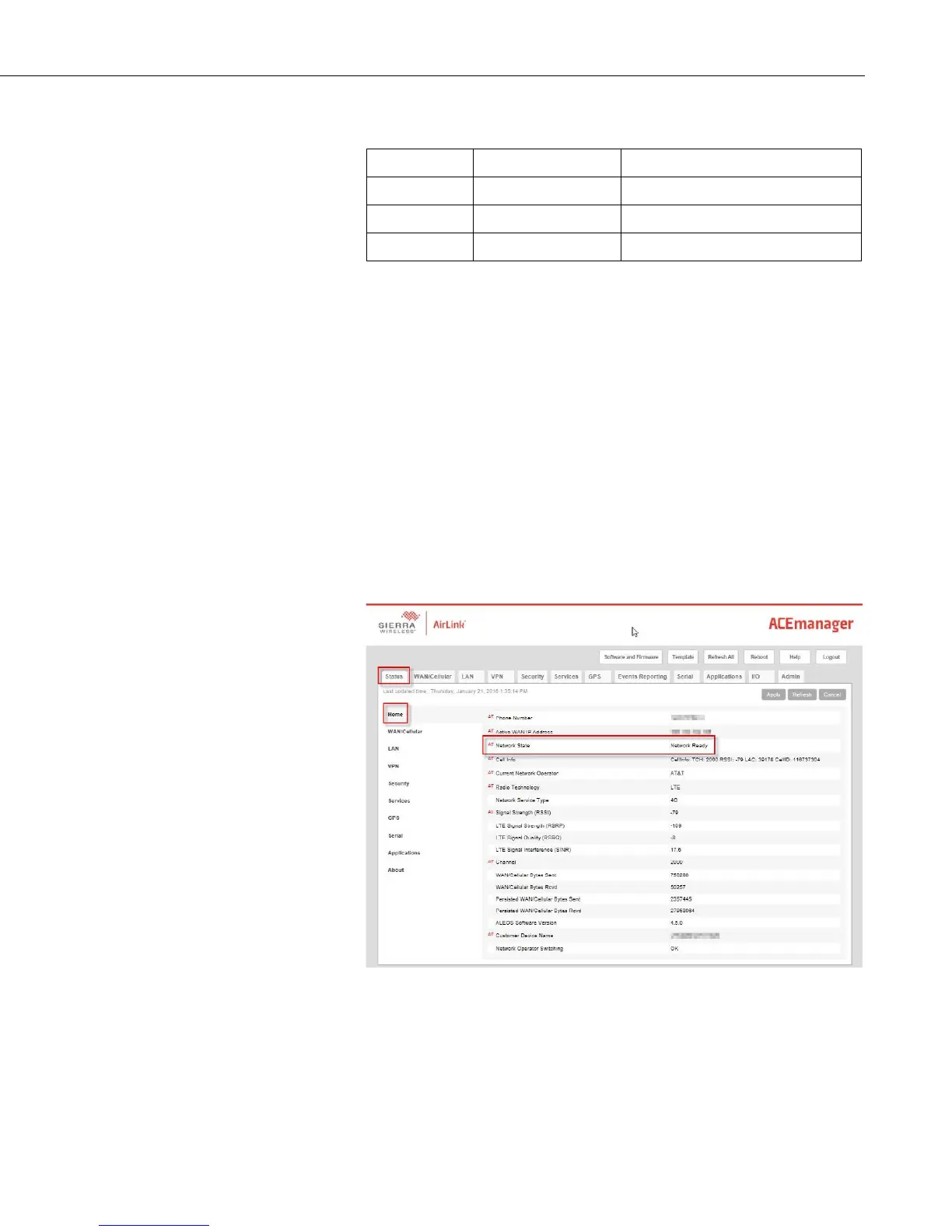
8. Once logged in, check the Status | Home | Network State field. It should
read Network Ready, indicating the RV50 is connected to the cellular
network. You can easily test the RV50 connection to the Internet by
selecting the Admin | Advanced tab and using the PING tool to ping an
Internet server, such as www.campbellsci.com.


 To Next Page