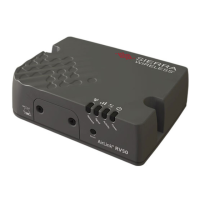
RV50 Sierra Wireless AirLink® 4G LTE Cellular Modem
23
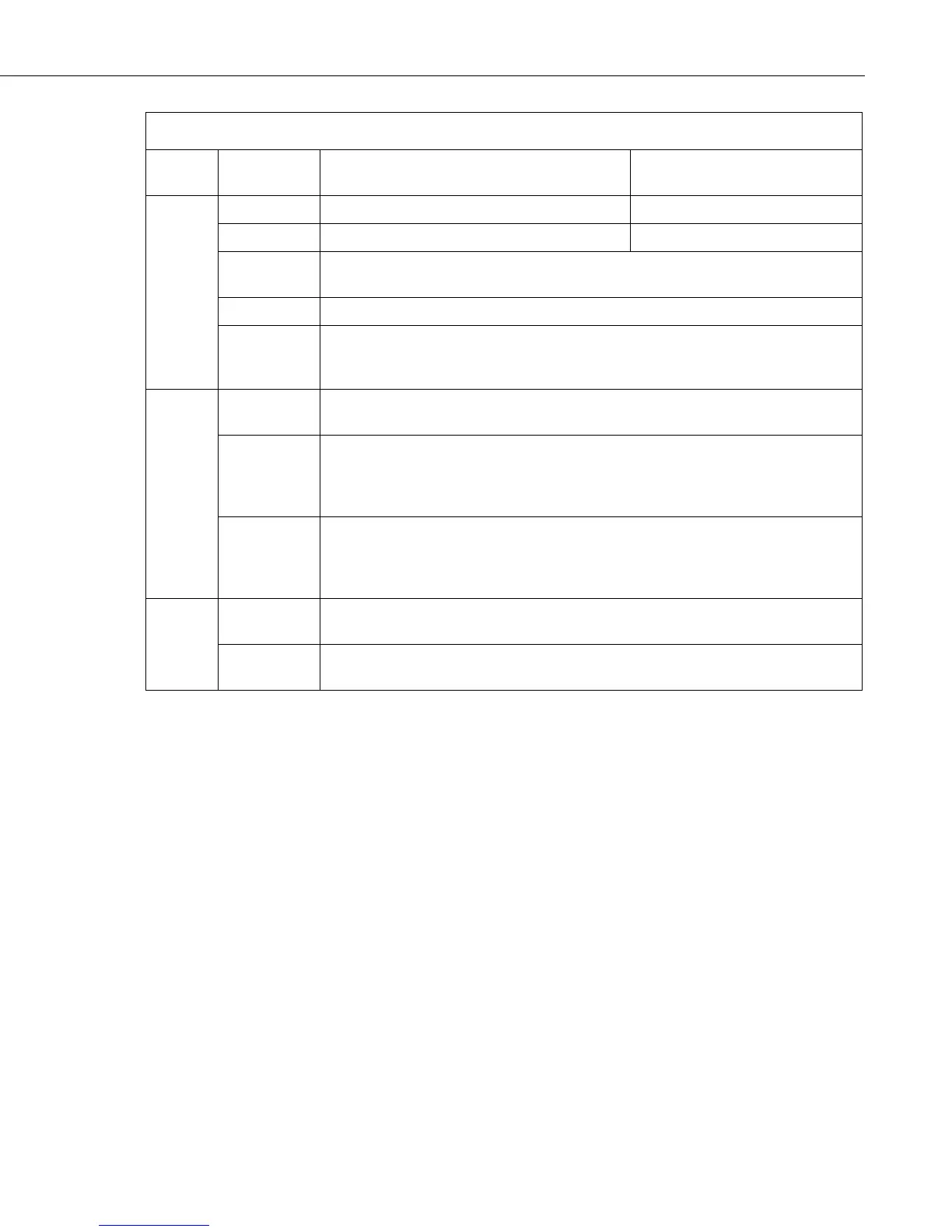
TABLE 8-1. LED Indicator Lights
LED
Color /
Pattern Description LED Power Saving Mode
Network
Solid Green Connected to an LTE network Off
Solid Amber Connected to a 3G or 2G network Off
Flashing
Green
Connecting to the network
Flashing Red No network available
Flashing Red
/ Amber
Network Operator Switching is enabled, but the gateway is unable to locate the
required firmware. For more information, refer to the ALEOS Software
Configuration User Guide (Admin chapter) from the Sierra Wireless website.
Activity
Flashing
Green
Traffic is being transmitted or received over the WAN interface.
Flashing Red
Traffic is being transmitted or received over the serial port. This behavior only
appears if the RV50 is configured to display it. For more information, refer to the
ALEOS Software Configuration Guide (Serial chapter) from the Sierra Wireless
website.
Flashing
Amber
Traffic is being transmitted or received over both the WAN interface and the serial
port. This behavior only appears if the RV50 is configured to display it. Refer to the
ALEOS Software Configuration Guide (Serial chapter) from the Sierra Wireless
website.
ALL
Green LED
chase
Radio module reconfiguration/firmware update or Network Operator Switching is
in progress.
Amber LED
chase
ALEOS software update is in progress.
8.3 Rebooting the RV50
To reboot the RV50:
• On the RV50, press the Reset button for 1–5 seconds. (Release the
button when the Power LED flashes green.)
• In ACEmanager, click the Reboot button on the toolbar.
8.4 Reset the RV50 to Factory Default Settings
To reset the RV50 to the factory default settings:
• On the RV50, press the Reset button for more than 5 seconds.
(Release the button when the Power LED flashes red.) Once the
LEDs resume their normal operating behavior, the reset is complete.
• In ACEmanager, go to Admin | Advanced and click the Reset to
Factory Default button.


 To Next Page