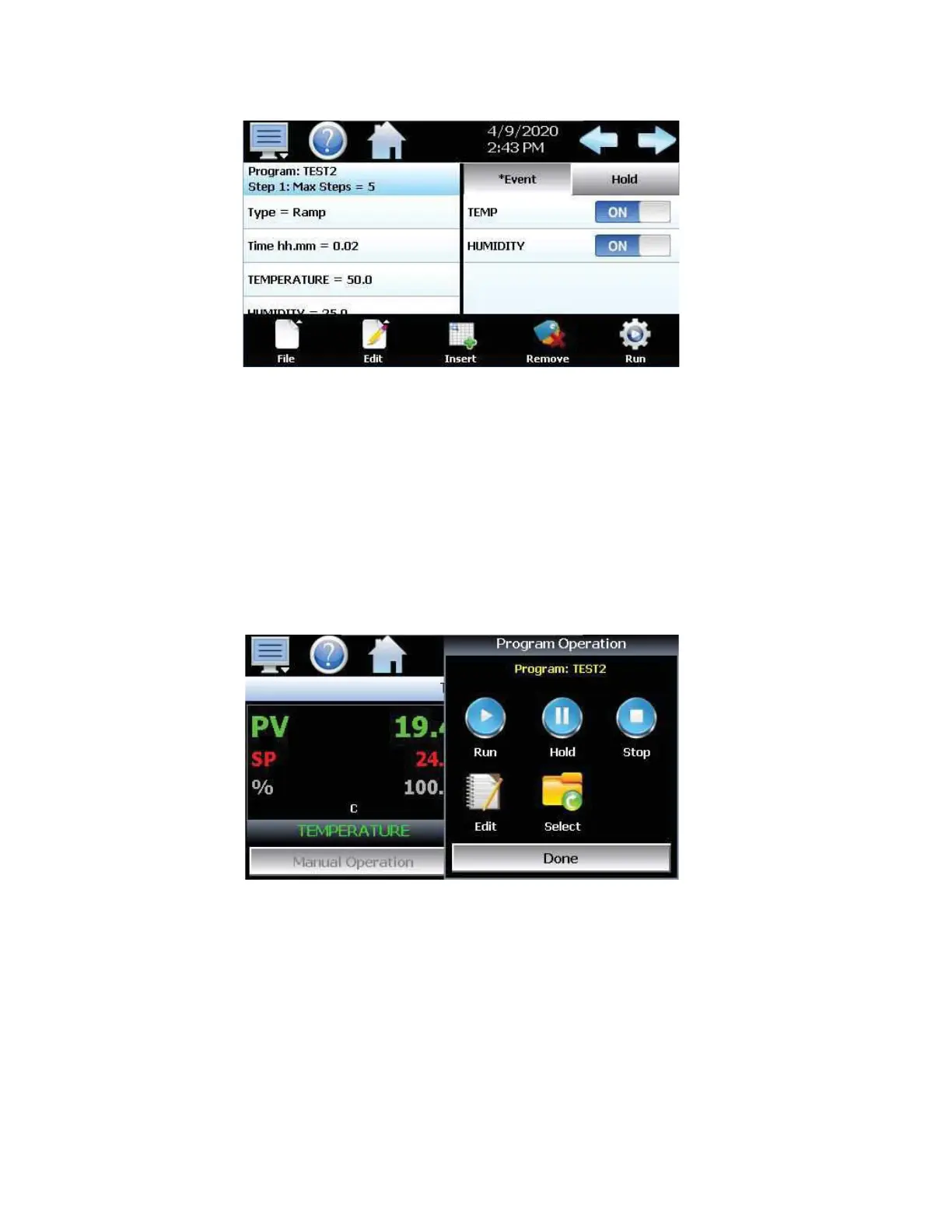
When the program has been completed, the program must be saved prior to being run on the controller. To
save the newly created program, select the File icon, and select Save As. Select the • eld next to File Name
and enter the name for the program by using the keyboard that is displayed. When the name has been
successfully entered, select Done to close the keyboard then select Save to save the program.
With the pro• le saved, the display will change to the Program Entry screen with the currently saved program
displayed.
Running a Saved Automatic Ramp/Soak Program (Icon Based Navigation)
To run a previously saved pro• le from the home screen, select the Program Operation button, then the Select
icon.
With the • le window open, select the program to be run, then press the Done button.
After selecting the desired pro• le, the selected • le name will be displayed on the Program Operation window
and the Home screen display.
Press the Run button to load/run the displayed program. The display will change the Program Start screen.
The start step can be adjusted up and down by pressing the right/left arrow buttons or by pressing the step
number • eld and directly entering the desired start step via the numeric keypad. The default start program
step is 1. Once the desired start step number is entered, press the “Start” button. The program will then be
transferred to the loop control(s) and started once the transfer is complete.
Note: If a program is already loaded, the user can start the program without entering a start step. This
offers a quick start/stop of programs for repetitive test operations. In this case, the program will always start
from step 1.


 To Next Page