CTI 2572-B / 2500C-2572-B Installation and Operation Manual 69
CHAPTER 11. FIRMWARE UPDATE
11.1. Overview
CTI may release new versions of the module firmware to correct problems or add features. You can update
your module by
• Obtaining a new firmware file from the CTI web site
• Using the module web server interface to replace your module’s firmware with the contents of the
new firmware file.
11.2. Obtaining New Firmware
To access new firmware log on to the CTI web site, navigate to the 2572-B web page and select the firmware
update file to save to your PC.
The firmware update file is a zip file named 2572B-Vnn.nn.nn, where nn.nn.nn is the firmware version
number, whose contents is a file named image. In order to correlate the image file with the zip file, CTI
recommends that you create a new folder and save the contents to this folder using the “save as” option.
Once the file has been transferred from the CTI web site, unzip the file.
Updating 2572-B Firmware
Before updating the firmware, ensure that the Firmware Update is enabled (SW6 is in the open position). To
update the firmware:
1. Access the 2572-B embedded web server by entering the IP address of the module in your browser’s
URL box. If you have not bypassed password protection, you will be required to enter a user name
and password before you will be allowed to update the firmware.
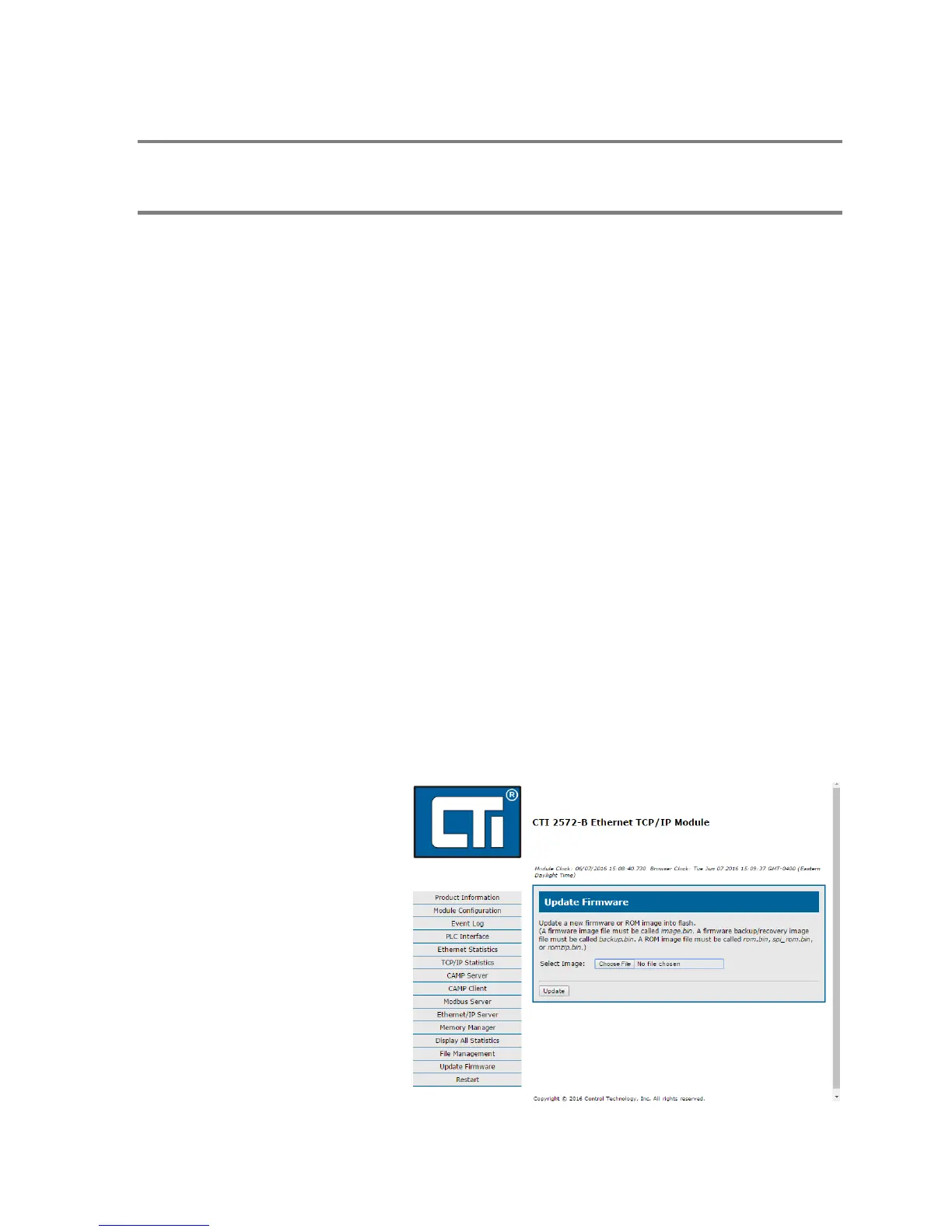
2. Navigate to the Firmware
Update page, illustrated below.
3. Select the image file by clicking
on the C
HOOSE FILE button
browsing to the image file you
saved.
4. Once you have selected the
image file, click on the U
PDATE
button to start the firmware
update process.
5. After the update process
completes the 2572-B module
will restart with the new
firmware.



 To Next Page