FLASHSOFTWARE
©CyrusAudioLtdJun2014 20 Cyrus6DAC,Cyrus8DACservicemanualIssue1
FlashSoftwareOverview
The amplifiers feature upgradeable software for the control system. The front panel control
PCBincludesamicrocontrollerwithinternalmemorythatincludesthesoftware.
The microcontroller is labelled during the manufacturing process to show which software
version is installed. If the software version is revised at some point this indication should be
clearlydeletedwithacrossmarkedonthedevicelabel.Themostreliablemethodtocheckthe
softwareversion(withoutdismantlingtheamplifier)istoreaditfromthedisplayasfollows‐
1. ConnectpowertotheunitandsettoStandby(powerlightred).
2. PressandholdtheStandbykey.
3. Thesoftwareversionandreleasedatewillbeshownonthedisplay.
Re‐programming
NOTE:Productsoftwaremustneverbereplacedwithanearlierversionthanalreadyinstalled.
If itbecomes necessary to install a laterversion ofsoftware, firstcheck whichversion ofthe
rotary control isfitted.The controls onlater amplifiers haveapush function,earlyamplifiers
donot.
Reprogrammingamplifierswithoutpushrotarycontrol
Contact the Cyrusfactoryfor availabilityof the Flash‐Programming
Interfaceboxandsoftware.Thisissuppliedwithfullinstructionsto
settheprogrammingsoftwareuponaPCandloadthe softwarefor
installationintotheamplifiermemory.
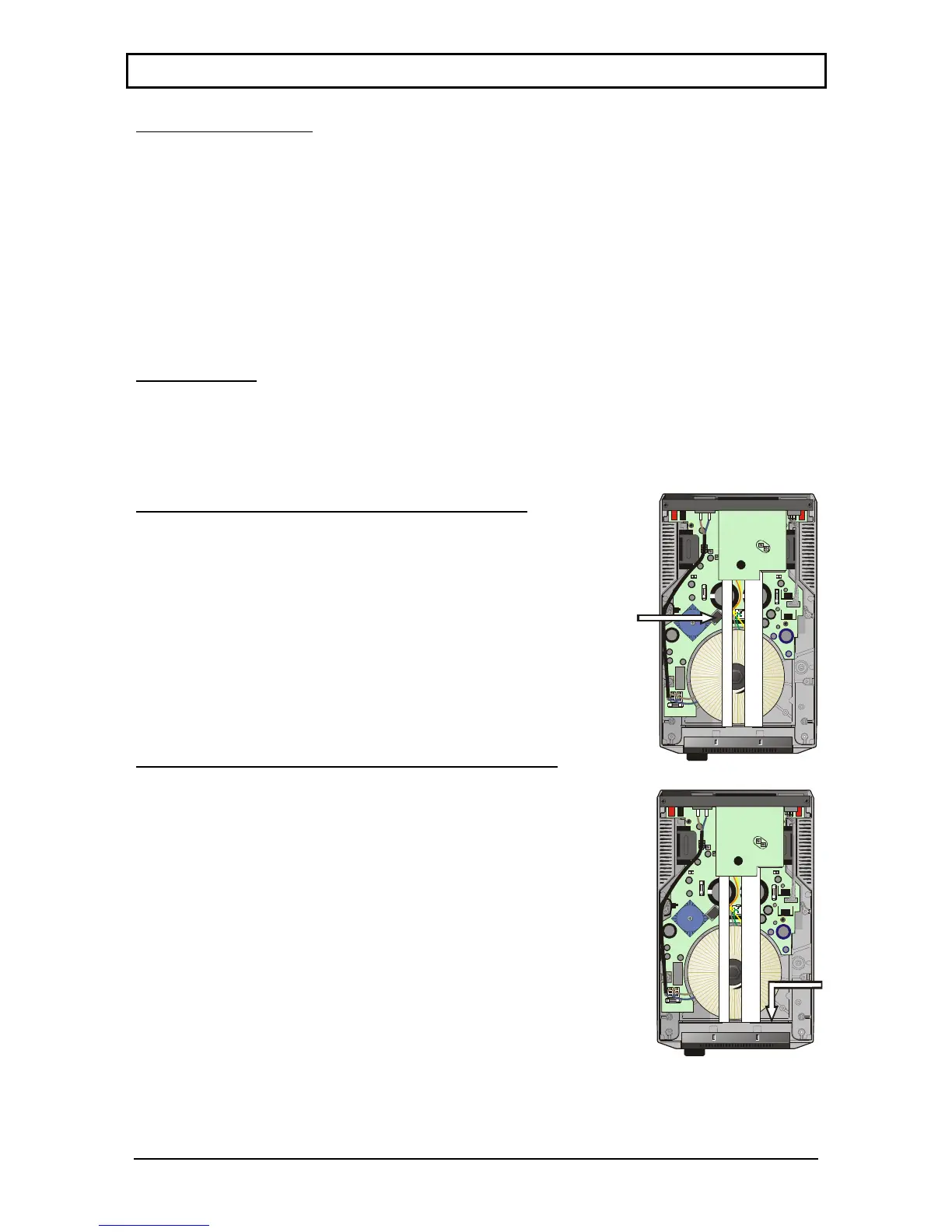
The programming connector on the main PCB is arrowed in the
pictureontheright.
ReprogrammingfrontpanelcontrolPCBswithpushcontrol
FrontpanelPCBswithpushcontrolareprogrammedbyconnecting
a USB cable directly from the control PCB to a computer. The
location of the programming connector on the control PCB is
arrowedinthepictureontheright.
CAUTION: Ensure you have a new firmware file to hand before
starting the process. Do not disconnect the cable until the new
softwareisinstalled.
1. Disconnectthemainsfromtheproduct.
2. Connectamini‐USBcabletoafreeUSBportonacomputer.
3. Whilst pushing therotarycontrolinonthefront panel, connect
themini‐USBcabletothesocketonthebackofthedisplay.
4. AnewwindowwillpopuponthePCwhichwillshowthecurrent
firmware.binfile.
5. Deletetheexistingfirmware.binfile.
6. Copythenewfirmware.binfilesuppliedbyCyrustothisfolder.
7. Oncethefilehasbeencopied,removetheUSBcable.
8. Powerupandcheckthenewsoftwareversionasdescribedabove.



 To Next Page