Configuring System Settings 26
You can set a Signage idle time (the time when you do not operate the
Signage) beyond which your Signage screen will be locked. Select Never and
the screen will not be locked automatically.
Adjust speaker volume. And "0" represents mute.
Click OK to finish configuration.
Selecting Input Source 5.2
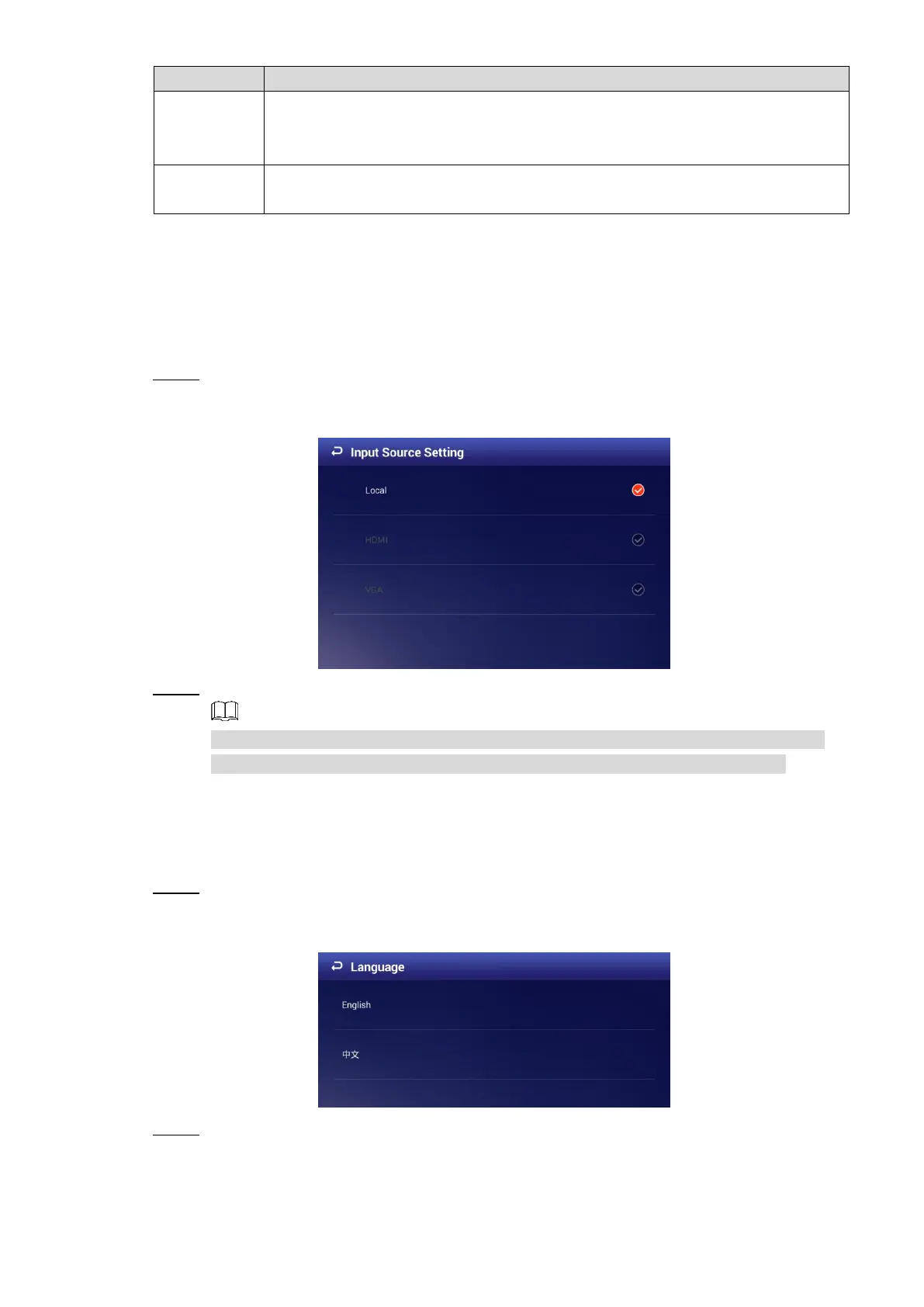
You can select input source from "Local" and "HDMI" and "Local" is set by default (VGA is not
supported now). Select "Local" to play programs input by your USB or given by the platform;
Select HDMI to play programs from the HDMI input source, for example, your PC.
In the main menu, select Settings > Input Source Setting. Step 1
The Input Source Setting interface is displayed. See Figure 5-2.
The input source setting interface Figure 5-2
Select from "local" and "HDMI." Step 2
If there is no HDMI input source (your PC, for example) but you still select HDMI, the
screen will turn blank for certain time and exits the blank interface automatically.
After you select from "Local" and "HDMI", the configuration takes effect immediately.
Selecting System Language 5.3
In the main menu, select Settings > Language. Step 1
The Language interface is displayed. See Figure 5-3.
The language interface Figure 5-3
Select the language you want. Step 2
The configuration takes effect immediately.


 To Next Page
 Loading...