www.DaikinApplied.com 59 IOM 1274-3 • CENTRIFUGAL WATER CHILLERS
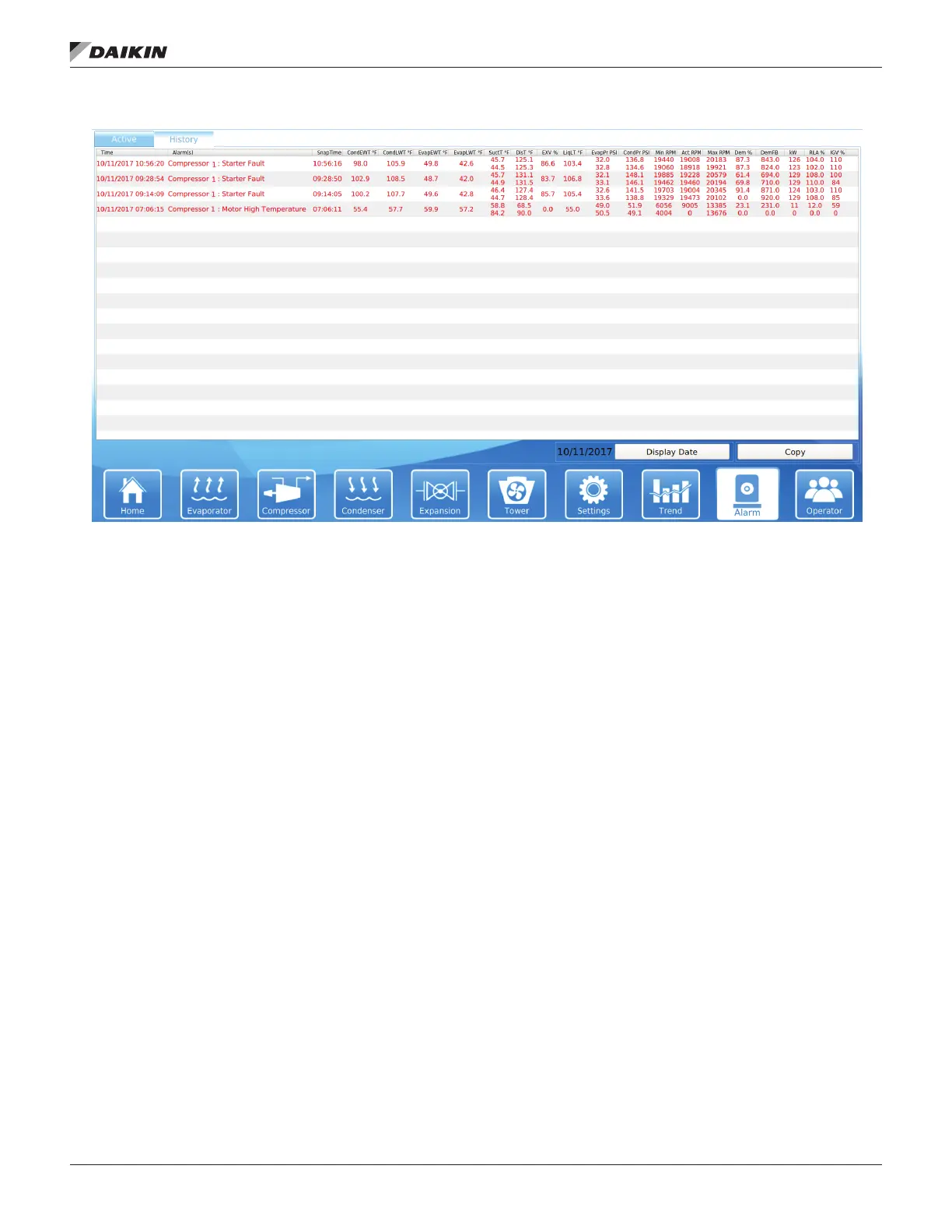
Figure 74: Alarm History Screen
The Copy button on the Trend History and Alarm History
screens can be used to download the data via USB. In order to
download the trend and alarm history:
1. Insert a USB drive into the left side of the HMI panel or
directly into embedded HMI PC.
NOTE: Thirty MB per day should be available on the USB
drive that is inserted for the download of the trend
space.
2. If an error message that states “Error mounting the USB
drive. Name brand USB drives are recommended.
NOTE: Often times, this error message is due to not allowing
pressing the Copy button (see Step 4 below).
3.
desired date.
4. Press the Copy button. This will download the trend and
alarm history for the selected day. (The Unit Control
Processor will store 30 days of history at a maximum.
The Unit Control Processor will automatically delete old
available for all password levels.
5. Repeat this process for each desired day of history. Each
day must be downloaded individually. It is not possible to
download multiple days of history at once.
Viewing/Using Trend History Files:
downloaded for the current day, there will only be trend history
Viewing/Using Alarm History Files:
from the selected day. If there were no alarms that day, no
PC and manipulated using a spreadsheet program.
Requesting Tech Support:
If tech support is requested, ALL of the original, un-manipulated


 To Next Page