CHAPTER 4 EXPANDING YOUR TABLET PC
4.1 How and When to Use BIOS Setup
To enter the BIOS setup, connect with an external USB keyboard and press
the “Delete” key when the prompt appears on the screen during start up.
The prompt screen only shows for few seconds, so the Delete key will need to
be pressed quickly.
**NOTICE
An updated BIOS version may be published after the manual is released.
Check for the latest version of BIOS on website.
There are several circumstances in which you may need to run the BIOS
setup utlility, including:
1. An error message on screen indicates a need to check BIOS setup.
2. Restoring the factory default settings.
3. Modifing specific hardware specifications.
4. Optimizing specifications.
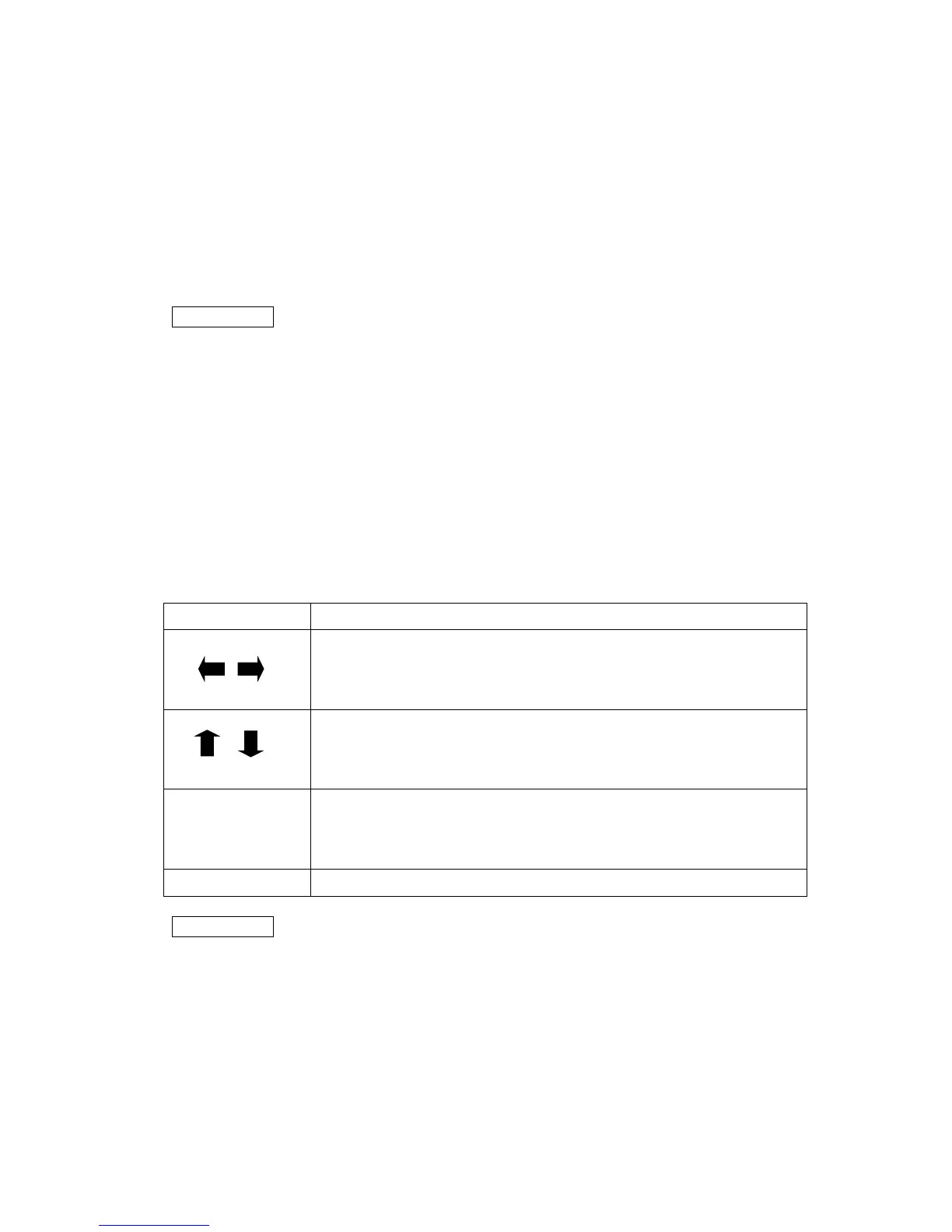
In order to control the keyboard to select BIOS utility setup, you need:
Keyboard Icon Function Description
selected.
Esc Leave sub-menu and return to main menu.
**NOTICE
You can press the F1, F2, F3, F4, –/+, and Esc keys by connecting a USB keyboard
to your tablet PC. Make sure that the item “Legacy USB Support” under the Main
menu is set at Enabled (default).



 To Next Page