EasyManua.ls Logo

Datalogic QD 2300 QuickScan L - User Manual

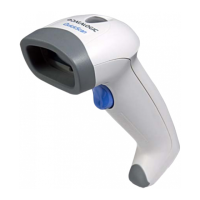
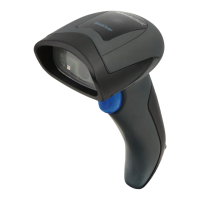
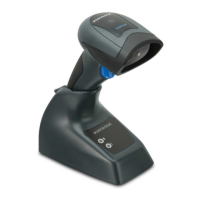
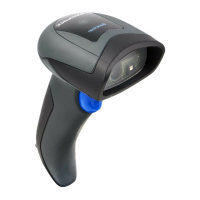
Datalogic QD 2300 QuickScan L
28 pages
Print Icon
To Next Page IconTo Next Page
Loading...
QuickScan
TM
L
QD 2300 Barcode Scanner
Quick Reference Guide

Questions and Answers

  • T
    Tyler MunozAug 2, 2025
    What to do if the laser is on but the Datalogic QD 2300 QuickScan L doesn't decode?
    • C
      Christine PerezAug 2, 2025
      If the laser comes on but the barcode isn't decoding on your Datalogic Barcode Reader, first ensure that the scanner is programmed to read the specific type of barcode you're scanning. Also, verify that the barcode label isn't damaged or unreadable and try scanning a different barcode. Adjust the distance between the scanner and the barcode, moving closer or further away, to see if that resolves the issue.
  • B
    bashleyAug 9, 2025
    Why is my Datalogic Barcode Reader decoding but not transmitting to the host?
    • J
      Jason TurnerAug 9, 2025
      If your Datalogic Barcode Reader decodes the barcode but doesn't transmit it to the host, it might not be programmed for the correct host type. Refer to the Product Reference Guide (PRG) for more information.
  • S
    Shannon RossAug 16, 2025
    What to do if the barcode reading ability has degraded on a Datalogic QD 2300 QuickScan L Barcode Reader?
    • A
      acarlsonAug 16, 2025
      If the barcode reading ability of your Datalogic Barcode Reader has degraded, the scan window may be scratched or contaminated with dust. Replace the window as instructed in this guide.
  • J
    John HebertAug 25, 2025
    How to troubleshoot a Datalogic QD 2300 QuickScan L when nothing happens after pulling the scan button?
    • W
      wheeleramyAug 25, 2025
      If nothing happens when you pull the scan button on your Datalogic Barcode Reader, check the system power and ensure the power supply is properly connected. Also, make sure all cable connections are secure.

Summary

Connect;Disconnect Cable

Connect Host Interface

Explains connecting the scanner to different host interfaces.

Parts of the Scanner

Scanning Modes

Details the two operating modes: Trigger Single and Stand Mode.

Stand Mode Timeout Period

Troubleshooting

Beeper Definitions

LED Definitions

Programming Barcodes Descriptions

Host Interfaces

Describes how to set up the scanner for different host interfaces.

Carriage Return; Line Feed

Programming Barcodes

Keyboard Wedge Interface

Instructions for configuring the scanner for Keyboard Wedge.

Country Keyboard Types

RS-232 and USB Interfaces

RS-232 Interface Configuration

Instructions for configuring the scanner for RS-232.

USB Interface Configuration

Instructions for configuring the scanner for USB.

Ergonomic Recommendations

Regulatory Information

Information regarding compliance with rules and regulations.

Power Supply

Details the power supply requirements and specifications.

Radio Frequency Interference Requirements

Replacing the Scan Window

Laser Devices

Information and warnings related to laser device compliance.

Scanner Labeling

Scanner Labeling

International Caution Statements

Safety warnings and precautions for international users.

Datalogic Scanning Limited Factory Warranty

Warranty Coverage

Details what the hardware warranty covers.

Warranty Claims Process

Warranty Exclusions

Lists conditions not covered by the factory warranty.

Warranty Exclusions

QuickScan L China RoHS

DECLARATION OF CONFORMITY

Datalogic QD 2300 QuickScan L Specifications

General IconGeneral
TypeHandheld
Scanning TechnologyLaser
Ambient Light100, 000 Lux
Scan Rate100 scans/sec
InterfaceUSB, RS-232, Keyboard Wedge
Humidity5% to 95% (non-condensing)
Voltage5 V DC ± 5%
Drop Resistance1.5 m
ESD Protection (Air Discharge)15 kV
Resolution0.1 mm
Supported BarcodesUPC, EAN, Code 39, Code 128, Interleaved 2 of 5
Drop SpecificationWithstands repeated drops from 1.5 m / 5.0 ft onto a concrete surface
Power SupplyUSB powered
Decode CapabilityAll standard 1D barcodes

Related product manuals