EasyManua.ls Logo

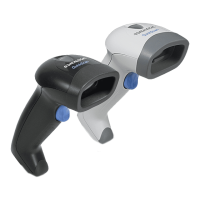
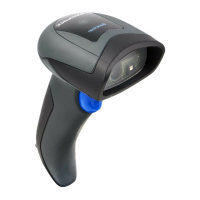
Datalogic QuickScan L QD 2300 - User Manual

Datalogic QuickScan L QD 2300
192 pages
Print Icon
To Next Page IconTo Next Page
Loading...
QuickScan
®
L
QD 2300 Bar Code Scanner
Product Reference Guide

Table of Contents

Other manuals for Datalogic QuickScan L QD 2300

Questions and Answers

  • B
    Brittney PerryJul 31, 2025
    How to fix degraded barcode reading ability on Datalogic QuickScan L QD 2300?
    • B
      Benjamin NolanJul 31, 2025
      If the barcode reading ability of your Datalogic Barcode Reader has degraded, the scan window may have become scratched or contaminated with dust. Replace the window as instructed in this guide.
  • J
    julieparkerAug 8, 2025
    Why Datalogic Barcode Reader laser is on, but barcode does not decode?
    • M
      Michelle LambertAug 8, 2025
      If the Datalogic Barcode Reader's laser is on but the barcode isn't decoding, it could be due to a few reasons. First, the scanner might not be programmed for the correct barcode type; in that case, refer to the Product Reference Guide (PRG) for more information. Second, the barcode label may be unreadable because it's defaced, so try scanning a different barcode. Finally, the distance between the scanner and barcode might be off, so try moving the scanner closer or further away from the barcode.
  • V
    Vanessa NguyenAug 15, 2025
    What to do if Datalogic QuickScan L QD 2300 Barcode Reader decodes but not transmitting to the host?
    • H
      hansonkaylaAug 15, 2025
      If the Datalogic Barcode Reader decodes the barcode but doesn't transmit it to the host, the scanner may not be programmed for the correct host type. To resolve this, scan the appropriate host type barcode. Refer to the Product Reference Guide (PRG) for more information.
  • D
    Donald BrockAug 23, 2025
    Why nothing happens when scan button is pulled on Datalogic QuickScan L QD 2300?
    • J
      Justin WilliamsAug 23, 2025
      If nothing happens when you pull the scan button on your Datalogic Barcode Reader, it could be due to a couple of reasons. First, there might be no power to the scanner, so check the system power and ensure the power supply is connected. Second, the interface or power cables might be loose, so make sure all cable connections are secure.

Summary

Chapter 2 Getting Started

Setting Up the Scanner

Step-by-step guide for connecting the scanner to a host device.

Chapter 3 Operation

LED and Beeper Indications

Explains the meanings of scanner beeps and LED light patterns.

Scanning

Instructions on how to scan a barcode using the scanner.

Aiming

Guidance on how to properly aim the scanner at a barcode for successful reading.

Chapter 4 Problem Isolation

Problem Isolation

Provides a troubleshooting table for common scanner issues and their solutions.

Chapter 5 General Features

User Preferences

Explains how to set feature values using programming barcodes.

Default Parameters

Procedures for resetting scanner to factory or custom defaults.

Chapter 6 RS-232

Connecting an RS-232 Interface

Instructions for establishing a direct RS-232 connection to a host computer.

RS-232 Parameter Defaults

Lists the default settings for RS-232 host parameters.

RS-232 Host Parameters

Details on configuring RS-232 parameters for various host types.

Chapter 7 Keyboard Wedge Interface

Connecting a Keyboard Wedge Interface

Guide to connecting the scanner using a keyboard wedge Y-cable.

Keyboard Wedge Parameter Defaults

Lists factory default settings for keyboard wedge host parameters.

Keyboard Wedge Host Parameters

Configuration options for different keyboard wedge host types.

Chapter 8 USB Interface

Connecting a USB Interface

Instructions for connecting the scanner to a USB host.

USB Parameter Defaults

Lists the factory default settings for USB host parameters.

USB Host Parameters

Configuration options for various USB host types and settings.

USB Device Type

Selection of the desired USB device type for the scanner.

Chapter 9 Symbologies

Symbology Parameter Defaults

Lists the default settings for all symbologies parameters.

Appendix B Standard Defaults

General Features

Lists default settings for general scanner features.

Keyboard Wedge Host Parameters

Lists default settings for keyboard wedge host parameters.

RS-232 Host Parameters

Lists default settings for RS-232 host parameters.

USB Host Parameters

Lists default settings for USB host parameters.

UPC;EAN

Lists default settings for UPC/EAN symbology.

Code 128

Lists default settings for Code 128 symbology.

Code 39

Lists default settings for Code 39 symbology.

Code 93

Lists default settings for Code 93 symbology.

Code 11

Lists default settings for Code 11 symbology.

Symbology - Specific Security Levels

Lists default security levels for symbologies.

Datalogic QuickScan L QD 2300 Specifications

General IconGeneral
BrandDatalogic
ModelQuickScan L QD 2300
CategoryBarcode Reader
LanguageEnglish

Related product manuals