8 / 24
Facelook X1 User’s Manual
2.2 CONNECTING NETWORK
To configure the device, connect PC to device. Two ways can be used to connect the
device and PC. Select either one of the ways.
2.2.1 CONNECT TO PC DIRECTLY
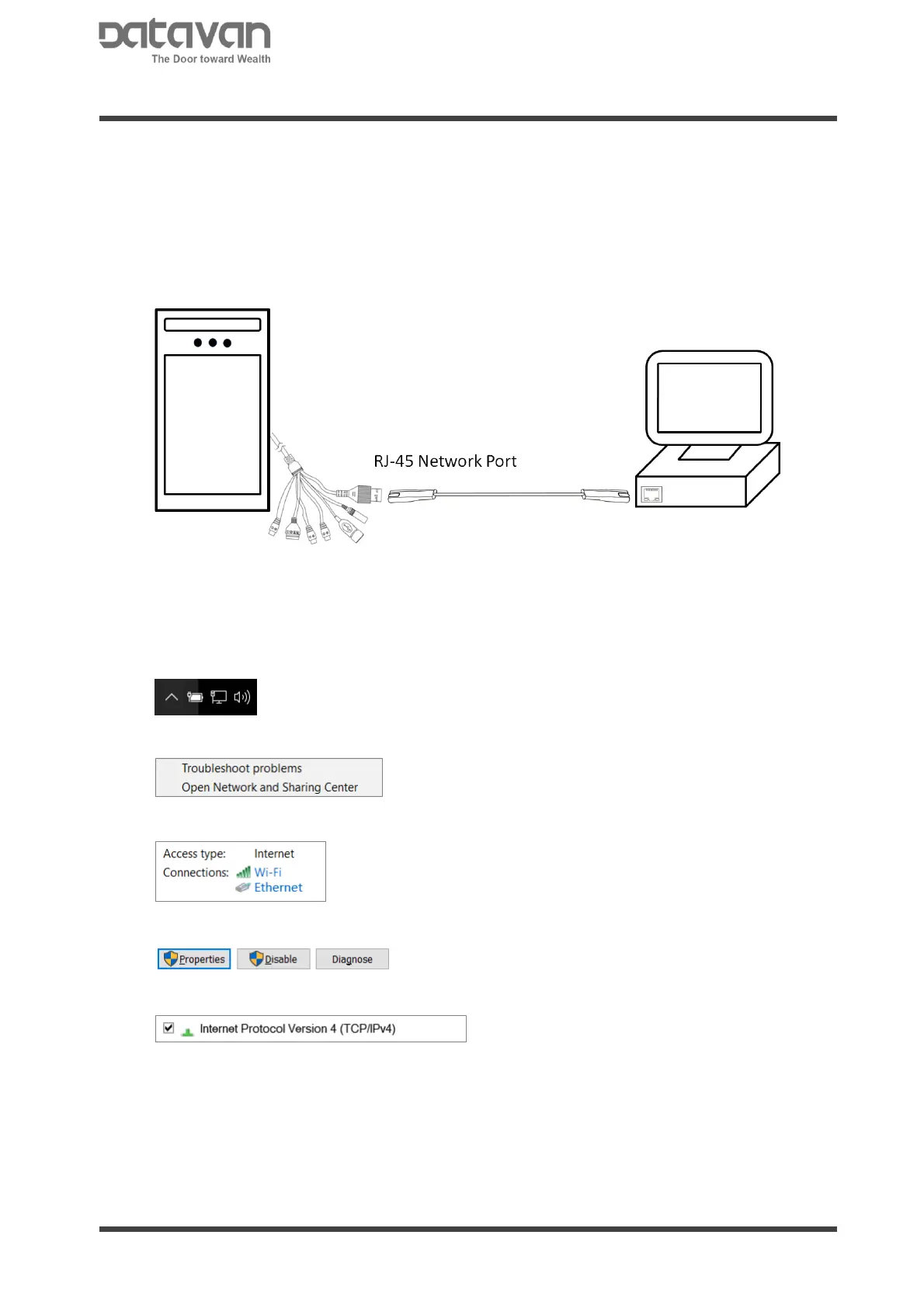
Connect device and PC with a network cable through RJ-45 port.
The default IP address on device is 192.168.2.10. Therefore, set PC IP address at the
same network segment, for example, 192.168.2.1.
Follow the steps below to set PC IP address at 192.168.2.1.
Right-click on the network icon at right side of task bar.
Select [Open Network and Sharing Center].
Click [Ethernet].
In Ethernet Status window, select [Properties].
Double-click on [Internet Protocol Version 4(TCP/IPv4)].



 To Next Page