114
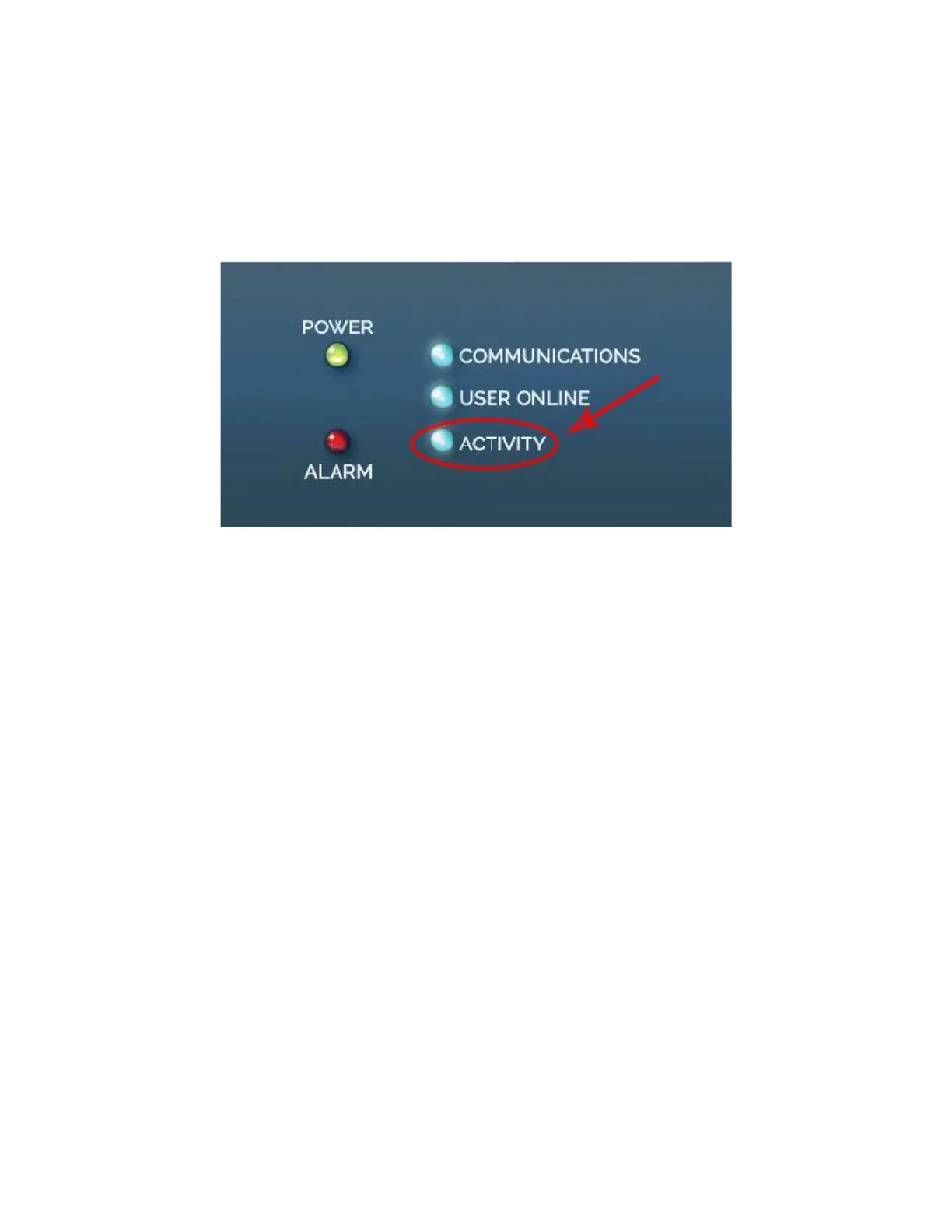
Once power is applied to the Cortex, the unit takes about 50 seconds to boot-up and
be ready. About 15 to 20 seconds after the Cortex is powered, the 3 blue LED’s will
light at the same time for a few seconds. The unit is ready once the “ACTIVITY”
heartbeat light starts blinking.
Connecting to the unit by IP using Google Chrome
Connect the Cortex 320 to your computer using an Ethernet cable and the Ethernet
port on the rear panel of the unit. The Cortex 320 factory-default IP address is
192.168.1.210. If this IP address is not in the range of your computer's IP address you
will have to temporarily change this last address. You can use one of the browsers
listed below, but note that compatibility may vary over time as new updates are
released for these browsers. You can contact Davicom technical support to get the
most current compatibility listing.
- Microsoft Internet Explorer 10.0+
- Google Chrome 26+
- Mozilla Firefox 20+
- Opera 15+
- Apple Safari 5.0+
- iOS 6.0+
For the purpose of this guide, and because it is by far the most popular browser, we
will explain the connection process using Google Chrome only.



 To Next Page